Teams
Teams
The Teams tab is where Super Admins can view, manage, and configure all the teams within the EKB On-Premise system. Teams represent organizational groupings—such as departments, customer accounts, project squads, or business units—and are used to control access, resources, and collaborative workflows.
- Managing large-scale deployments across organizations.
- Segmenting usage and permissions.
- Allocating compute and credit resources at the team level.
Efficiently organizing users, assigning and limiting resources such as seats and credits, and maintaining security through role assignments and access control are crucial tasks. By applying team-specific rules that support enterprise governance, you can ensure that whether you're managing 5 teams or 500, each group has exactly what it needs.
Dashboard Overview
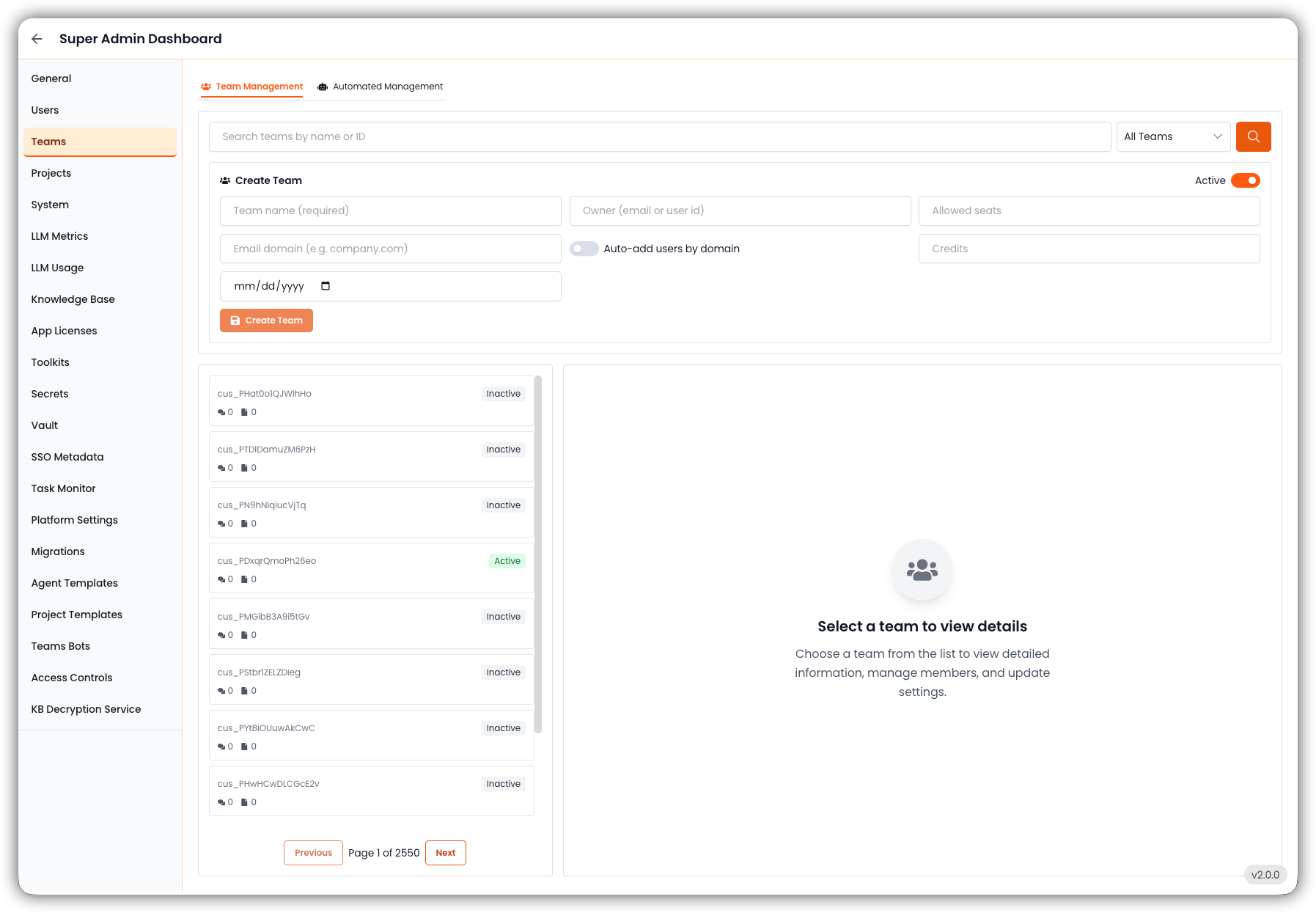
- Search Bar: Allows filtering teams by name or ID.
- Dropdown Filter: Option to view all teams or filter by specific categories (if configured).
- Create Team: This section is for creating new teams to organize users.
- Team List: Displays team names or IDs (e.g.,
cus_PDxrqQmpPh26eo). Most are system-generated identifiers for customer-specific teams. - Status: Each team is labeled as either:
- Active: Currently in use with live users and tasks.
- Inactive: No recent activity; may be archived or dormant.
- Pagination: Navigation controls for browsing large sets (e.g., 2,340+ pages).
- Usage: .
Details
Clicking a team will display detailed information on the right pane, including:
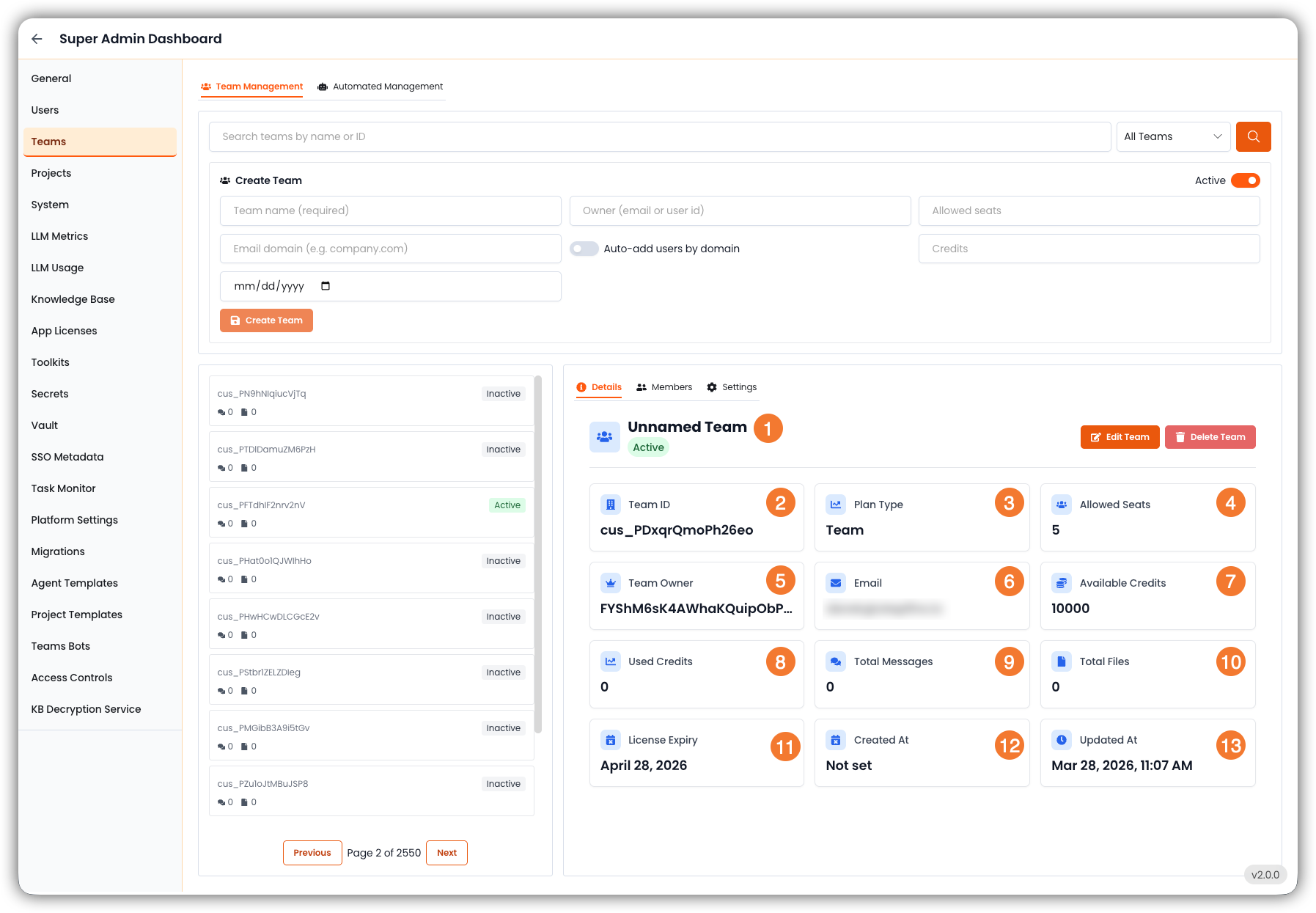
- Team Name: The name of the team, which can be edited.
- Team ID: A unique identifier for the team, often system-generated.
- Plan Type: Indicates the subscription or plan associated with the team (e.g., "Team", "Enterprise").
- Allowed Seats: The number of user seats allocated to the team.
- Team Owner: The user responsible for managing the team, who has admin privileges.
- Email: Contact email for the team owner.
- Available Credits: The amount of credits allocated to the team for running tasks and projects.
- Used Credits: The amount of credits the team has already consumed.
- Total Messages: The total number of messages sent by the team, which can indicate activity level.
- Total Files: The total number of files uploaded by the team, which can also indicate activity level.
- License Expiry: The date when the team's license or subscription expires, if applicable.
- Created At: The date and time when the team was created.
- Updated At: The date and time when the team was last updated.
Members
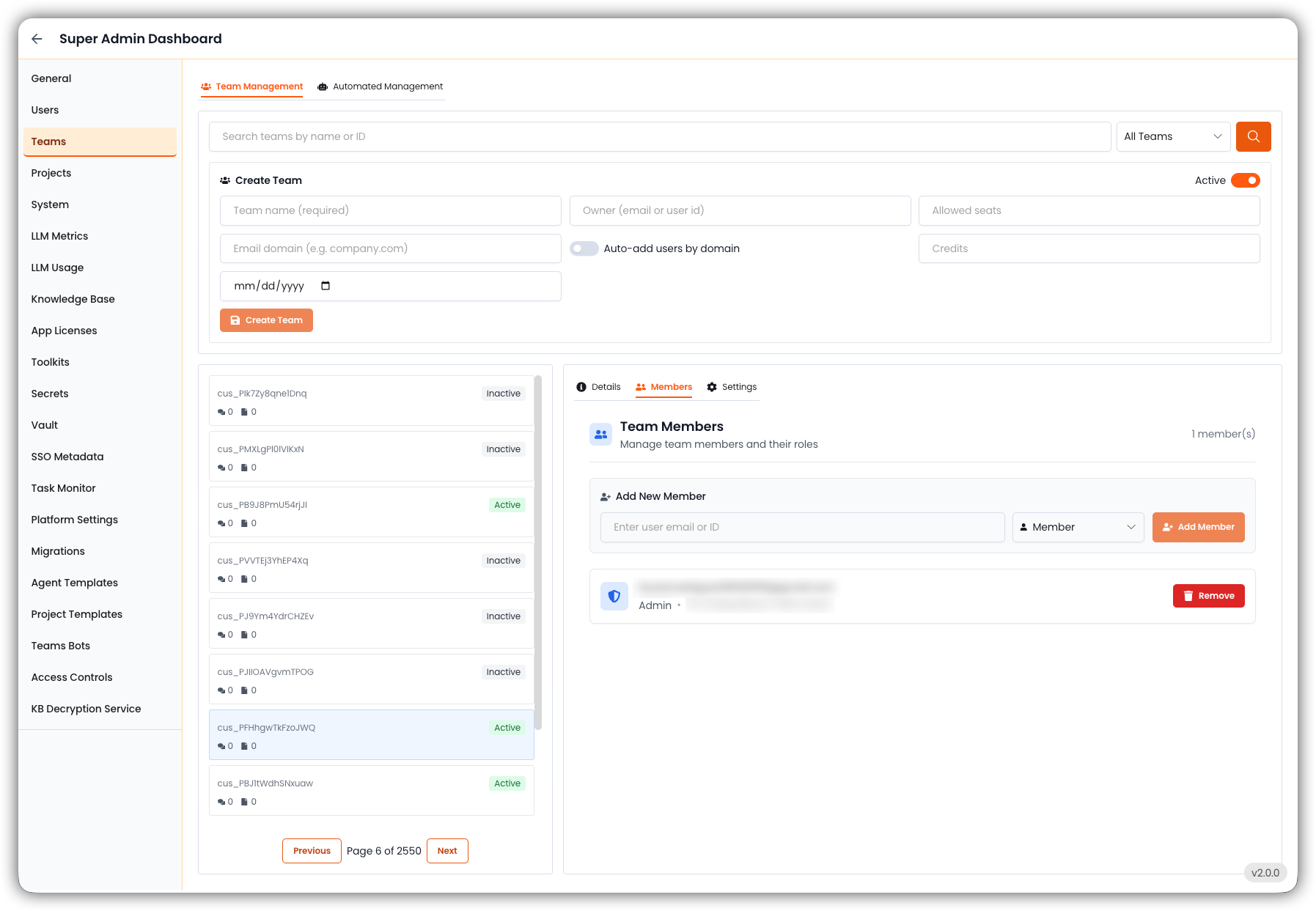
- See the list of users currently in the team.
- View each user’s role, such as:
- Admin: Can manage the team, add/remove members, and modify team settings.
- Member: Can collaborate on projects, but with limited permissions.
- Add new members by entering their email or user ID, choosing their role, and clicking “Add Member.”
- Remove users from the team with one click if they no longer need access.
Settings
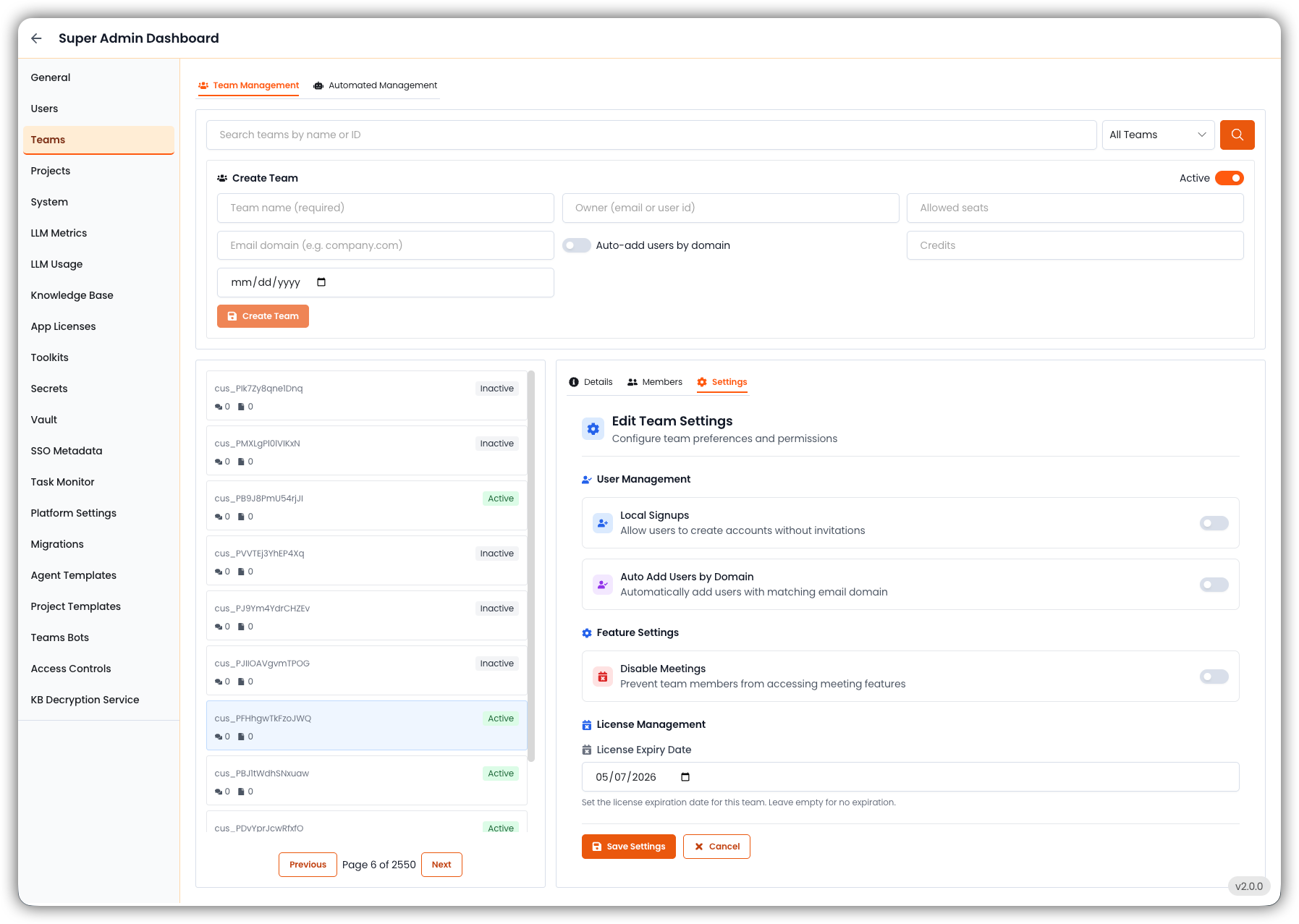
The Settings tab is where you define how the team interacts with the EKB platform.
- Edit Settings will allow you to define or update these policies.
- Local Signups allows users to sign up without an invitation when enabled.
- Auto Add Users By Domain automatically adds users by email domain.
- Disable Meetings prevents team members from using EKB Notetaker in meetings.
- License Management allows you to set an expiration date for the team’s license.
- SMTP Configuration — choose the platform default or pin a specific SMTP sender for this team. See Email Configuration (SMTP).