

Create a Tool
- In your EKB project, navigate to Workflows.
- Click Create Tool at the top-right. You’ll be redirected to the Automator to create a new Workflow, with an EKB Action Trigger block as the first step. In this example, we’re going to create a Tool that creates a new task in Asana.

- Click the EKB Action Trigger block to edit the trigger details. The Trigger is the condition or event that initiates your workflow; when these conditions are met or the required information is provided, the workflow will automatically start.
a. Action Name: Enter the name of your action (e.g., “Create Asana Task”). b. Action Description: Enter a short description of what the action does (e.g., “Creates a new task in Asana.”).
c. Fields: Add the Items (i.e., data or information) your Action requires to run (there’s no limit to the number of fields you can add). For example, if we’re building a Tool that creates tasks in Asana, the required fields could be: “Task Name”, “Task Description”, and “Due Date.” For each field that you add, enter the following information: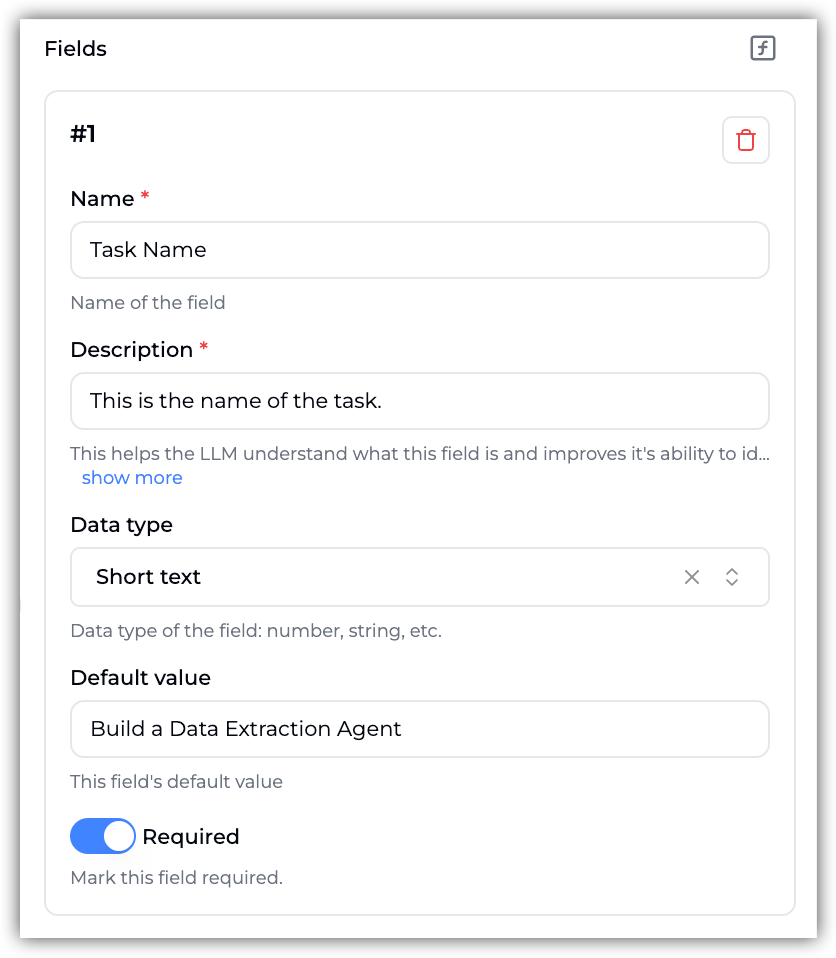
- Name: Enter the Name of the field (e.g., “Task Name”).
- Description: Enter the Description of the field. This helps the LLM understand what this field is and improves its ability to identify and extract information that best fits this field (e.g., “This is the name of the task.”).
- Data Type: Select the Data Type of the field (e.g., for the email use case, the data type of the “Task Name” field is
Short text). - Default Value: Set the field’s default value or leave blank. For testing purposes, always enter a sample value in this field (e.g., “Build a Data Extraction Agent.”).
- Required: Choose if the field is required for the Tool to run. By default, fields are always set as ‘Required’.
- Confirm Button Title (Optional): Edit the title of the confirm button or leave the default value.
- Cancel Button Title (Optional): Edit the title of the cancel button or leave the default value.
- Auto Confirm (Optional): Enable if the Action should skip user confirmation when executing the Action. (This option is disabled by default.)
- Name: Enter the Name of the field (e.g., “Task Name”).
- Once you’re done configuring the EKB Action Trigger, click Load Sample Data under the Generate Sample Data section below. This tests the Trigger using mock data you entered in the Default Value of each field to confirm it’s working correctly.

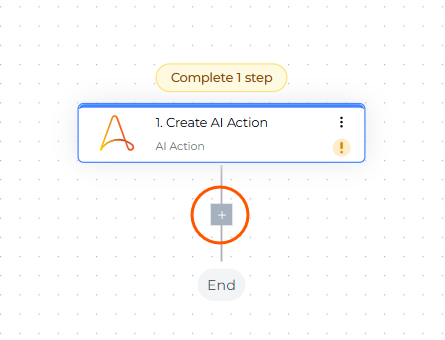
- Click the + to add the next pieces of your workflow. For this example, we’ve added an Asana “Create Task” step, in which we connected EKB to our Asana account and mapped all the fields we previously configured.
- Once your workflow is complete and successfully tested, click Publish at the top-right corner to publish your workflow.
