Smart Tables
- Overview
- APIs
Smart Tables are a structured data management feature within the Knowledge Base (KB) that allow you to store, organize, and extract information in a tabular format. Unlike standard spreadsheets, Smart Tables are integrated with AI capabilities, enabling automatic data extraction from documents, relationship mapping between different data sets (Collections), and direct querying via AI Agents.
Key capabilities include:
- Defining structured schemas — columns, data types, and formats
- Extracting data automatically from uploaded files (e.g., Resumes, Invoices)
- Visualizing data through built-in dashboards
- Querying table data using natural language via Agents
Accessing Smart Tables
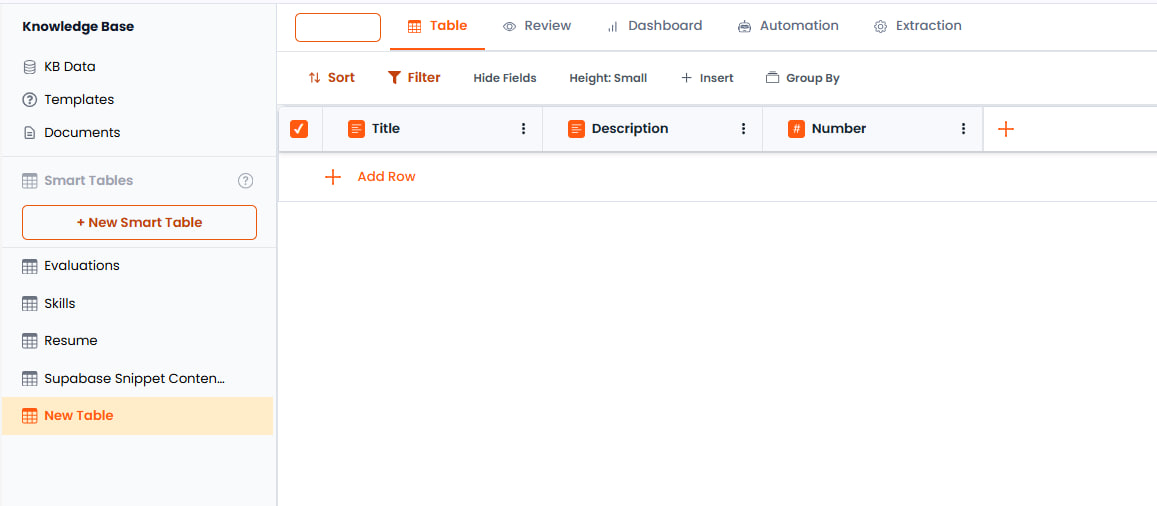
Smart Tables are accessed through the Knowledge Base (KB) section of the application. Once created, you can view and manage your Smart Tables by navigating to the KB Data section, where all tables are listed and can be opened for viewing or editing.
Creating Smart Tables
There are three primary methods to create a Smart Table within the Knowledge Base. Access these options by clicking the creation menu in the KB interface.
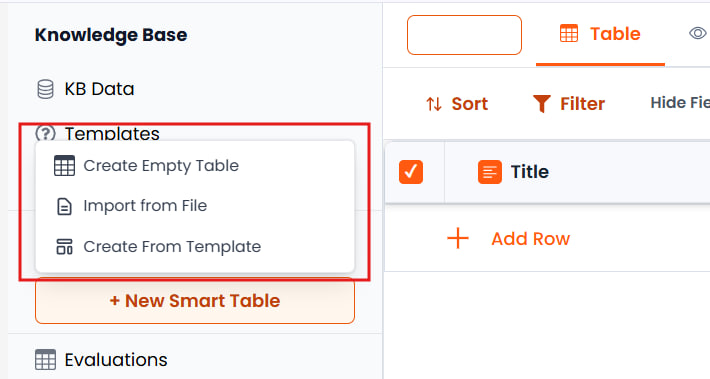
Method A: Create Empty Smart Table
This option creates a blank table with default system columns (Title, Description, Number). A sidebar configuration panel opens automatically, allowing you to define your custom schema from scratch. You can keep these default fields, modify them, or delete them to create your own structure.
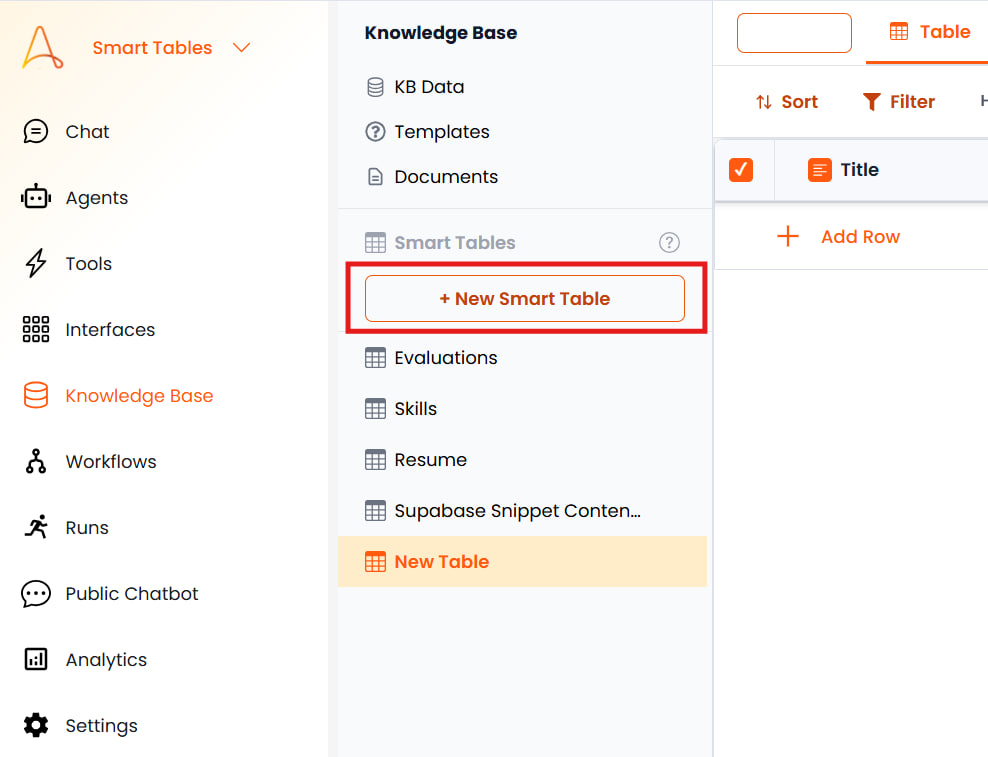
Method B: Create from Template
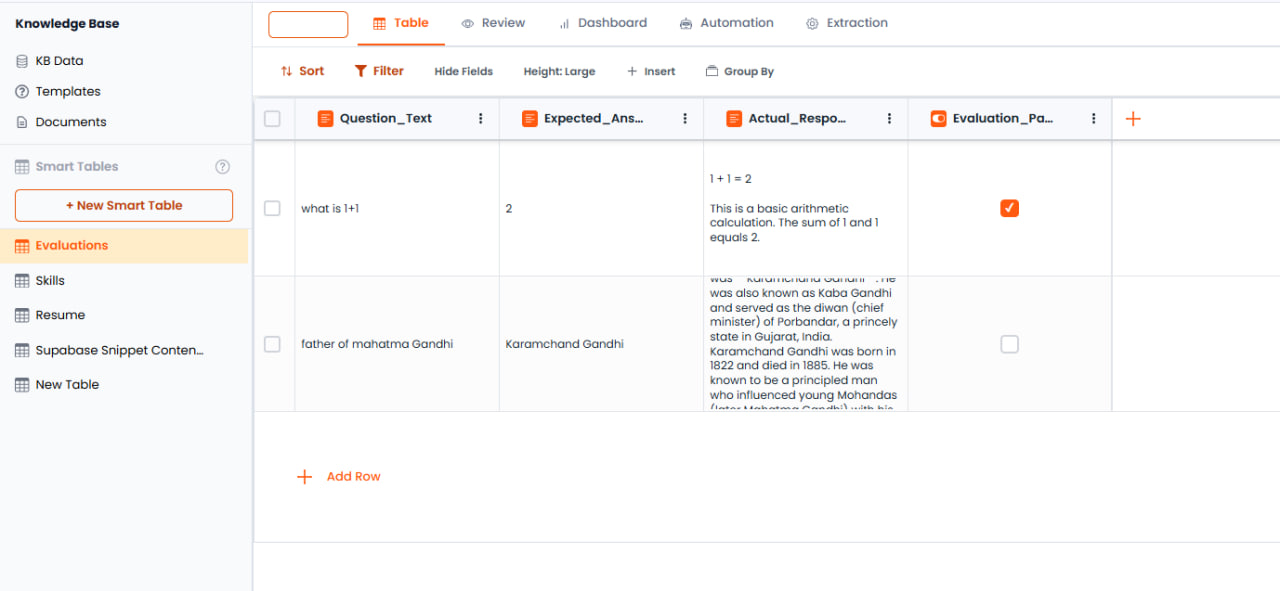
You can select from pre-defined templates to quickly set up tables for common use cases. Multiple templates are available for different scenarios. For example, the Evaluations Template imports a pre-defined set of columns designed for testing agent responses (Question Text, Expected Answer, Actual Response).
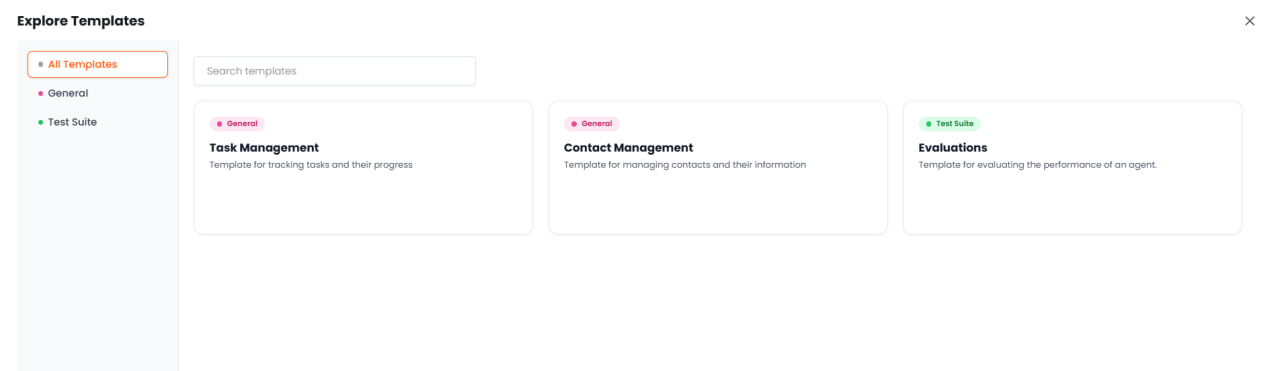
Method C: Import from File
You can upload a CSV file to automatically create a Smart Table. The system will parse the CSV headers to create columns and import the rows as data entries.
Column Types and Configuration
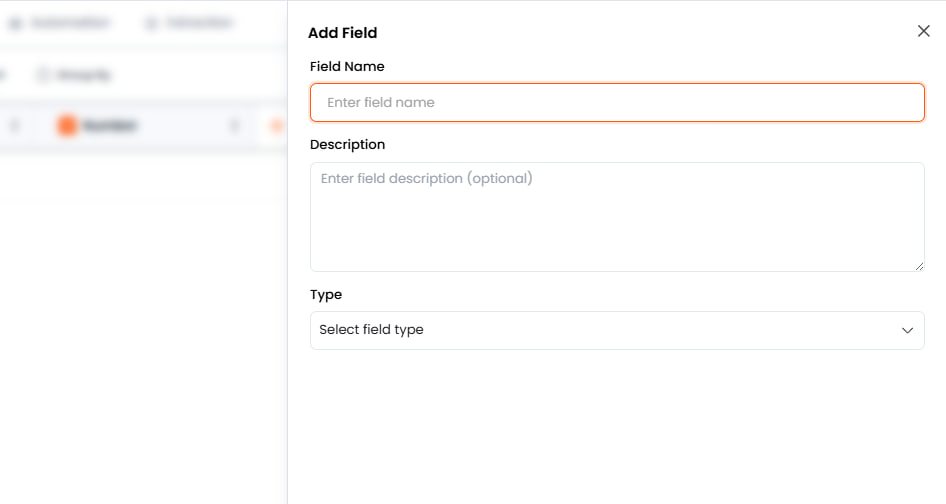
When configuring a Smart Table, each column requires specific definitions to ensure accurate data storage and extraction. A column consists of a Name, Type, Format, and Tool Source.
Providing a clear Description for each column is critical. This description guides the Large Language Model (LLM) on what specific information to extract or generate for that field.
Configuring Columns
When creating or editing a Smart Table, use the sidebar panel to configure each column. After setting up a field's properties (Name, Type, Format, Tool, and Description), click Save Field to apply the configuration. You can edit existing fields at any time by clicking on the field name in the column configuration panel, making changes, and saving again.
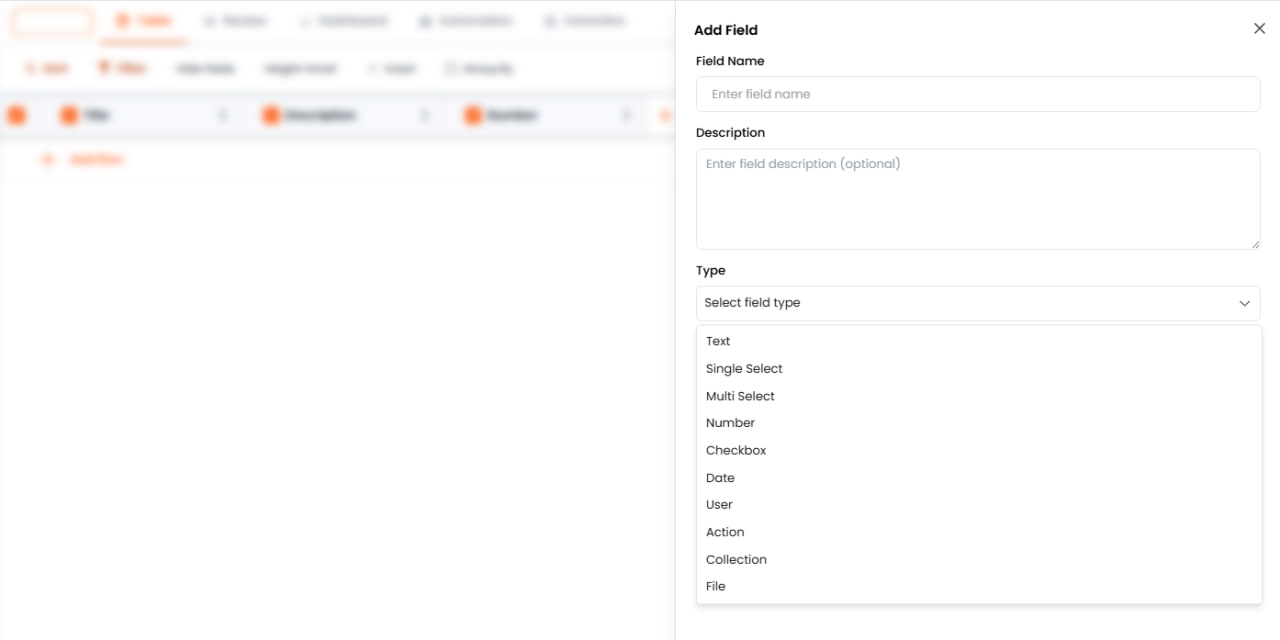
Field Types and Formats
| Field Type | Description | Format Options |
|---|---|---|
| Text | Standard alphanumeric string | Text, Phone Number, Email |
| Number | Numeric values | Number, Decimal, Currency |
| Single Select | Select one value from a predefined list | Dropdown with options (e.g., Skill Level: Beginner, Intermediate, Expert) |
| Multi-select | Select multiple values from a predefined list | List of options (e.g., Languages: Python, Java, HTML, CSS) |
| Checkbox | Boolean values (True/False) | True/False (e.g., Is Female?) |
| Date | Calendar dates | Date formats (DD/MM/YYYY, etc.) |
| User | Reference to a user in the system | Username or User Email |
| File | Attachment field for documents | File upload |
| Collection | Link to another Smart Table (relational) | Select target Smart Table |
Tool Sources
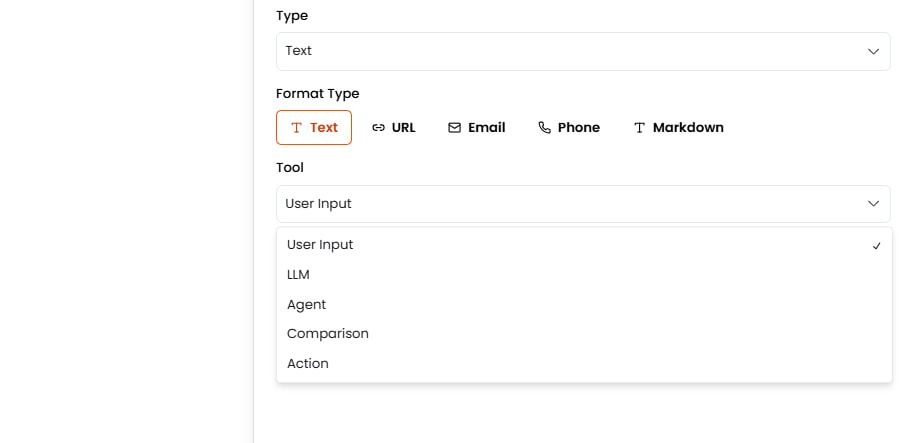
The Tool setting defines how data enters the cell:
- User Input — Data is manually entered by the user or extracted directly from a file without modification
- LLM Generated — The AI model generates the content based on the column description and context (e.g., summarizing a resume)
- Agent Generated — An Agent processes a query and populates this field with the response
- Comparison — Compares two fields and determines if they match or calculates similarity scores
Data Extraction (Document Processing)
Smart Tables can automatically populate rows by extracting data from uploaded documents. This is particularly useful for processing standardized documents like resumes or forms. Each uploaded document creates one row in the Smart Table, though multiple documents can be uploaded and processed to create multiple rows in the same table.
Workflow: Resume Extraction Example
Define Schema
Create a Smart Table named "Resumes" with the following columns:
- Name (Text)
- Contact Number (Text — Phone Number format)
- Years of Experience (Number — Decimal format)
- Languages (Multi-select: Python, Java, HTML, CSS)
- Is Female (Checkbox)
- Resume File (File)
Upload Document
Navigate to the Knowledge Base and upload a file (e.g., a PDF resume).
Assign Smart Table
During upload, select the "Resumes" Smart Table.
Extraction
The system processes the document and maps content to the defined columns — for example, finding "3 years" in the text and populating Years of Experience, or extracting a phone number for Contact Number.
Review Results
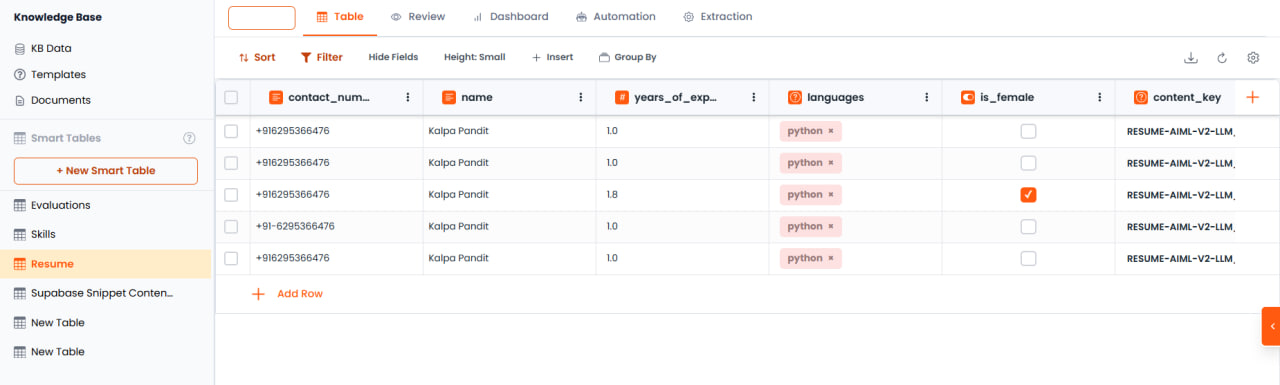
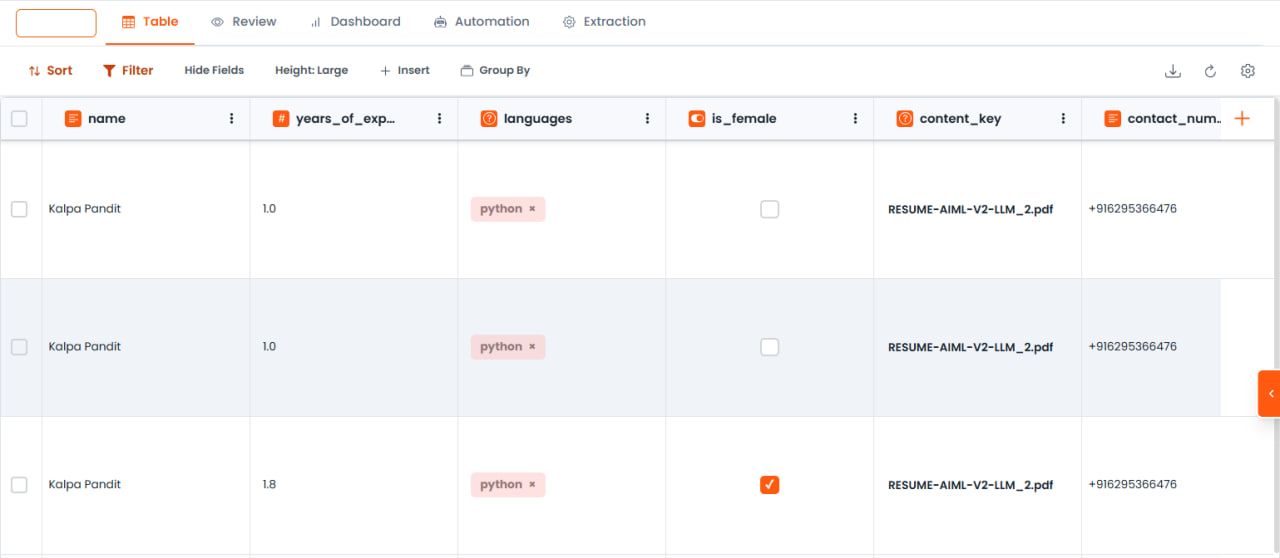
Navigate to the Smart Table to view the newly created row with extracted data.
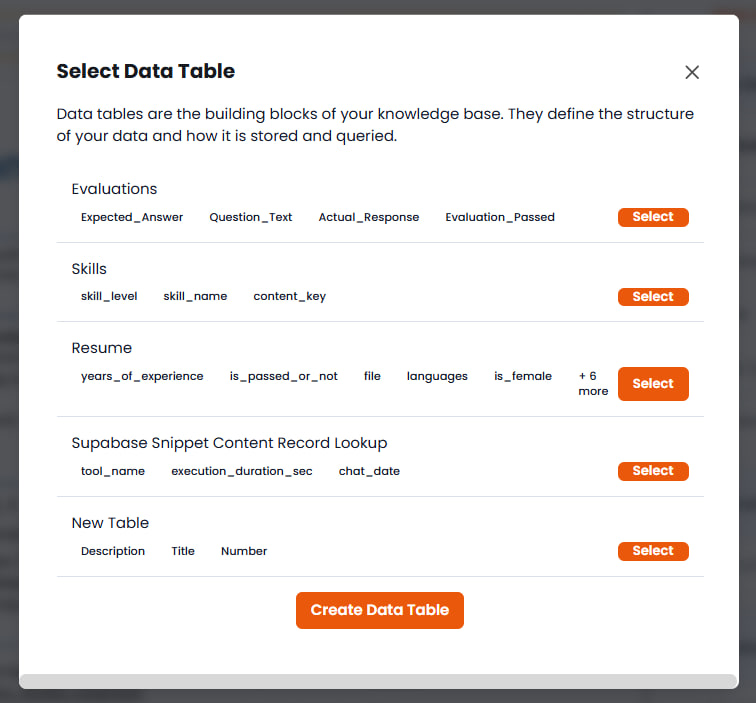
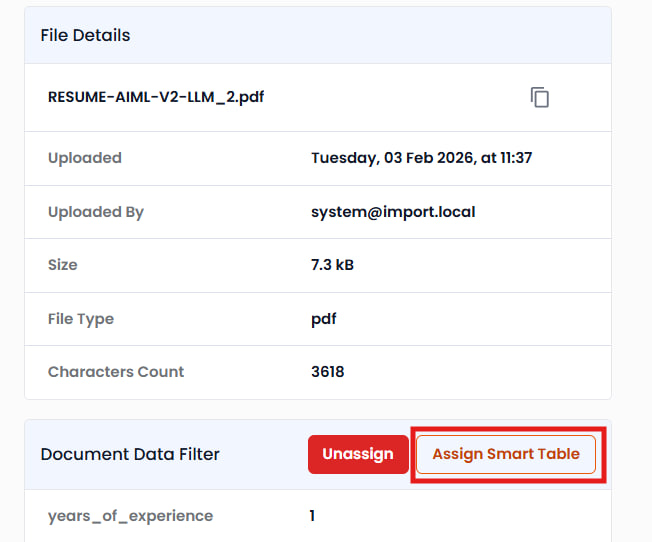
If a file is uploaded without an assignment, it can be assigned later via the document settings. Go to the document, click Assign Smart Table, select the target Smart Table, and click Apply to trigger the extraction process retroactively.
Enable Quick Upload when assigning a Smart Table during upload to automatically extract and populate data as soon as the file upload completes.
Collections and Relationships
Collections allow for many-to-many mappings between Smart Tables. This is useful when a single row in a main table contains complex list data that requires its own structure.
Example: Skills Mapping
Instead of storing skills as a simple comma-separated string (e.g., "Python, Java"), you can create a relational structure with detailed skill information:
- Create "Skills" Table — Define columns:
- Skill Name (Text) — Name of the skill the user possesses
- Skill Level (Single Select) — Options: Beginner, Intermediate, Expert
- Configure Main Table — In the "Resumes" table, create a column named "Skills".
- Set Type to Collection — Set the column type to Collection and link it to the "Skills" Smart Table.
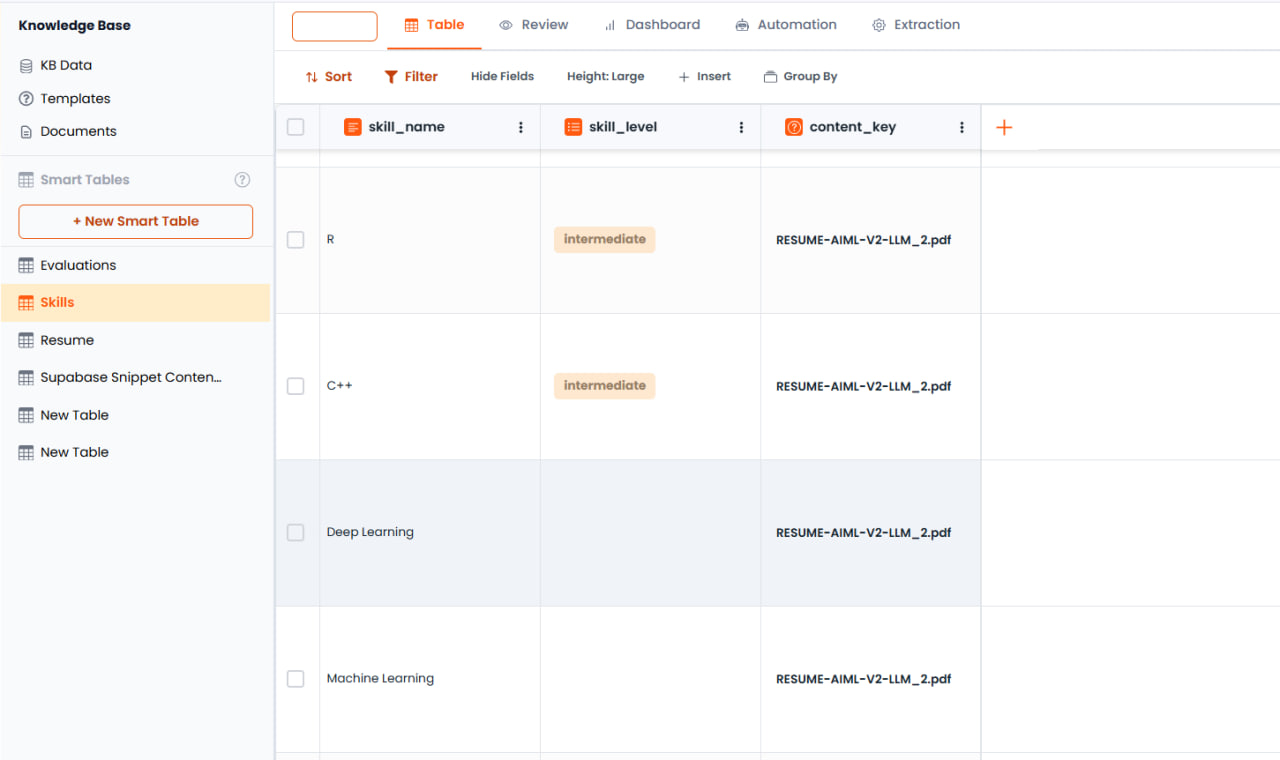
- Result — When a resume is processed, the system extracts skills and populates the "Skills" table with detailed rows (e.g., "Python - Expert", "Java - Beginner", "AWS - Intermediate") linked back to the specific candidate via the many-to-many relationship.
Viewing Collection Data
When viewing the main table (e.g., Resumes), the Collection field displays a link to the related entries. Clicking on it navigates to the linked table (e.g., Skills) where you can see all the detailed entries for that candidate. The relationship is bidirectional — you can view which resume each skill belongs to by checking the Content Key in the Skills table.
Data Management
Once data is populated, you have several tools to manage and organize it.
Views and Tabs
Smart Tables provide two views:
- Table View — The default spreadsheet-like view for viewing and editing rows and columns
- Dashboard View — A visualization view where you can create charts and widgets to analyze your data
Importing Data into an Existing Table
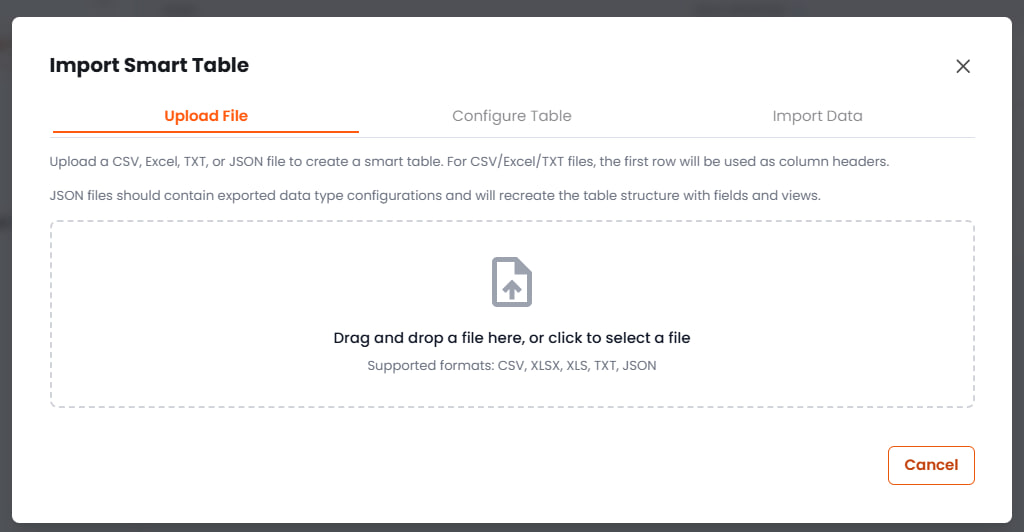
You can bulk-import data into an existing Smart Table using the Import Data button in the table toolbar. This is useful when you need to refresh a table from an external file or add new rows without recreating the table from scratch.
Import Data updates an existing table. To create a new Smart Table from a file, use Import from File when creating a table (see Method C: Import from File above).
The import workflow has three steps:
Upload File
Click Import Data and upload a file. Supported formats are CSV, Excel (XLSX, XLS), TXT, and JSON.
- For CSV, Excel, and TXT files, the first row is used as column headers.
- JSON files should contain exported data type configurations and will recreate the table structure with fields and views.
Configure Table
Choose how the imported data should be applied to the existing table:
- Replace All Data — Deletes all existing rows before importing the new data. Use this when you want to fully refresh the table contents.
- Append New Rows — Adds the imported rows to the existing data without removing current entries.
Map each Source Column from your file to a Target Column in the Smart Table and set the Data Type for each field. A Data Preview at the bottom of the dialog shows a sample of the rows to be imported.
Import Data
Review the Import Summary, which shows the file name, table name, number of columns, and number of rows. Click Import Data to complete the import.
Adding and Managing Rows
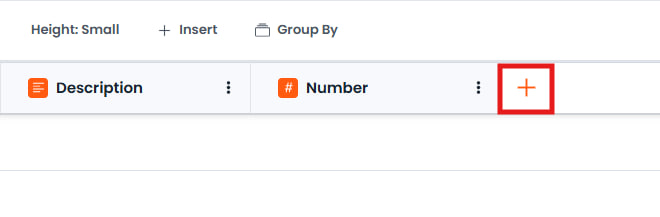
- Insert Row — Click Add Row or Insert Row to manually add a new blank row
- Automatic Row Creation — When a document is uploaded and assigned to a Smart Table, a new row is automatically created and populated with extracted data
Editing and Re-computing
- Manual Edit — Click any cell to manually update the value
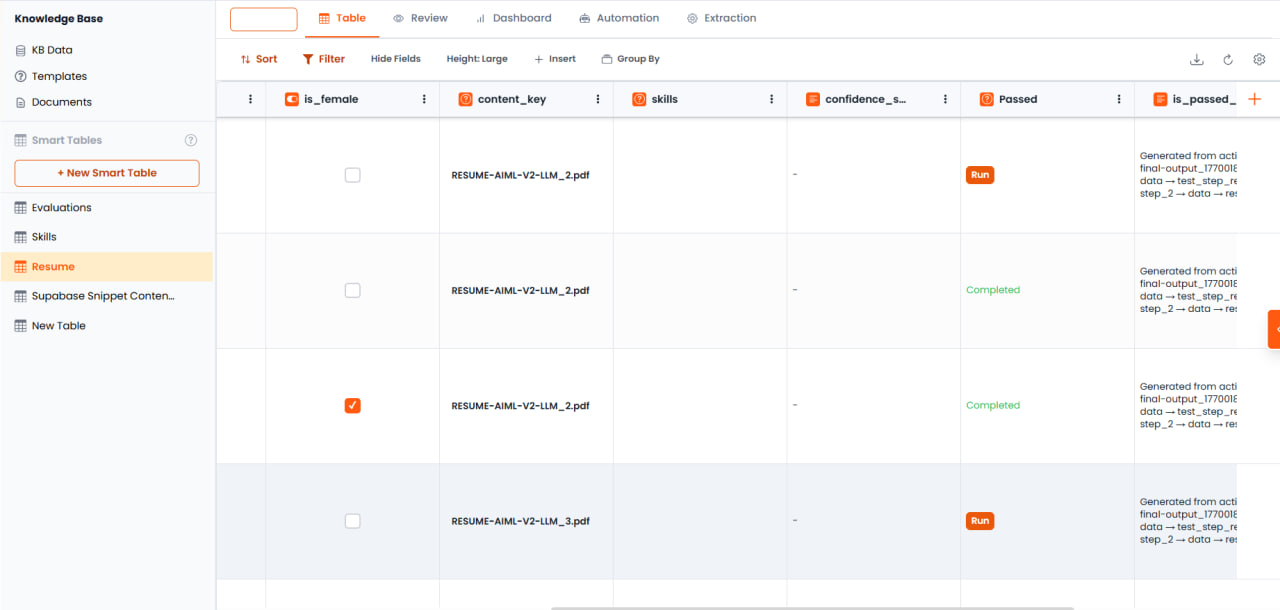
- Execute Cell/Row — For LLM-generated or Agent-generated fields, click Execute Cell or Execute Row to compute or refresh that row's data
- Re-compute All — Refreshes all rows simultaneously. Useful after updating column descriptions or agent configurations to re-process the entire dataset
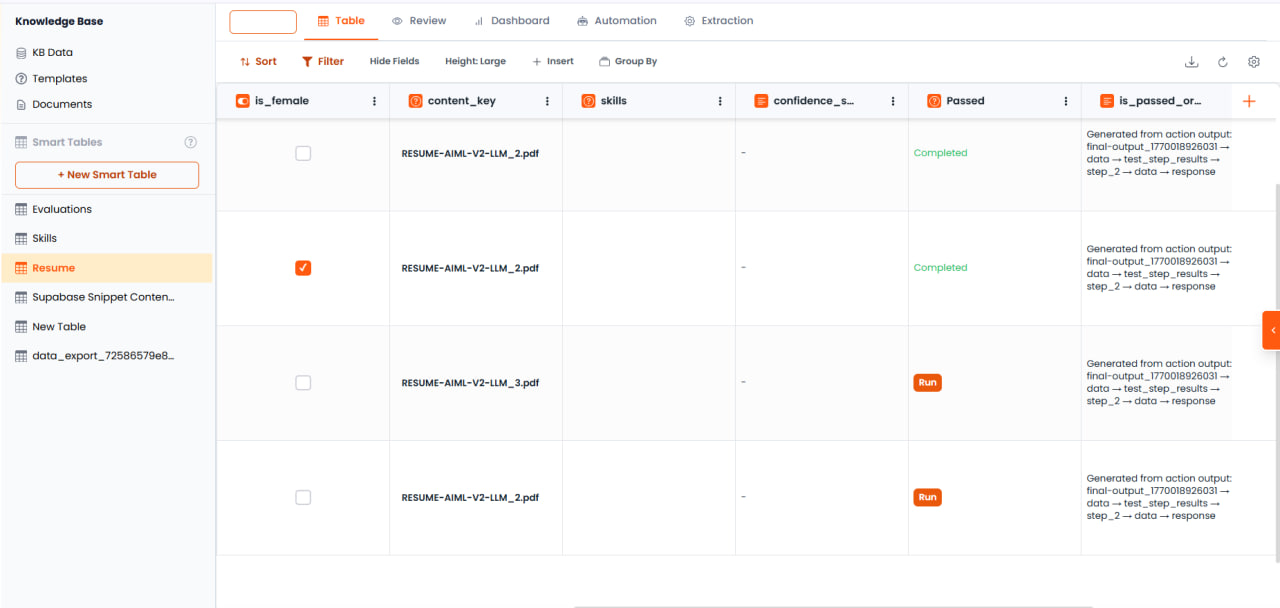
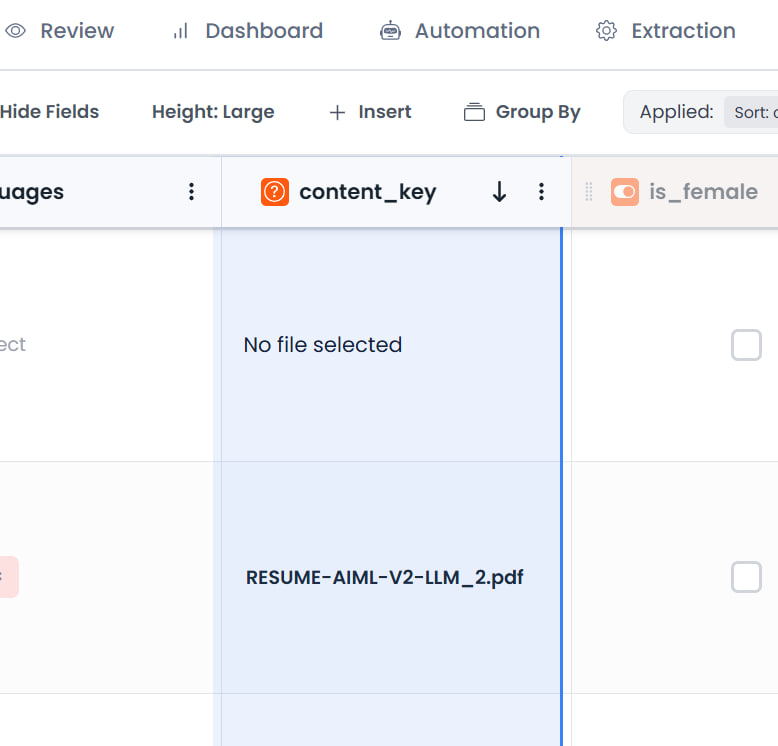
Each row is automatically assigned a unique Content Key identifier that links it back to the source document. This enables traceability between extracted data and original files.
Grouping and Organizing
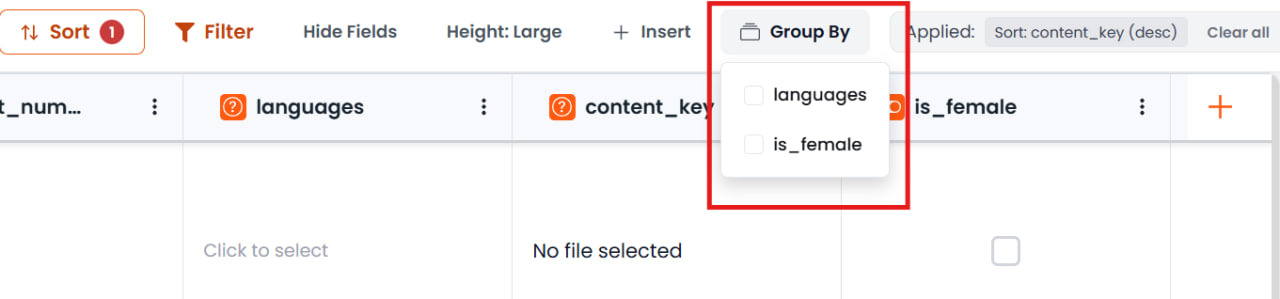
You can group data by specific columns to organize the view. For example, grouping a candidate list by the "Language" multi-select field lets you see all Python developers together. Columns can also be rearranged by dragging and repositioning them in the table view.
Renaming Smart Tables
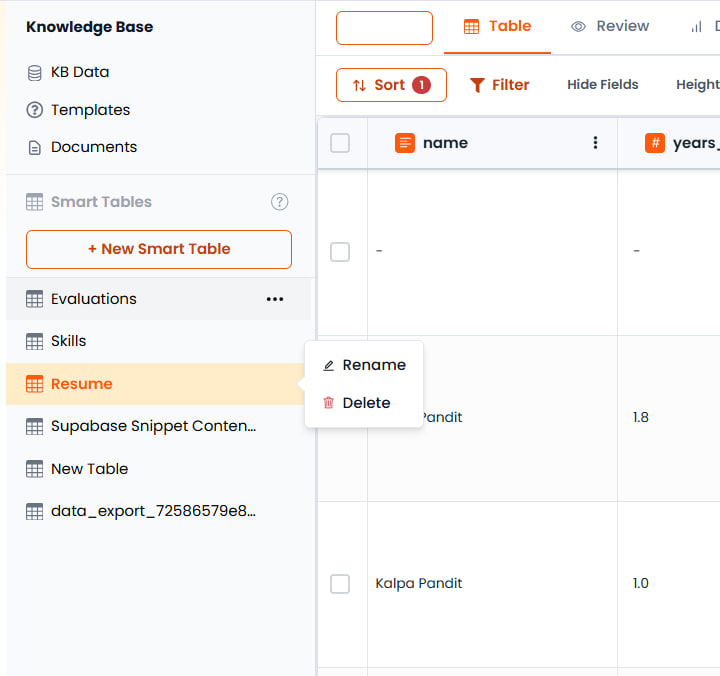
Click on the table name at the top and enter a new name. This helps organize multiple tables with descriptive identifiers (e.g., "Resumes", "Skills", "Evaluations").
Deleting Fields and Rows
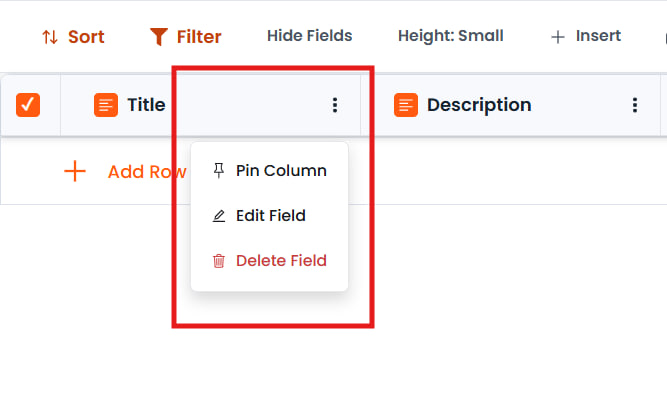
- Delete Column — When editing a column configuration, select Delete Field to remove the column entirely
- Delete Row — Click on a row and select Delete to remove individual entries
Dashboards and Visualization
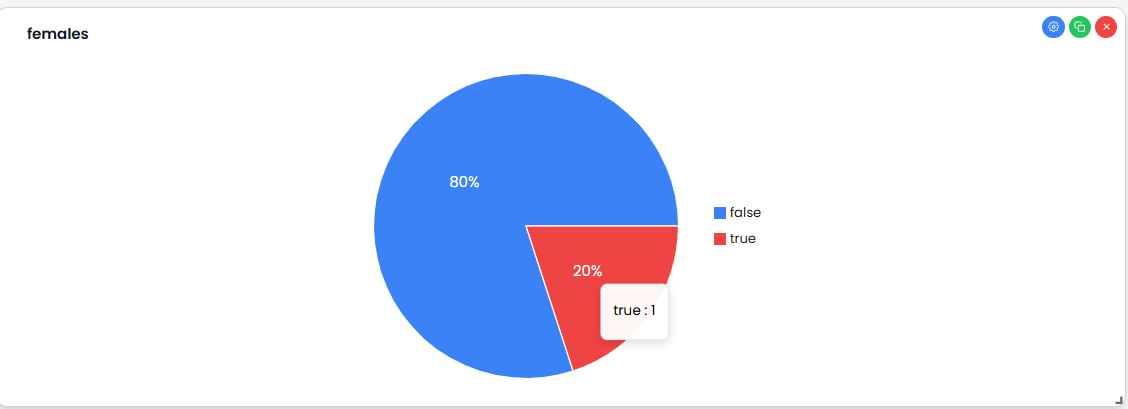
Smart Tables include a built-in Dashboard view to visualize stored data.
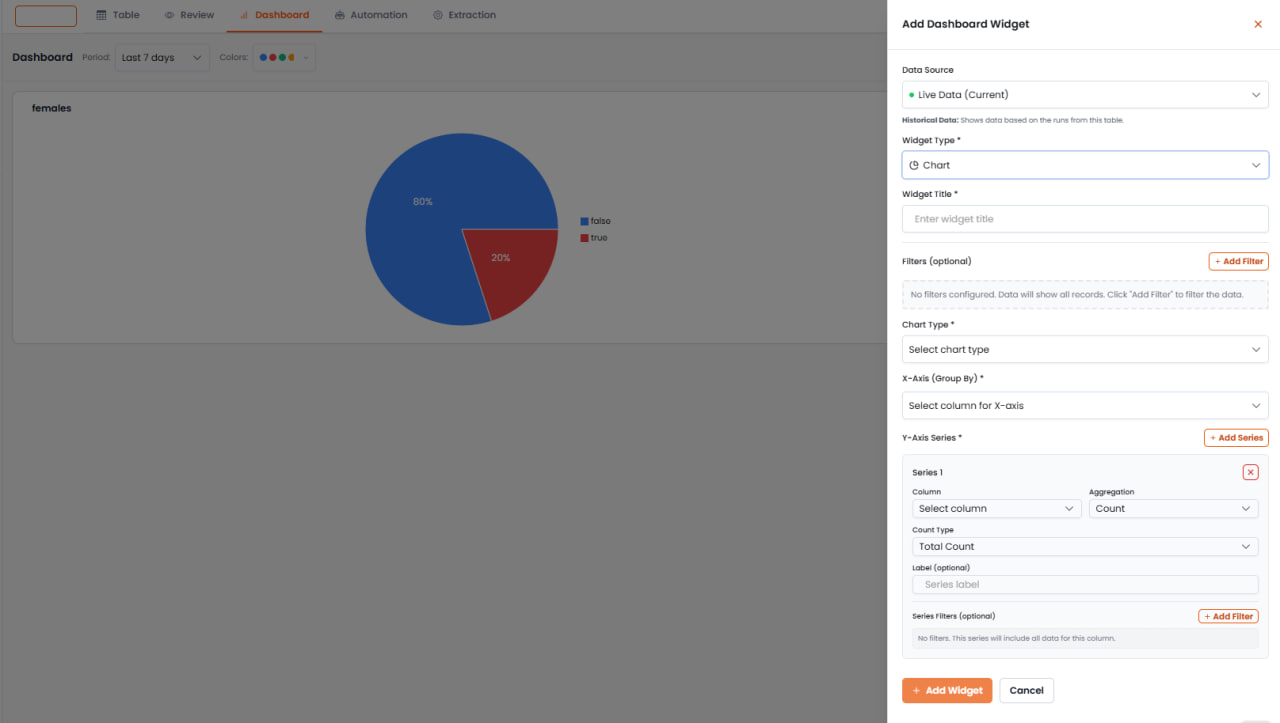
Creating Widgets
- Navigate to the Dashboard tab within the Smart Table
- Click Add Widget
- Configure the chart:
- Widget Title — Provide a descriptive title (e.g., "Total Candidates by Gender")
- Chart Type — Select from Pie Chart, Bar Chart, Line Chart, and others
- X-Axis (Category) — Select the grouping field (e.g., Is Female)
- Y-Axis (Value) — Select the metric to measure, with aggregation functions like Count, Sum, or Average
- Y-Series Column Name — Optionally customize the label shown in the chart legend
- Save the widget to add it to the dashboard
Querying Smart Tables via Agents
One of the most powerful features of Smart Tables is the ability to query structured data using natural language through an Agent.
Setup Process
Create Agent
Go to the Agent builder and create or open an existing agent.
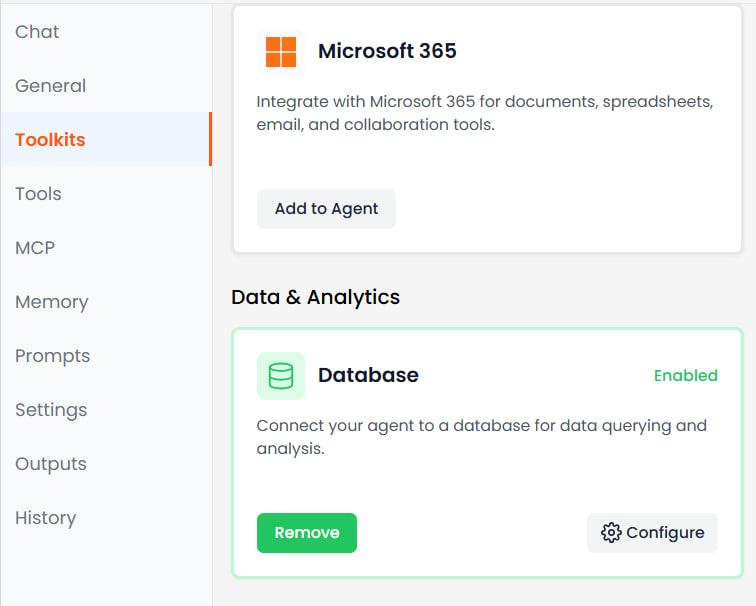
Configure Toolkits
Add the Database Manager toolkit to the agent.
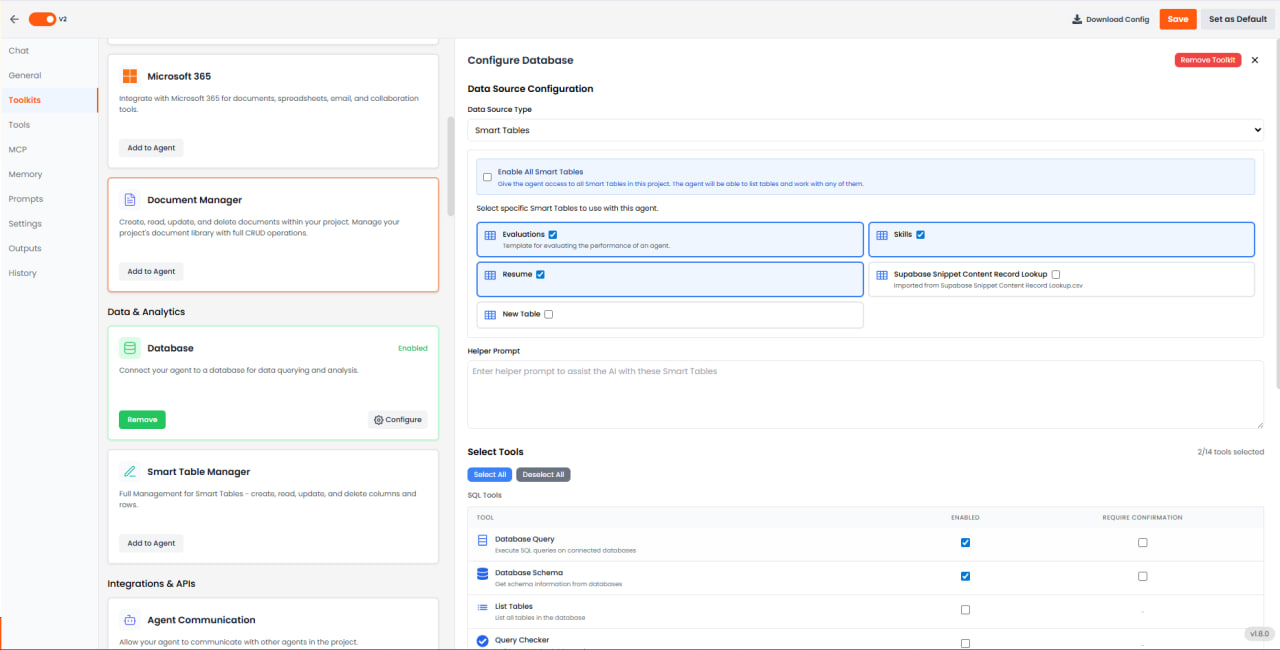
Select Smart Tables
In the toolkit settings, select one or more Smart Tables the agent should have access to. This allows the agent to query across multiple related tables simultaneously.
Configure Query Options
Deselect unnecessary options like "Database Query" or "Database Schema" if you only want the agent to access Smart Table data specifically.
Save and Test
Open the agent chat and ask questions in natural language, for example:
- "How many candidates have more than 5 years of experience?"
- "List all Python experts"
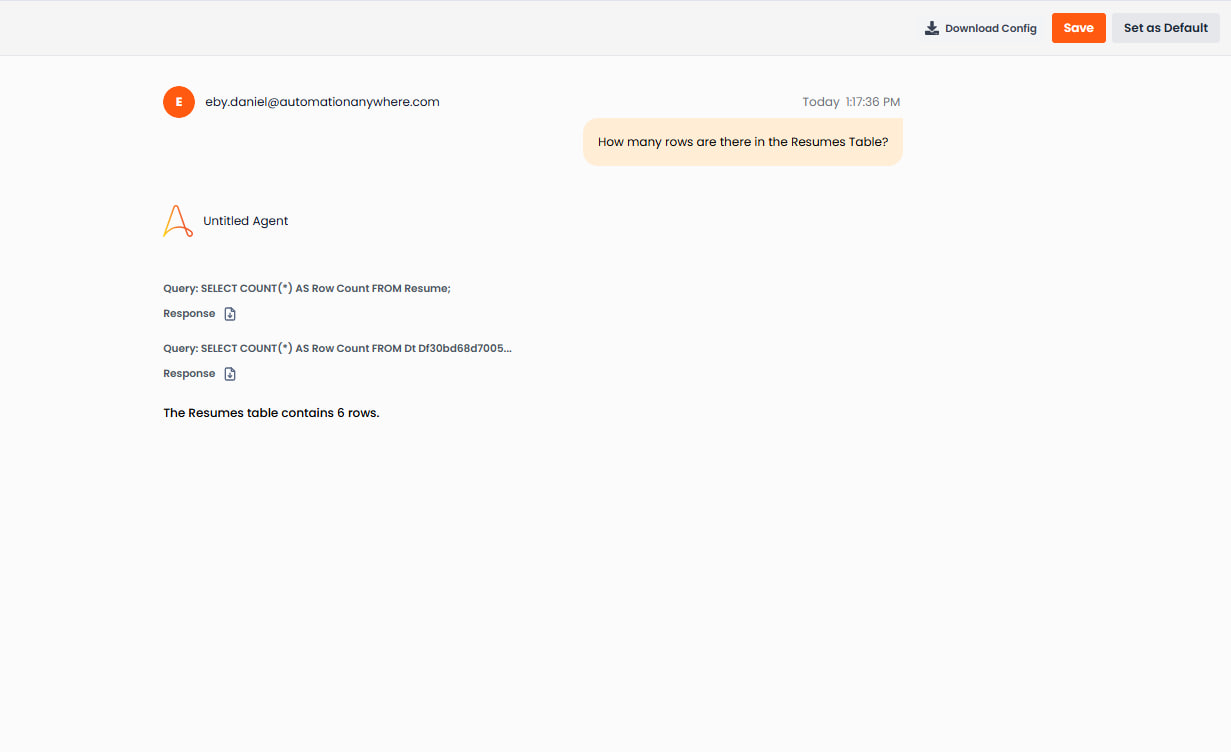
- "How many rows are there in the Resumes table?"
The agent executes a query against the Smart Table and returns the answer in natural language.
Templates
Templates accelerate setup by providing pre-configured column structures for common use cases. You can select from existing templates but cannot create custom templates through the UI.
Evaluation Template
Designed for testing Agent performance and validating AI responses. Includes:
- Question Text — The input prompt for the agent (User Input)
- Expected Answer — The ground truth or correct answer (User Input)
- Actual Response — Populated by the agent during the evaluation run (Agent Generated)
- Evaluation Status — Compares Actual Response to Expected Answer and returns a pass/fail percentage (Comparison)
Using the Evaluation Template:
- Create a Smart Table from the Evaluations Template
- Add rows with your test questions and expected answers
- Configure the Agent field to connect to your AI agent
- Execute individual rows or run Re-compute All to test all questions
- Review the Actual Response and Evaluation Status to assess agent performance
Best Practices
- Column Descriptions — Write clear, descriptive text for each column to guide the LLM during extraction. For example, name a column "Years of Experience" and add: "Total years of professional work experience found in the resume."
- Data Types — Use specific types (Number vs. Text) to enable accurate sorting, filtering, and chart creation. Use Number for "Years of Experience" rather than Text.
- Format Selection — Choose appropriate formats per field type. Use Phone Number format for contact fields; use Currency format for monetary values.
- Collections — Use Collections for complex lists (Skills, Certifications, Education History) to maintain data integrity and enable deeper querying.
- Testing — Test with one or two documents first to verify column descriptions are guiding the AI correctly before bulk uploading.
- Quick Upload — Enable Quick Upload when assigning a Smart Table during upload to extract and populate data immediately.
- Re-apply Extraction — If you modify column definitions, re-assign the Smart Table to existing documents to re-extract data with the updated configuration.
- Comparison Fields — Use Comparison for validation scenarios, such as comparing expected vs. actual results in QA workflows.
Smart Tables can also trigger and interact with Workflows (Actions), enabling advanced logic such as "If Resume Qualifies, send email." Refer to the Workflow Automation documentation for details.
Before You Start
Authentication
Use the same credentials as other project APIs — API key / secret or your app's auth headers.
Access
The account needs permission to use the project's Knowledge Base features. Without it, these calls return
403.Base URL
Use your environment's API host (e.g.
https://ai-api.automationanywhere.com). Paths below are appended to that host unless your deployment uses a global prefix.
1. List Existing Tables
GET /project/{project_id}/data-types
Returns a list of all data types for the project. Each item includes an id you use as data_type_id in subsequent requests.
2. Create a New Smart Table
POST /project/{project_id}/data-types
Body Parameters
| Field | Required | Description |
|---|---|---|
title | Yes | Name shown in the UI. |
description | Yes | Short description. |
metadata | No | Defines initial columns: each key is a column name; each value is a sample used to infer the column type. |
{
  "title": "Support tickets",
  "description": "Inbound requests",
  "metadata": {
    "subject": "Sample subject",
    "priority": 1,
    "open": true,
    "tags": ["billing", "login"]
  }
}
{
  "message": "Data type created successfully",
  "data_type_id": "abc123...",
  "view_id": "view-uuid-here"
}
Save the returned data_type_id — you'll need it for all row operations.
3. Add or Change Columns
POST /project/{project_id}/data-type/{data_type_id}/column
{
  "column_name": "status",
  "column_type": "text",
  "description": "Workflow status",
  "options": {},
  "default_value": "open"
}
Confirm exact column_type values with your OpenAPI or integration docs for your environment.
4. Add a Single Row
POST /project/{project_id}/data-type/{data_type_id}/row
Column values go inside the metadata object.
{
  "metadata": {
    "subject": "Cannot reset password",
    "priority": 2,
    "open": true,
    "tags": ["auth"]
  }
}
{
  "message": "Row added successfully",
  "row_id": 5,
  "row": {
    "id": 5,
    "subject": "Cannot reset password",
    "priority": 2,
    "open": true,
    "tags": ["auth"]
  }
}
Keys in metadata must match existing column names. Do not include id — the server assigns it automatically.
5. Add Many Rows at Once
POST /project/{project_id}/data-type/{data_type_id}/rows
Each row is a plain object of column values — not nested under metadata.
{
  "rows": [
    { "subject": "Issue A", "priority": 1, "open": true },
    { "subject": "Issue B", "priority": 3, "open": false }
  ]
}
{
  "message": "Successfully added 2 rows",
  "rows_added": 2,
  "row_ids": [6, 7]
}
6. Create a Table from a File
POST /project/{project_id}/import-table
Format: multipart/form-data with a file upload (CSV or Excel).
| Field | Description |
|---|---|
title | Table name shown in the UI. |
description | Short description. |
column_mappings | JSON string describing how file columns map to table columns and types. |
file | The CSV or Excel file to import. |
Quick Reference
| Action | Method | Path |
|---|---|---|
| List tables | GET | /project/{project_id}/data-types |
| Create table | POST | /project/{project_id}/data-types |
| Add column | POST | /project/{project_id}/data-type/{data_type_id}/column |
| Add one row | POST | /project/{project_id}/data-type/{data_type_id}/row |
| Add many rows | POST | /project/{project_id}/data-type/{data_type_id}/rows |
| Import from file | POST | /project/{project_id}/import-table |
Troubleshooting
403 — Forbidden
The user or API key does not have access to the project or its Knowledge Base section. Verify that the account has the correct permissions enabled.
500 on Row Insert
Usually caused by a column name mismatch or a value whose type doesn't match the column definition. Check that all keys correspond to existing column names and that value types match (e.g. don't send a string for a number column).
Single vs. Bulk Row Body Format
The request body structure differs between the two endpoints:
- Single row:
{ "metadata": { ... } } - Bulk rows:
{ "rows": [ { ... }, { ... } ] }— nometadatawrapper per row.