Usage
Open My Account → Usage to see this team's token consumption and tool-call activity. Choose a View, set a time range, then click Apply.
Only team admins can open this tab.
Until you click Apply, the page shows Pick a view and choose Apply to load data.
Filters and Export
| Control | What it does |
|---|---|
| View | Which breakdown to load (see below) |
| Time Interval | Preset window (for example Last 1 day, Last 7 days, Last 30 days, up to Last 365 days) |
| From (UTC) / To (UTC) | Optional custom date range. When both dates are set, the interval is ignored. Clear dates returns to the preset. |
| Limit | Maximum rows in table views (default 50, up to 500) |
| Apply | Loads the selected view |
| Export | Download CSV or XLSX. The export includes every breakdown, not only the view on screen. |
Views
Use the View dropdown, then Apply.
| View | What you get |
|---|---|
| Summary | Four totals for the period |
| Tokens by Model | Pie chart plus By Model table |
| Tokens by Project | Bar charts plus By Project table |
| Tokens by Agent | By Agent table |
| Tokens by User | By User table |
| Tokens by Domain | By Domain table |
| Tokens by Medium | By Medium table (for example UI vs API) |
| Tool Calls by Project | Tool-call counts per project |
| Tool Calls by Agent | Tool-call counts per agent |
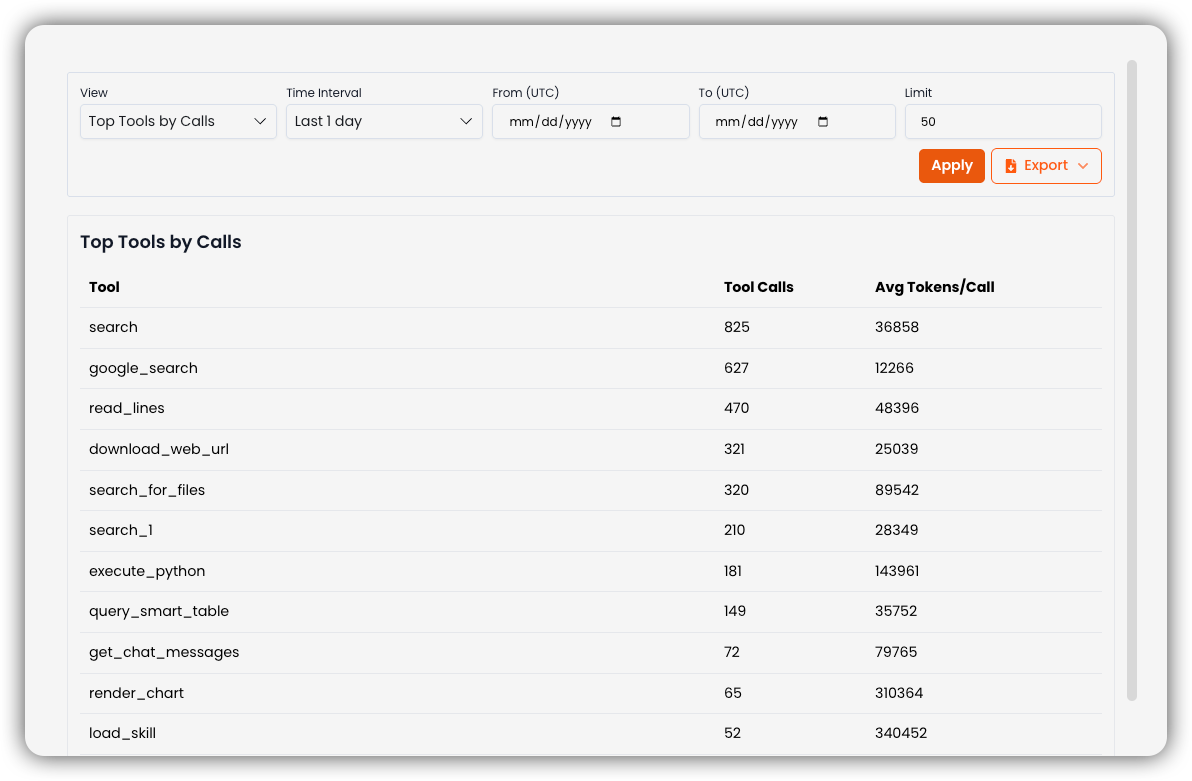
| Top Tools by Calls | Most-used tools |
Token tables show Input and Output. Tool-call tables show Tool Calls and Avg Tokens/Call.
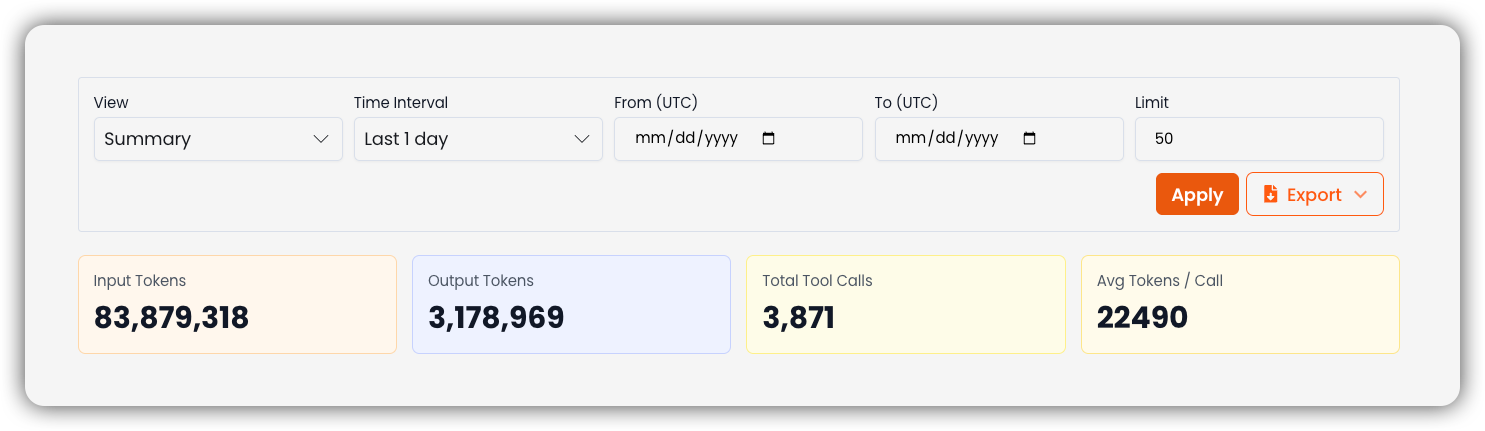
Summary
| Card | Description |
|---|---|
| Input Tokens | Tokens sent to models |
| Output Tokens | Tokens returned by models |
| Total Tool Calls | Tool invocations |
| Avg Tokens / Call | Average tokens per tool call |
Tokens by Model
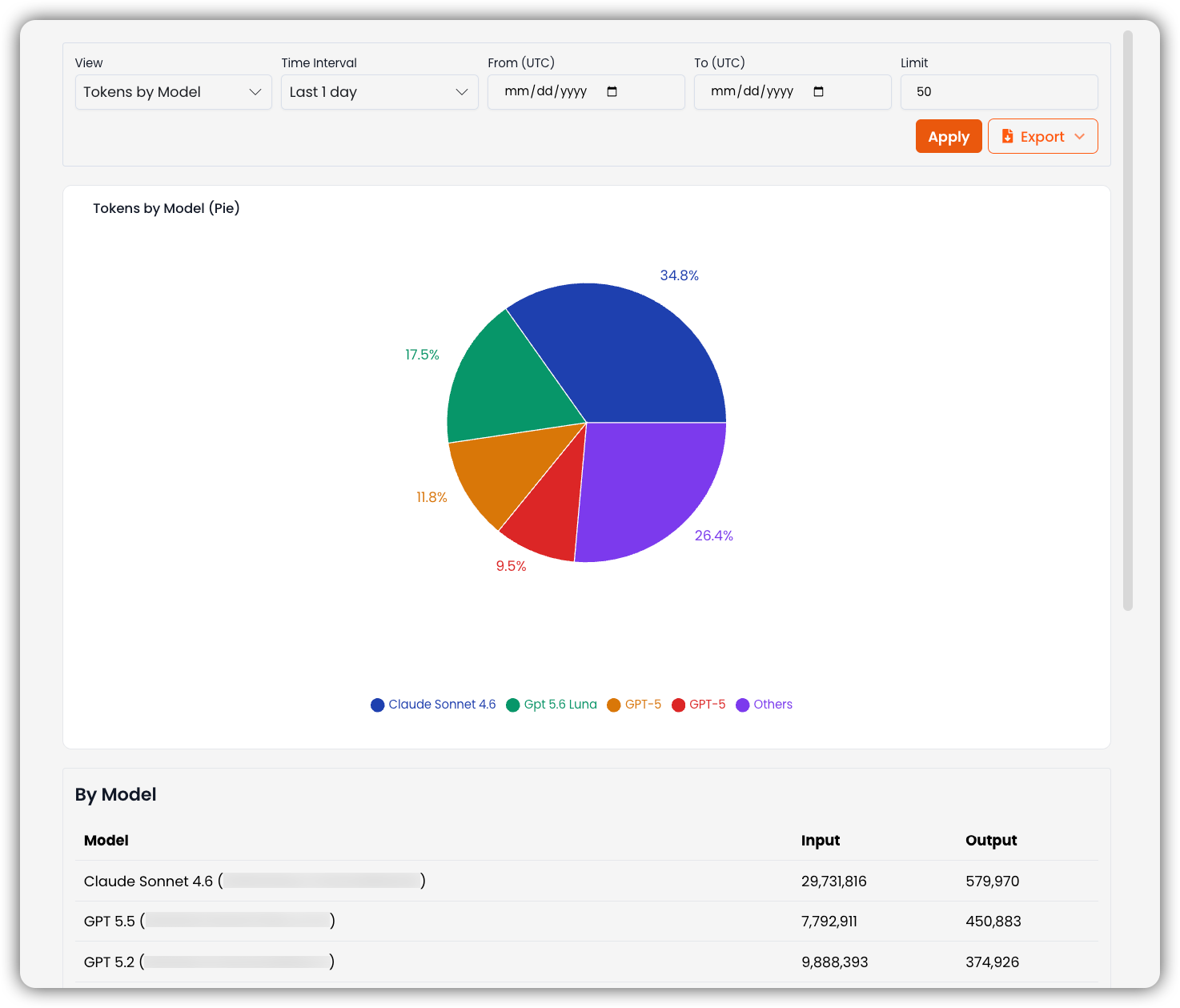
Tokens by Model (Pie) shows the share of total tokens per model (top models plus Others). By Model lists each model with input and output tokens.
Tokens by Project
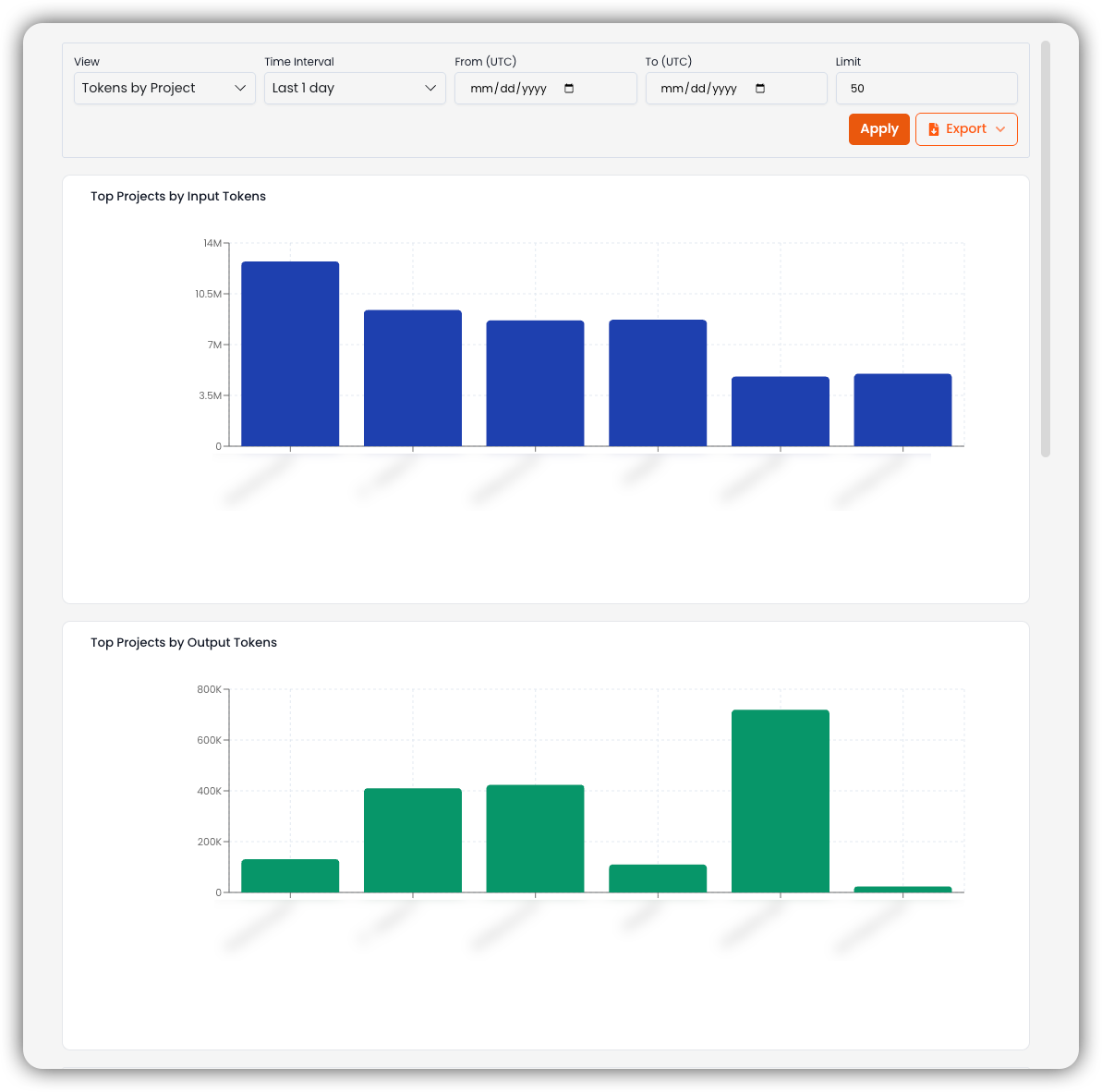
Top Projects by Input Tokens and Top Projects by Output Tokens rank projects for the period. Scroll for the By Project table (project, input, output).
Tokens by Agent
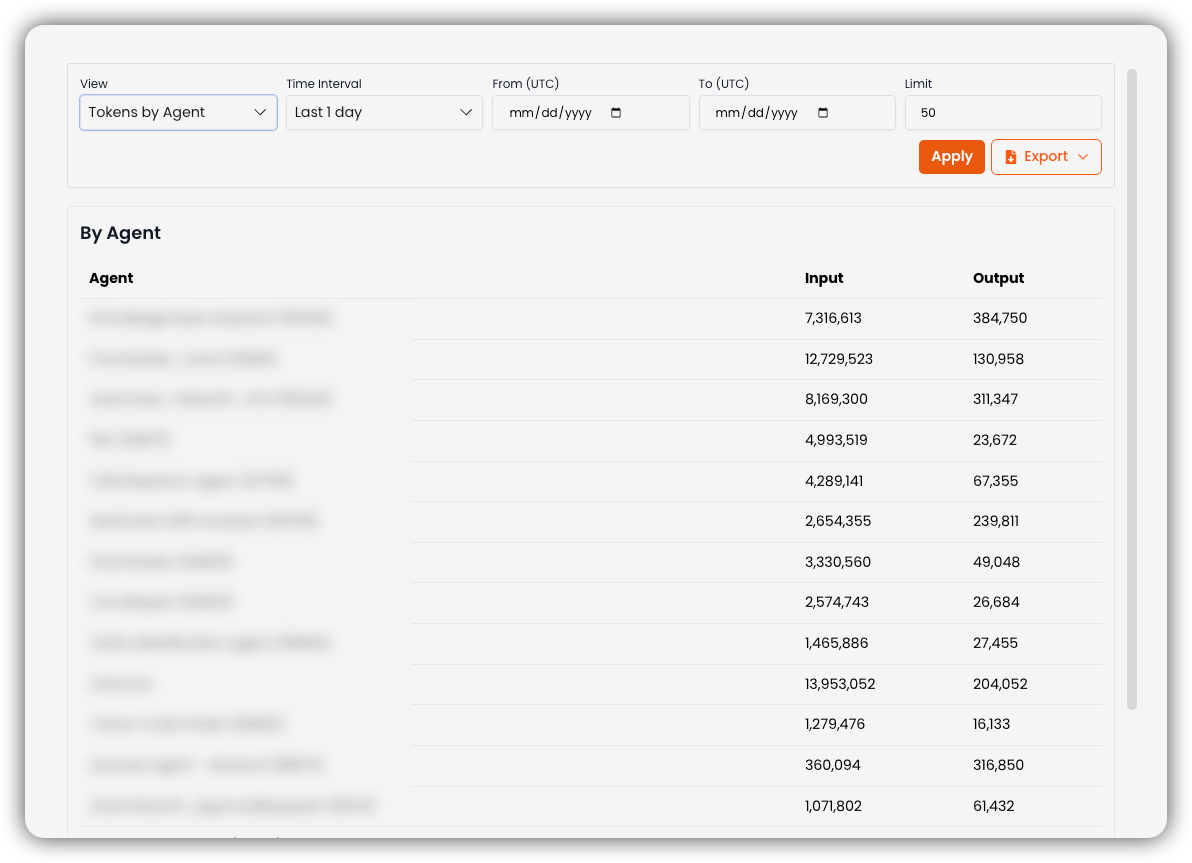
By Agent lists input and output tokens per agent.
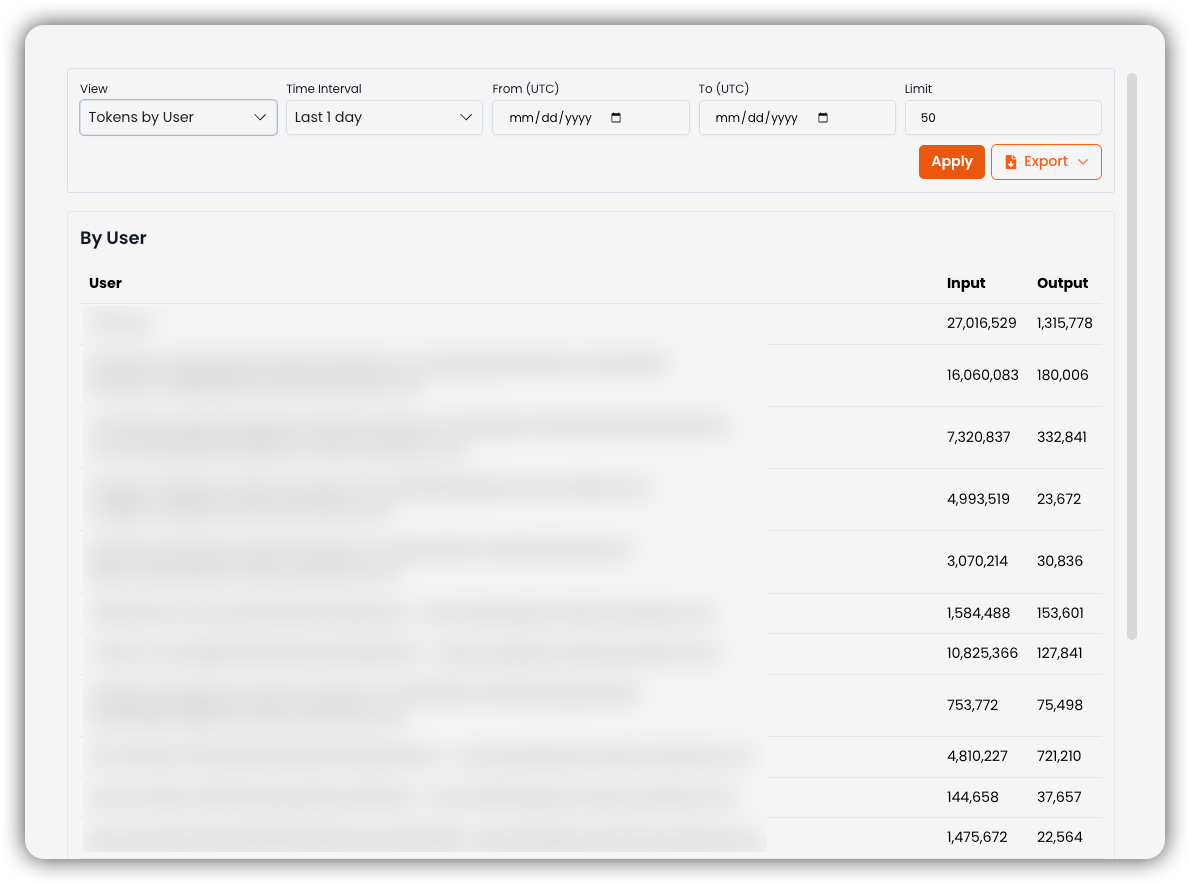
Tokens by User
By User lists input and output tokens per team member.
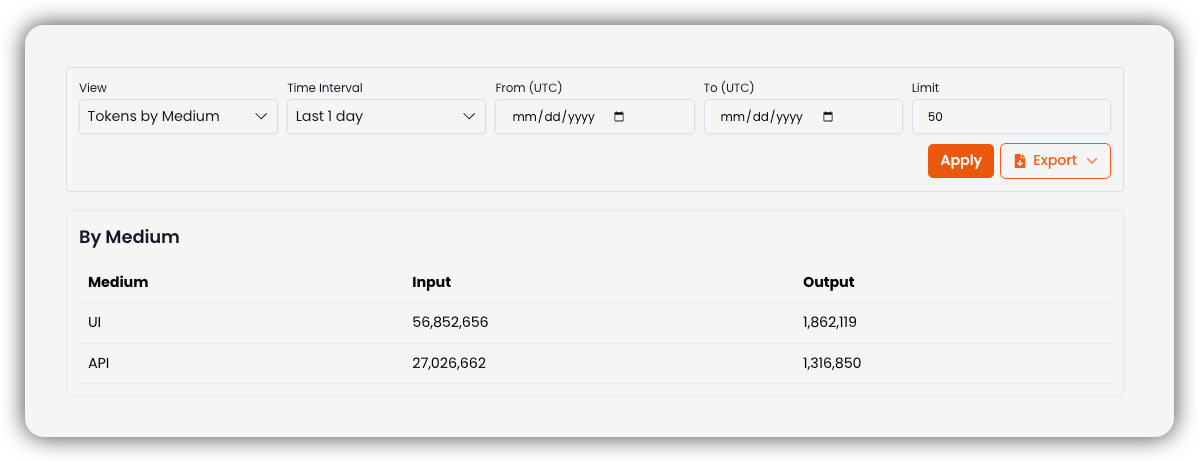
Tokens by Medium
By Medium splits tokens by how the request ran (for example UI and API).
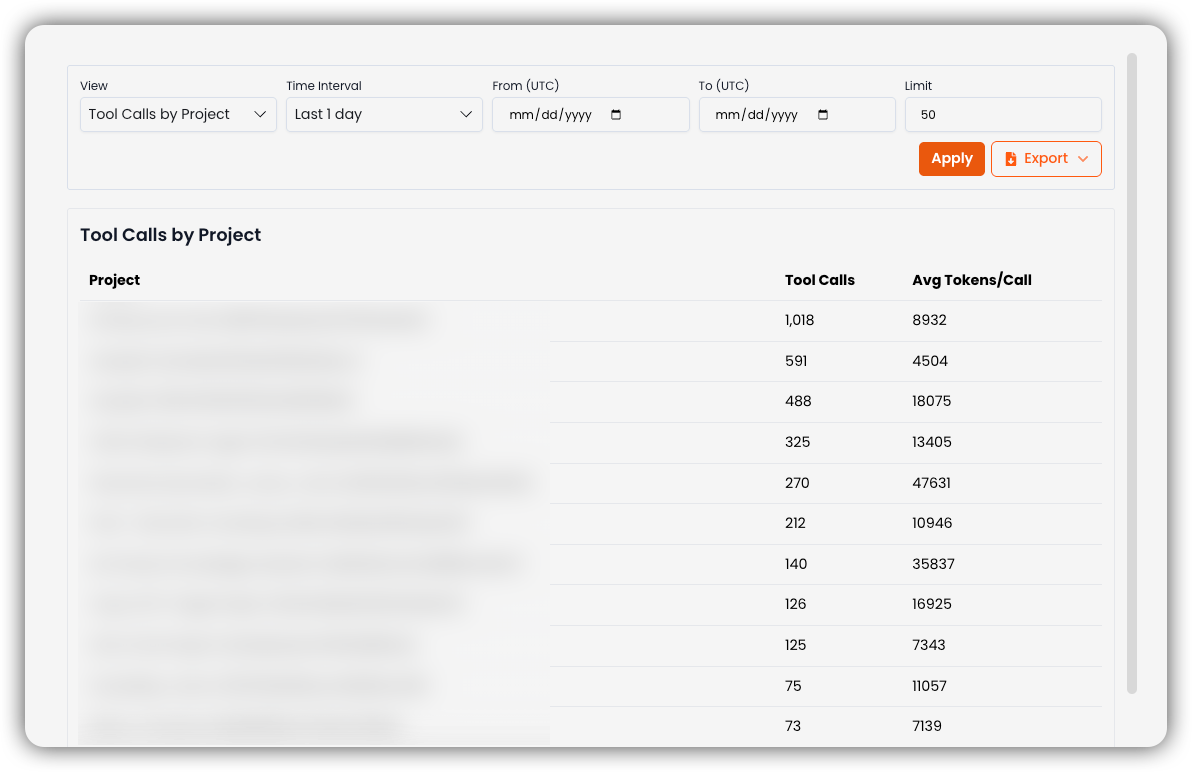
Tool Calls by Project
Tool Calls by Project lists each project with Tool Calls and Avg Tokens/Call.
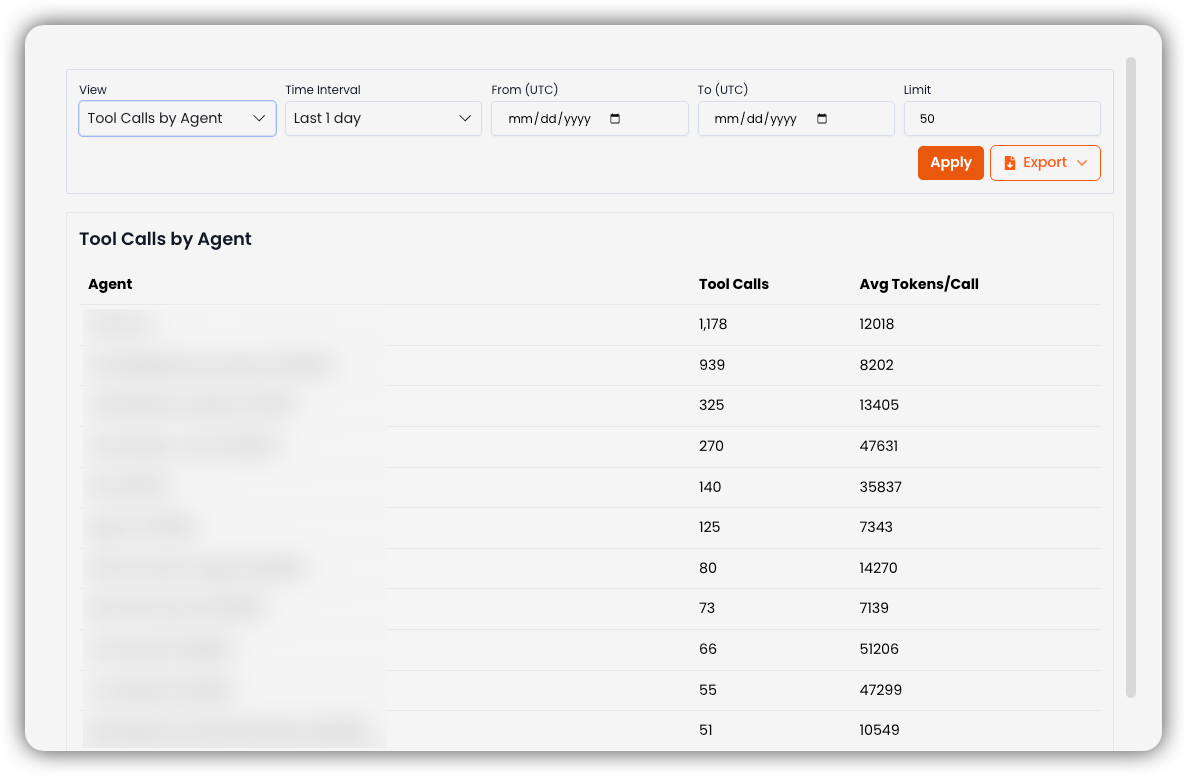
Tool Calls by Agent
Tool Calls by Agent lists each agent with Tool Calls and Avg Tokens/Call.
Top Tools by Calls
Top Tools by Calls ranks tools (for example search, google_search) by how often they ran.
Related
- Credit Consumption — credit usage across the team and sub-teams
- Projects — credit allocation per project