Team Settings
Open My Account → Settings to configure this team's name, sign-in, invitations, credit limits, credit emails, subdomain, and branding.
Only team admins can open this tab.
For nesting teams and shared seats/credits, see Sub-teams. For a team-owned identity provider, see Team SSO. For subtree credit reporting, see Credit Consumption.
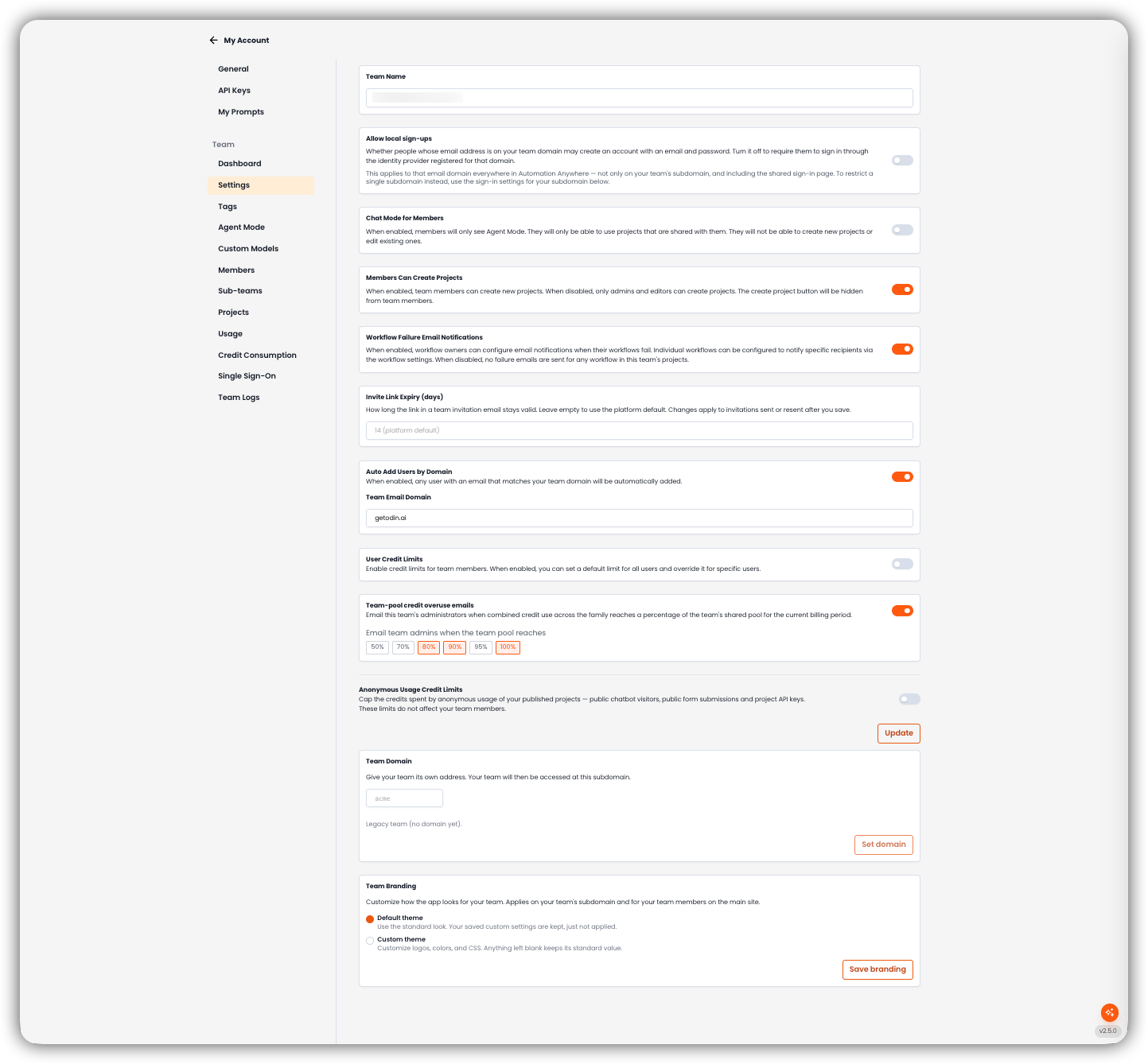
Team Name
The name of your organization. Update, at the bottom of this group, saves the team name together with the settings through Anonymous Usage Credit Limits.
Allow local sign-ups
Whether people whose email address is on your team domain may create an account with an email and password. Turn it off to require them to sign in through the identity provider registered for that domain.
This applies to that email domain across the product, including the shared sign-in page, as well as on your team's subdomain. To restrict a single subdomain, use the sign-in settings that appear under Team Domain after a subdomain is set.
This control is separate from Team SSO, where you attach the team's own identity provider.
Chat Mode for Members
When enabled, members will only see Agent Mode. They will only be able to use projects that are shared with them. They will not be able to create new projects or edit existing ones.
Members Can Create Projects
When enabled, team members can create new projects. When disabled, only admins and editors can create projects. The create project button will be hidden from team members.
Workflow Failure Email Notifications
When enabled, workflow owners can configure email notifications when their workflows fail. Individual workflows can be configured to notify specific recipients via the workflow settings. When disabled, no failure emails are sent for any workflow in this team's projects.
Invite Link Expiry (days)
How long the link in a team invitation email stays valid. Leave the field empty to use the platform default. The placeholder shows that default, for example 14 (platform default).
Enter a whole number from 1 to 90 to override it. Changes apply to invitations sent or resent after you save.
Auto Add Users by Domain
When enabled, any user with an email that matches your team domain will be automatically added.
Team Email Domain appears when the switch is on. Enter a company domain, for example acme.com. A consumer domain such as gmail.com is refused.
User Credit Limits
Enable credit limits for team members. When enabled, you can set a default limit for all users and override it for specific users.
When the switch is on, Default Credit Limit is the default credit limit for all new team members. Set it to 0 for unlimited credits. You can override this for individual users.
These limits are separate from sub-team and project credit ceilings. See Credit Consumption.
Team-pool credit overuse emails
A team at the top of its family uses the card title Team-pool credit overuse emails. It emails this team's administrators when combined credit use across the family reaches a percentage of the team's shared pool for the current billing period.
On a child team, the card title is Child credit cap alert emails. It emails this team's administrators when usage by this team and its sub-teams reaches a percentage of its credit cap. Parent and sibling usage is not included.
The label is Email team admins when the team pool reaches, or Email team admins when the credit cap reaches on a child team. The percentages are 50%, 70%, 80%, 90%, 95%, and 100%. If this setting has not been saved, the emails are on at 80%, 90%, and 100%. Turning the switch off stops the emails.
Each selected percentage is emailed once in a billing period. When one charge crosses several percentages, those percentages are combined into one email. A new billing period starts the alerts again.
Anonymous Usage Credit Limits
Cap the credits spent by anonymous usage of your published projects — public chatbot visitors, public form submissions and project API keys. These limits do not affect your team members.
When the switch is on:
- Default Limit Per Project applies to every project that does not set its own. Set it to 0 to stop anonymous usage without unpublishing the project. Turn on Unlimited to remove the ceiling.
- Team-Wide Limit is a ceiling on anonymous usage across all projects combined, applied on top of each project's own limit. It has the same Unlimited switch.
Updating Settings
Click Update to save Team Name through Anonymous Usage Credit Limits. Team Domain and Team Branding save with their own buttons.
Team Domain
Give your team its own address. Your team will then be accessed at this subdomain.
A team with no domain yet shows Legacy team (no domain yet). Enter a slug, such as acme, and click Set domain. Confirm the move. You are taken to the new address.
When a domain already exists, the button is Change domain. Confirming retires the current address, and existing links to the old address stop working.
After a subdomain is set, these switches appear for that host and save as soon as you change them:
- Allow sign-ups on your subdomain. When off, only people you invite can create an account at that host, and joining by email domain is turned off too. Existing members can still sign in.
- Require single sign-on on your subdomain. When on, the email and password form is hidden at that host and only single sign-on is accepted there. Members keep their existing sessions.
- Only accept your own identity provider. When on, that host accepts only the identity providers configured for this team. This applies to this team only. Sub-teams have their own setting.
These switches apply to the team's subdomain. See Team SSO.
Team Branding
Customize how the app looks for your team. Applies on your team's subdomain and for your team members on the main site.
| Mode | What it does |
|---|---|
| Default theme | Use the standard look. Your saved custom settings are kept, just not applied. |
| Custom theme | Customize logos, colors, and CSS. Anything left blank keeps its standard value. |
Click Save branding. This save is separate from Update.