Automated Management
When a user signs in through SAML SSO, Enterprise Knowledge can evaluate their metadata attributes and automatically assign them to a team and, optionally, to all projects within that team — with the appropriate role.
Automated Management and Access Controls are independent features, but they are typically used together. See SAML Access Controls for the companion guide.
Prerequisites
Before enabling automated management:
- SAML SSO must be configured and sending metadata attributes on login
- The SAML assertion must include stable attributes to match against
- Target teams must already exist in EK, for instructions on creating teams see Teams Management
Validate attribute names and values from a few successful SSO logins before enabling automation. The Super Admin user view shows the stored SAML metadata for each SSO user — use this as the source of truth when authoring rules.
Rule Structure
Navigate to Super Admin → Users & Workspaces → Teams → Automated Management to configure rules. Each rule includes:
| Field | Required | Description |
|---|---|---|
| SAML Attribute Name | Yes | The attribute key from the SAML assertion |
| Attribute Value(s) | Yes | One or more comma-separated tokens — all listed tokens must match (AND logic) |
| Target Team | Yes | The team to assign the user to |
| Default Team Membership Role | Optional | Member (default) or Admin |
| Auto-add to team projects | Optional | Adds the user to all non-default projects in the team |
| Default Project Role | Optional | Admin, Editor, or Viewer |
| Forced continuous team reassignment | Optional | Moves users on every sign-in, not just first login |
A rule may also carry:
- Conditional Team-Role Overrides — change the team membership role based on additional SAML attributes
- Conditional Project-Role Overrides — change the project role based on additional SAML attributes (only applies when auto-add is on)
How Rule Matching Works
Attribute matching uses the same engine as Access Controls. Rules and user attributes are both treated as sets of tokens and compared with subset semantics — a rule matches when its required tokens are a subset of the user's tokens.
- Commas in Attribute Value(s) are token separators.
Accounting, USrequires the user to have both tokens (AND logic within one rule). - Specificity equals the number of tokens a rule requires. When multiple rules match, the most specific (most tokens) wins.
There is no tie-breaker between rules of equal specificity. If two rules tie, EK picks the earliest-created one and emits a WARNING log listing the tied rule IDs. Treat this as a configuration error and restructure rules to eliminate the overlap.
Handling different SAML wire shapes
SAML attributes can arrive in two shapes, and each rule exposes a toggle to handle them:
Native multi-value — the IdP sends multiple <AttributeValue> elements. EK always treats this as a set automatically.
CSV-shoved single value — the IdP packs values into one comma-separated string. Use the per-rule toggle:
| Toggle: "IdP packs multi-values into one string" | Behavior |
|---|---|
| Off (default) | User's string treated as one literal token |
| On | User's string split on commas and matched as a set |
See SAML Access Controls — Matching Behavior Matrix for a full reference table.
Team Assignment Behavior
On each SSO sign-in, EK evaluates configured rules against the user's SAML metadata and picks the most specific matching rule.
| User State | Outcome |
|---|---|
| No team yet | Assigned to target team |
| Already in target team | No change |
| In a different team | Moved only if Forced continuous team reassignment is active |
| Owner of a multi-member team | Not forcibly moved (prevents orphaned ownership) |
| Sole member/owner of their team | Moved; the now-empty team is deleted |
For first-time SSO onboarding, reassignment is always forced to establish correct placement.
Team Membership Role
The role at which a user is added to a team is resolved in this order:
- Conditional Team-Role Override — the most specific override on the matched rule whose tokens subset-match the user
- Default Team Membership Role —
MemberorAdminas configured on the rule (legacy default:Member)
Team roles are applied at add-time only. If a user is already in the target team, their existing role is preserved — subsequent sign-ins will not change it. Promoting or demoting an existing member requires explicit admin action.
Conditional Team-Role Overrides
Each override specifies an Attribute Name, Attribute Value(s), the optional is_csv_value toggle, and a Team Role (Member or Admin). The most specific matching override wins; ties log a warning.
Auto-Add to Projects
When Auto-add to team projects is enabled on a rule, EK adds the user to non-default projects in the target team. The user is only added to projects they are not already a member of.
Role assignment priority:
- Matching Conditional Project-Role Override (most specific match)
- Default Project Role defined on the team rule
Project assignment runs asynchronously. Team membership may appear before all project memberships complete.
Project roles are applied at add-time only. Existing project memberships are never re-evaluated or changed on subsequent sign-ins.
Conditional Project-Role Overrides
Role overrides allow a different project role to be assigned based on additional SAML attributes.
Example:
- Team rule:
department = engineering, default role →Viewer - Role override:
level = manager→Admin
Result:
- All
engineeringusers are added to the team - Users who also have
level = managerreceiveAdminon auto-added projects - Non-managers keep
Viewer
If multiple conditional role overrides could match the same user, the most specific (most tokens) wins. Ties log a warning and fall back to the earliest-created override — restructure overrides to avoid ties.
Team Reassignment Restrictions
Found in Super Admin → Teams → Automated Management → Team Reassignment Restrictions, these settings control what happens to project memberships when a user moves between teams. All three default to off (non-destructive).
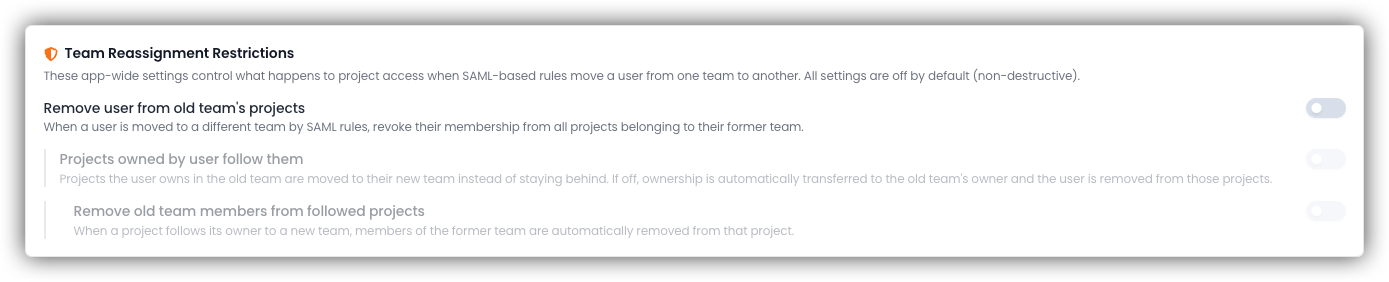
| Setting | Description |
|---|---|
| 1. Remove user from old team's projects | Master switch. Removes old project memberships on reassignment. |
| 2. Projects owned by user follow them | Depends on setting 1. Owned projects move to the new team. |
| 3. Remove old team members from followed projects | Depends on settings 1 and 2. Cleans up old team access on moved projects. |
In practice:
- Setting 1 only — user is removed from the old team's projects; owned projects stay in the old team and ownership transfers to the old team's owner
- Settings 1 + 2 — projects the user owns move to the new team; existing members of those projects are left in place
- Settings 1 + 2 + 3 — old team members are also removed from projects that moved with the owner
If ownership cannot be safely transferred during reassignment, EK applies safeguards to prevent broken ownership states.
Configure Automated Management Rules
Open Automated Management
Go to Super Admin → Users & Workspaces → Teams → Automated Management and click Add Rule.
Enter SAML matching criteria
Provide the SAML Attribute Name, Attribute Value(s), and Target Team.
For multi-token rules, type each token and press comma to create a chip (e.g.
accounting+usto require both). Toggle IdP packs multi-values into one string if needed.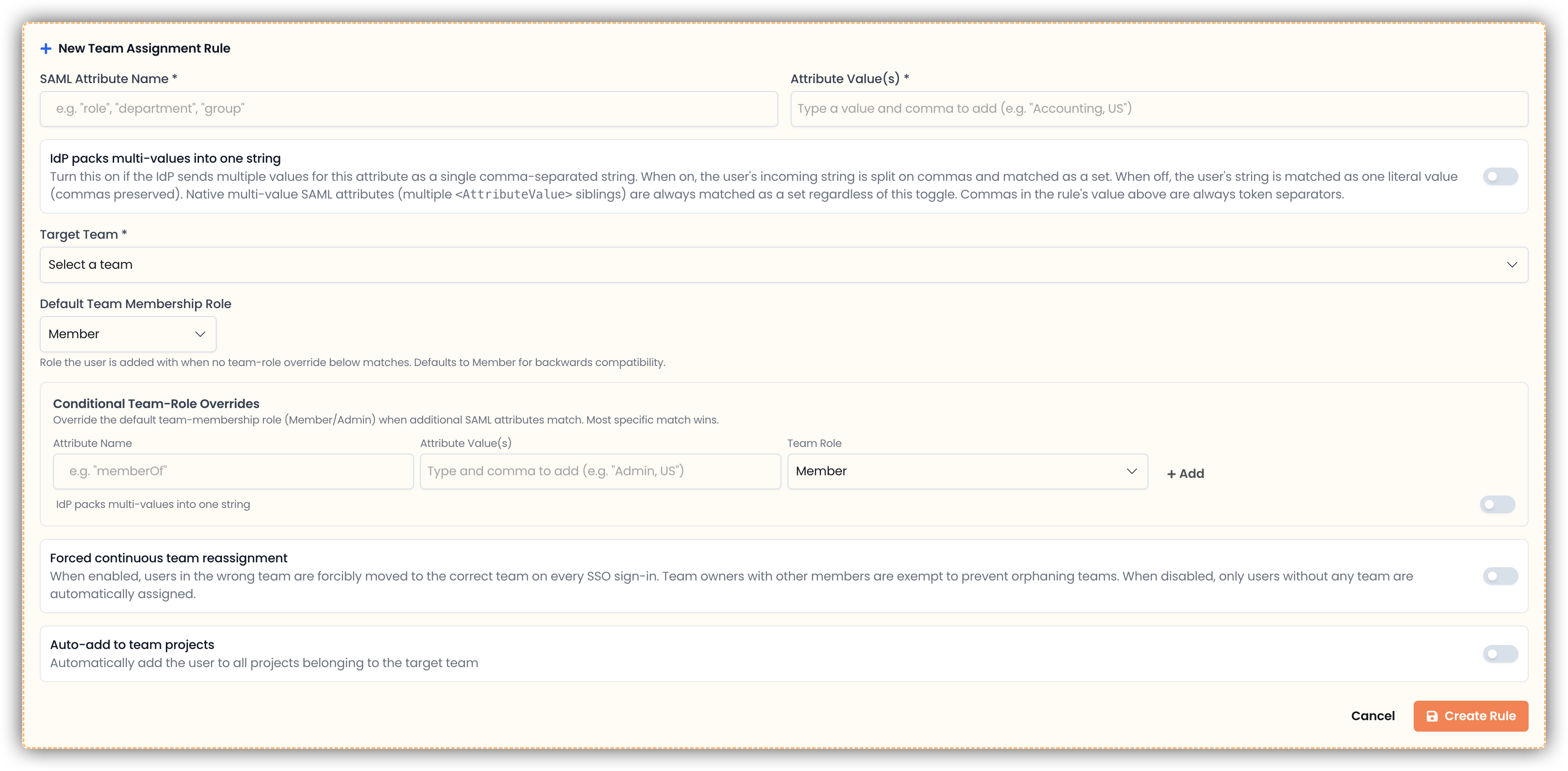
Set team membership role
Choose a Default Team Membership Role (
MemberorAdmin) and optionally add Conditional Team-Role Overrides for users who should receive a different team role based on additional attributes.Configure optional settings
Decide whether to enable Auto-add to team projects and/or Forced continuous team reassignment.
Set project role (if auto-add is enabled)
Choose a Default Project Role and optionally add Conditional Project-Role Overrides.
Save and configure reassignment restrictions
Save the rule, then optionally configure Team Reassignment Restrictions to define behavior when users change teams.
Test
Test with real SSO users representing each expected metadata pattern before enabling in production.
Rule Design Best Practices
- Use stable identity-provider attributes — avoid volatile or frequently changing values
- Keep attribute names consistent with exact SAML claim names (case-sensitive at the claim level in some IdPs)
- Prefer native multi-value SAML attributes when your IdP supports them — they are unambiguous and don't require the
is_csv_valuetoggle - Avoid overlapping rules at the same specificity — if you see an "Ambiguous match" warning, add more tokens to one rule to make it strictly more specific
- Start with least privilege (
Memberteam role,Viewerproject role) and elevate only where needed via conditional overrides - Document rule ownership and schedule periodic reviews
Testing Checklist
After configuration, verify each scenario:
- Allowed users are placed in the correct team with the correct team role
- Conditional team-role overrides apply to the right users
- Project auto-add completes with the correct role (allow a few seconds for async processing)
- Conditional project-role overrides apply to the right users
- Forced reassignment works as expected (if enabled)
- Reassignment restriction settings behave correctly during team movement
Troubleshooting
User signed in but not assigned to expected team
- Confirm a matching team assignment rule exists
- Confirm the target team still exists
- Verify the rule's attribute/value tokens are a subset of the user's actual SAML metadata (check the Super Admin user view)
- Enable Forced continuous team reassignment if the user already belongs to another team and must be moved
- If the user is the owner of a multi-member team, they will not be moved automatically — this is by design
- If the logs contain an
Ambiguous matchwarning, two rules tied at the same specificity; restructure to remove the overlap
User assigned to team but with the wrong team role
- Check whether a Conditional Team-Role Override exists and matches the user
- Team roles are only applied at add-time — if the user was already in the team before the override was added, their existing role is preserved; promote or demote them manually
- For ties between overrides, check the logs and add more tokens to the intended override to make it strictly more specific
User assigned to team but not projects
- Confirm Auto-add to team projects is enabled on the matched rule
- Confirm the team has non-default projects
- Confirm a valid project role (
Admin,Editor, orViewer) is set - Allow a short delay for asynchronous background processing
Role override not applied
- Confirm the role override is attached to the correct team assignment rule
- Confirm the additional attribute/value actually exists in the user's SAML metadata
- If the default role is being applied, no conditional override matched
- If the attribute arrives as a CSV-shoved single string, confirm IdP packs multi-values into one string is enabled on the override
"Ambiguous match" warning in logs
Two or more rules (or overrides) of equal specificity matched the same user. EK picked the earliest-created one deterministically, but the configuration is fragile.
The log line lists the tied rule IDs. Edit one to add more required tokens so it is strictly more specific, or remove the overlap entirely.
Operational Guidance
- Treat assignment rules as security-sensitive configuration
- Use change management processes for production updates
- Re-test after any IdP claim changes (e.g. switching from CSV-shoved to native multi-value, or renaming a claim)
- Periodically review rules and remove stale mappings
- Inspect stored SAML metadata in the Super Admin user view before authoring new rules