SAML Access Controls
When a user signs in through SAML SSO, EK receives SAML metadata attributes (for example department, group, or role). The Access Controls feature uses those attributes to determine whether a user is permitted to enter the application at all.
Access Controls and Automated Team Management are independent features, but they are typically used together. See Automated Team and Project Assignment for the companion guide.
Prerequisites
Before enabling access controls:
- SAML SSO must be configured and being sent metadata attributes on login
- The SAML assertion must include stable attributes to match against
Validate attribute names and values from a few successful SSO logins before enabling any restrictions. The Super Admin user view shows the stored SAML metadata for each SSO user — use this as the source of truth when authoring rules.
Access Modes
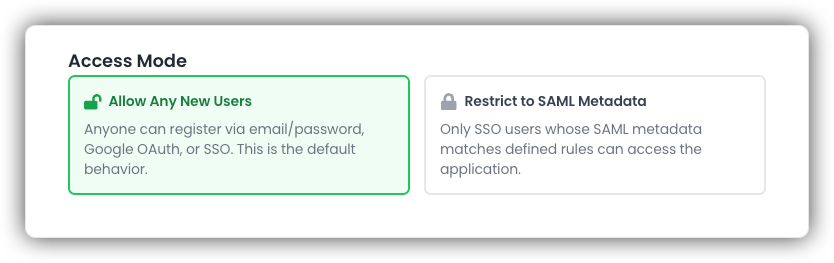
Navigate to Super Admin → Security & Access → Access Controls to select a mode.
| Mode | Behavior |
|---|---|
| Allow Any New Users | Default. Email/password, Google OAuth, and SSO signups are all permitted. |
| Restrict to SAML Metadata | Only SSO users whose SAML attributes match at least one configured rule are allowed. |
How Rule Matching Works
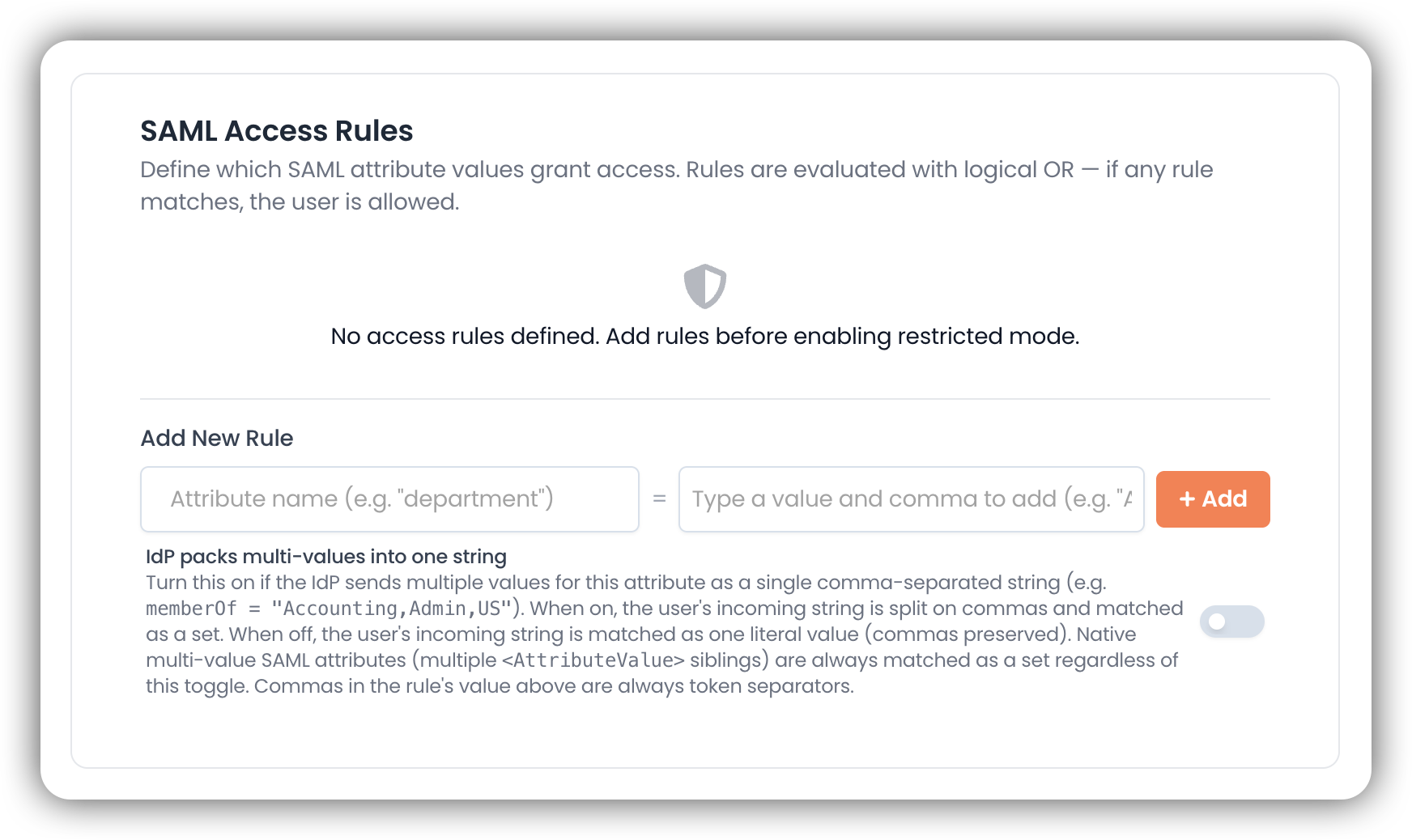
Rules are defined by an Attribute Name and one or more Attribute Values.
The mental model: everything is a set
A rule and an incoming user attribute are both reduced to a set of tokens and compared with subset semantics:
- A rule matches when its required tokens are a subset of the user's tokens
- Logic across rules is OR — any single rule match grants access
- All comparisons are case-insensitive and ignore leading/trailing whitespace
Multi-token rules (AND within a rule)
Commas in the Attribute Value(s) field are token separators. The UI promotes each comma-separated entry into a chip; the rule requires all listed tokens to be present.
engineering— requires one token: the user's attribute must containengineeringAccounting, US— requires two tokens: the user's attribute must contain bothaccountingandus
Handling different SAML wire shapes
SAML attributes can arrive in two shapes:
Native multi-value — the IdP sends multiple <AttributeValue> elements inside one <Attribute>:
<Attribute Name="memberOf">
  <AttributeValue>Accounting</AttributeValue>
  <AttributeValue>US</AttributeValue>
</Attribute>
EK always treats this as a set. No extra configuration needed. This is the preferred shape.
CSV-shoved single value — the IdP sends one <AttributeValue> containing comma-separated tokens:
<Attribute Name="memberOf">
  <AttributeValue>Accounting,US</AttributeValue>
</Attribute>
This is ambiguous (is it two groups, or one literal value containing a comma?). Use the per-rule toggle to resolve it:
| Toggle: "IdP packs multi-values into one string" | Behavior |
|---|---|
| Off (default) | The user's string is treated as one literal token |
| On | The user's string is split on commas and matched as a set |
This toggle only affects how the user's attribute is interpreted. Commas on the rule side are always token separators regardless.
Matching behavior matrix
| User attribute (wire shape) | Toggle | Rule value | Match? |
|---|---|---|---|
native ["A","B","C"] | off | A | ✓ |
native ["A","B","C"] | off | A, B | ✓ |
single "A,B,C" | off | A | ✗ |
single "A,B,C" | off | A, B | ✗ |
single "A,B,C" | on | A | ✓ |
single "A,B,C" | on | A, B | ✓ |
single "A" | off | A | ✓ |
Behavior When Restricted Mode is Active
What is blocked
- New email/password registrations
- New Google OAuth registrations
- New SSO users whose SAML attributes do not match any rule
What is still allowed
- Existing SSO users who match at least one rule (re-checked on every sign-in)
- Existing local users signing into existing accounts
- Super Admin accounts via SSO, even without a matching rule (intentional break-glass)
- API keys belonging to Super Admins or project-level keys with no associated user row
API-key requests from SAML-bound users are also gated under restricted mode. EK checks the user's stored SAML metadata (from their last SSO sign-in) against access rules before allowing API access.
Fail-open behavior: If restricted mode is ON but no SAML access rules exist, EK allows all SSO users. This prevents accidental lockout, but you should always define at least one rule before enabling strict governance.
Configure Access Controls
Open Access Controls
Go to Super Admin → Security & Access → Access Controls.
Select Restricted Mode
Choose Restrict to SAML Metadata.
Add SAML Access Rules
Add one or more rules under SAML Access Rules. Examples:
department = engineeringmemberOf = ekb-usersmemberOf = ekb-users, us (requires both tokens)Toggle IdP packs multi-values into one string if the user-side attribute arrives as a single comma-separated string.
Save and Validate
Save your rules and test with representative SSO accounts before rolling out broadly.
Recommended Rollout Approach
- Create rules while mode is still set to Allow Any New Users
- Validate by inspecting stored SAML metadata for pilot SSO accounts in the Super Admin user view
- Switch to Restrict to SAML Metadata
- Monitor sign-ins and access-denied outcomes
Testing Checklist
After configuration, verify each scenario:
- An SSO user who should be allowed can sign in
- An SSO user who should not be allowed is redirected to the access-denied experience
- Denied users see the expected access-denied experience
- At least one valid rule is active to avoid policy drift
Troubleshooting
User denied unexpectedly
- Confirm access mode is not unintentionally set to restricted
- Verify the rule uses the correct attribute name and exact expected value
- Confirm the IdP is sending that attribute for that user
- For multi-token rules, every listed token must be present in the user's attribute — check the stored SAML metadata in the Super Admin user view
- If the attribute arrives as a CSV-shoved single string, confirm IdP packs multi-values into one string is enabled on the rule
- Check whether the user is attempting email/password or Google OAuth login while restricted mode is active
Super Admin locked out
Super Admin accounts are always allowed through SSO even without a matching rule. If locked out, sign in via SSO using a Super Admin account to regain access.
Operational Guidance
- Treat access rules as security-sensitive configuration
- Use change management processes for production updates
- Re-test after any IdP claim changes
- Periodically review rules and remove stale mappings
- Keep at least one valid rule active to prevent unintended fail-open states