Connecting to Google Drive
1
Open Project Settings
In your EKB project, navigate to Settings in the sidebar.
2
Go to Connections
Select the Connections tab and find the Google Drive tile.
3
Open the Google Drive popup
Click the Google Drive tile. A popup appears with the option to connect your Google Drive to sync files into your Knowledge Base. Click + Connect Google Drive.
4
Sign in to Google
You will be redirected to Google’s sign-in page. Authenticate with your Google account and grant EKB the necessary permissions to access your files.
5
Verify the connection
Once connected, your Google account will appear listed under the Google Drive connection in the Connections tab.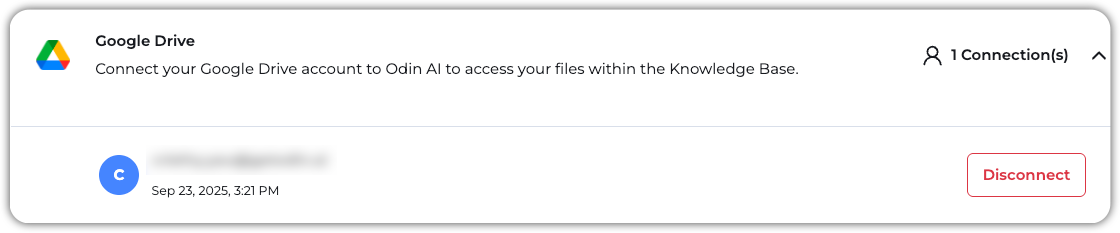
You’re now ready to sync files from Google Drive into the Knowledge Base!
Adding Data from Google Drive
1
Navigate to KB Data
In your EKB project, navigate to Knowledge Base > KB Data.
2
Add a new URL
Click + New and select URL Upload.
3
Paste the Google Drive URL
In the popup that appears, paste the URL of the Google Drive file or folder you want to add to the Knowledge Base and click Add URL.
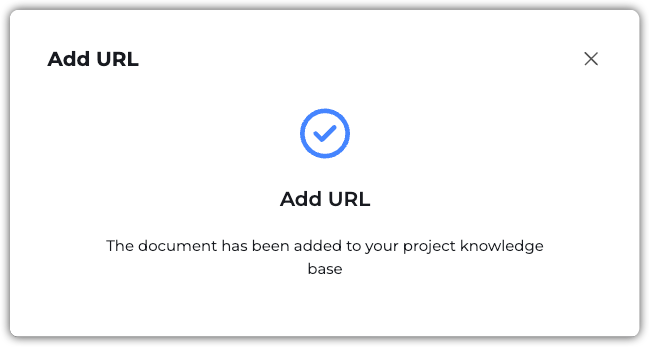
Once files are added, you’ll receive the following confirmation message: