> ## Documentation Index
> Fetch the complete documentation index at: https://ai-kb.automationanywhere.com/llms.txt
> Use this file to discover all available pages before exploring further.
# Cloud Licensing
> How EKB cloud licenses are issued, how you receive your key, and how to redeem it in the EKB portal.
Cloud licenses for EKB are issued and managed by **Automation Anywhere’s Orders and License Management** team. After your order is processed, that team sends the **license key** to the contact email on file—typically the person who placed the order or your designated administrator.
## What you should receive
Check your inbox for email from Automation Anywhere. The message includes the **EKB cloud license key** you need to activate the product. If your team expected a key but did not receive one, contact your Automation Anywhere account representative or **[support@automationanywhere.com](mailto:support@automationanywhere.com)** and reference your purchase or order details.
## Redeem your license key
Before you begin:
* Have your **EKB license key** ready (from the email described above).
* If your company restricts network traffic, confirm with IT that **[allowlisting is in place for your EKB cloud region](/offerings/cloud/overview#regional-hosting-and-static-egress-ip-addresses)**—including the **static egress IPs** and **HTTPS** access to the **frontend** and **app server** URLs for your region. Without that, you may not be able to reach the portal or complete redemption.
### Step 1: Sign in to the EKB portal
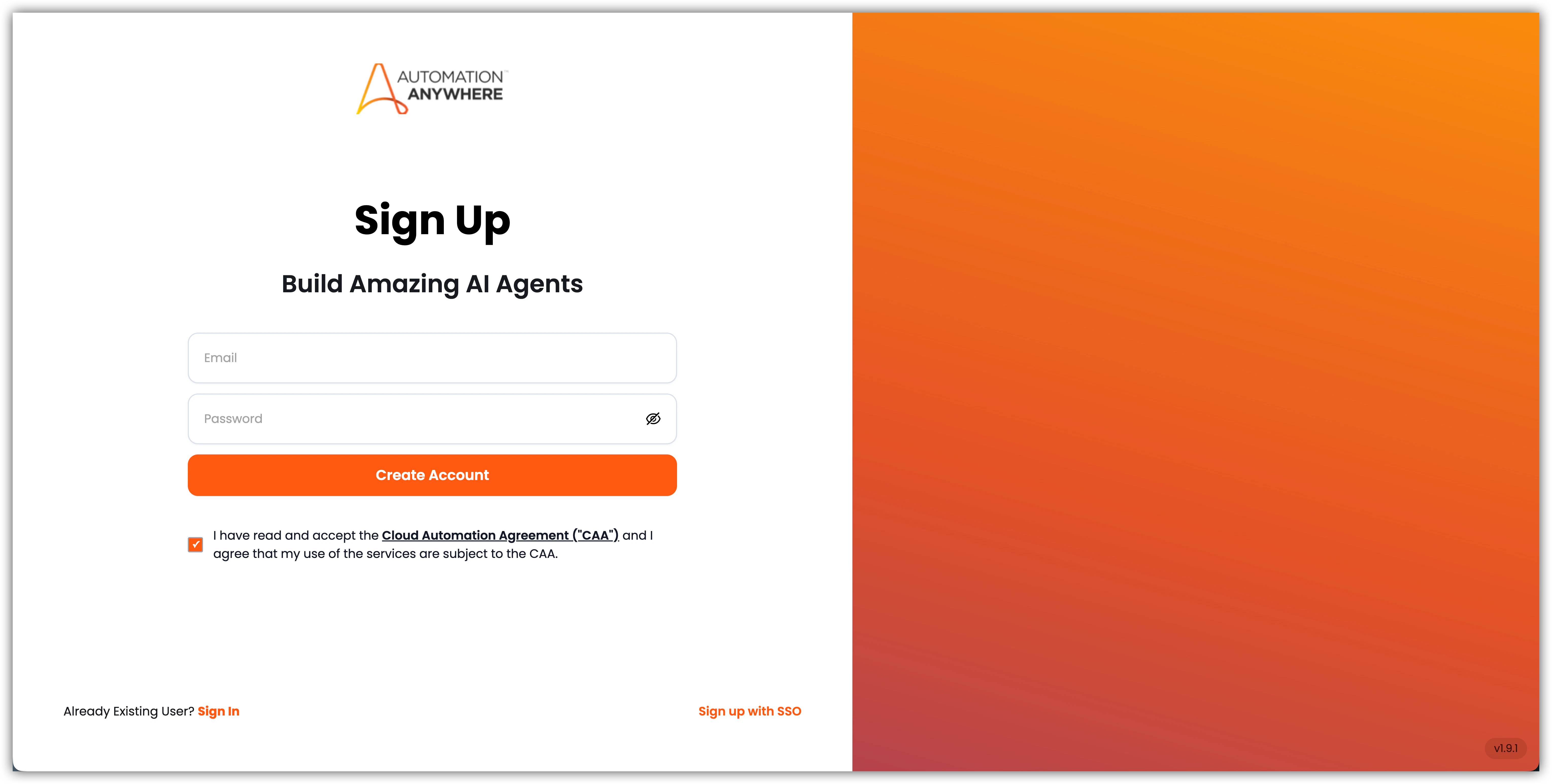
Go to [ai.automationanywhere.com](https://ai.automationanywhere.com) and sign up or sign in using your company email address.
If you are creating a new account, you must read and accept the Cloud Automation Agreement (CAA) before proceeding.
 ### Step 2: Open My Account
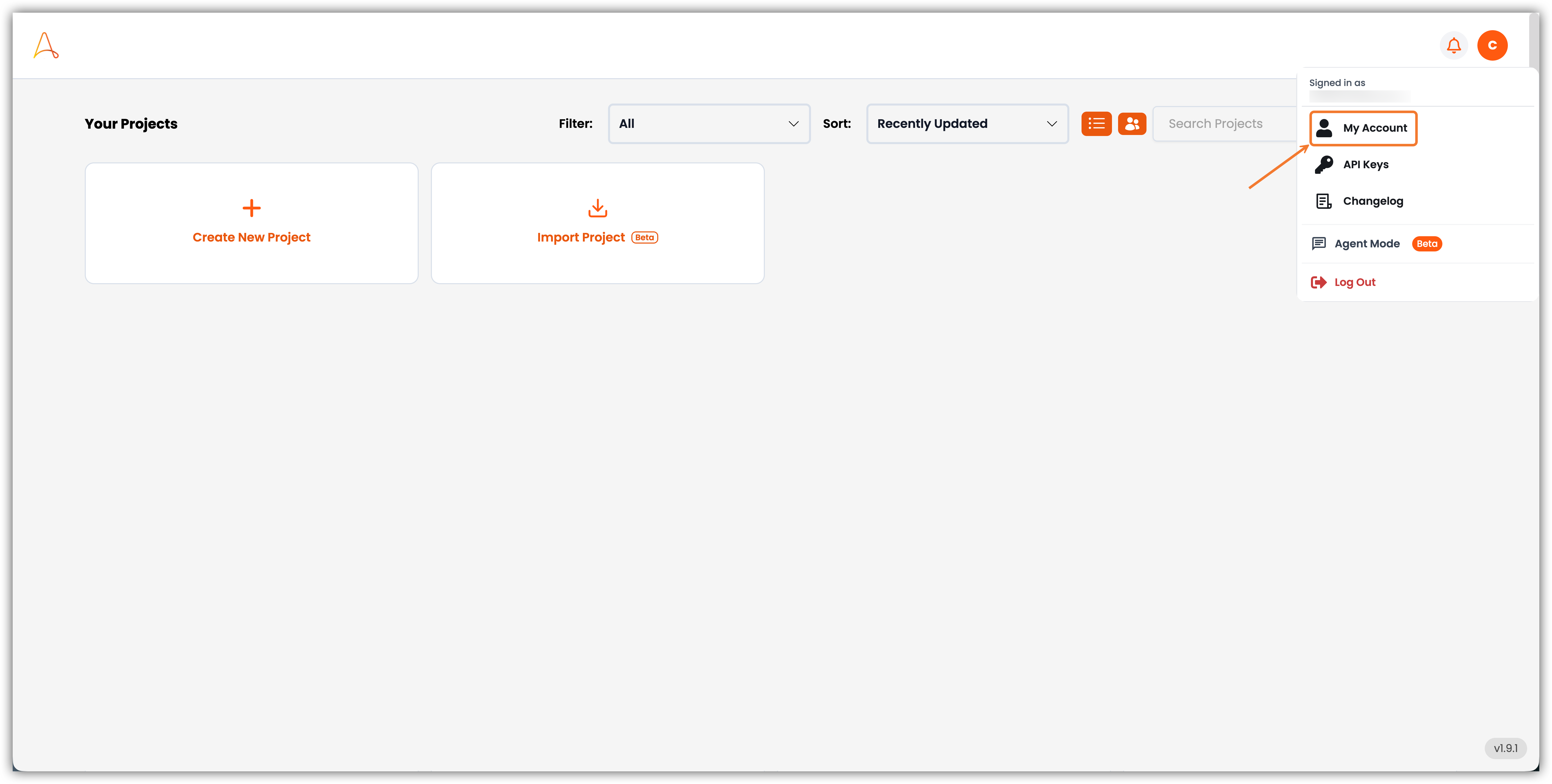
From the dashboard, open the user menu in the top-right corner and select **My Account**.
### Step 2: Open My Account
From the dashboard, open the user menu in the top-right corner and select **My Account**.
 ### Step 3: Redeem your license key
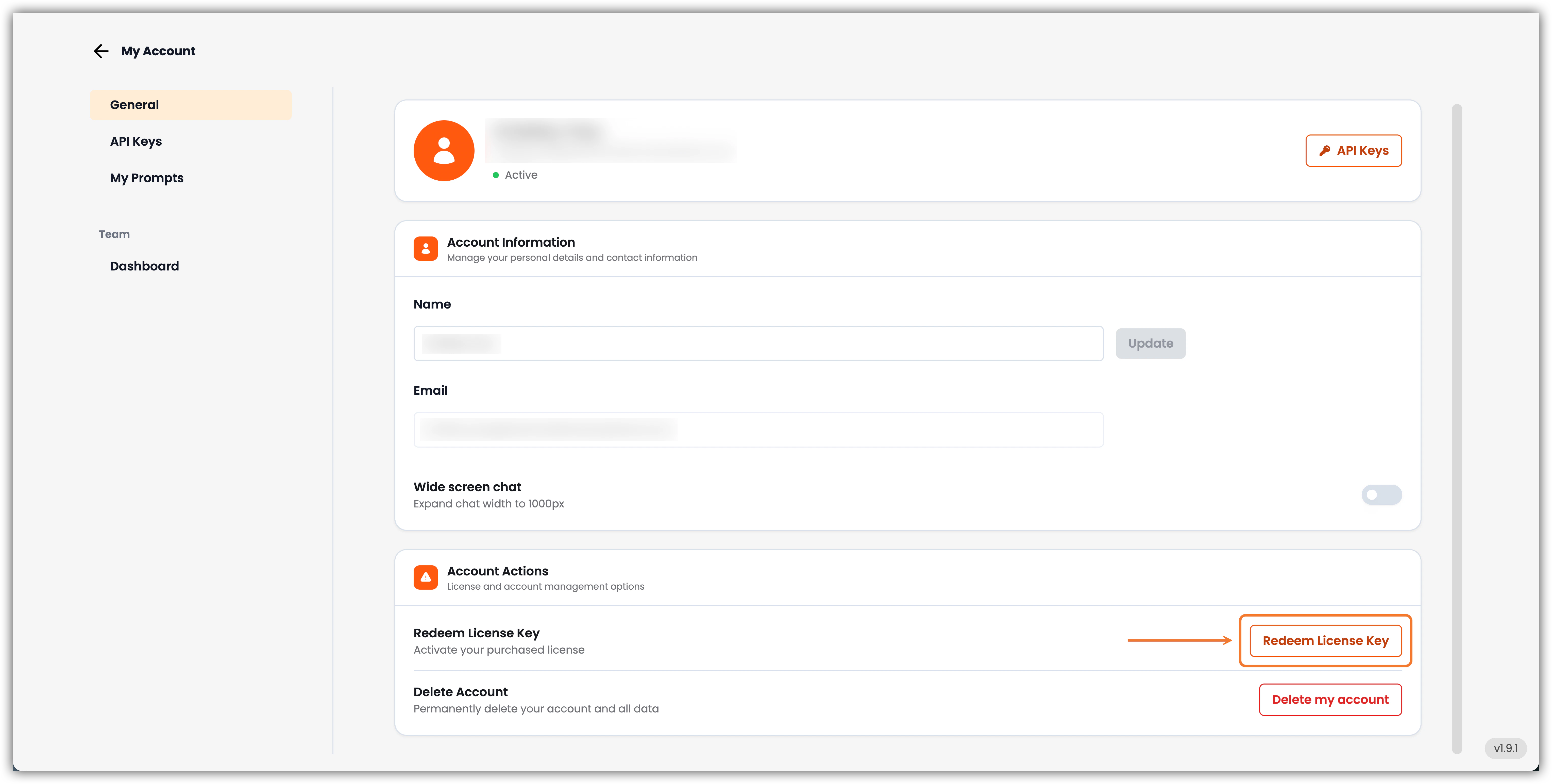
On the **My Account** page, scroll to **Account Actions**. Find **Redeem License Key** and choose **Redeem License Key**.
### Step 3: Redeem your license key
On the **My Account** page, scroll to **Account Actions**. Find **Redeem License Key** and choose **Redeem License Key**.
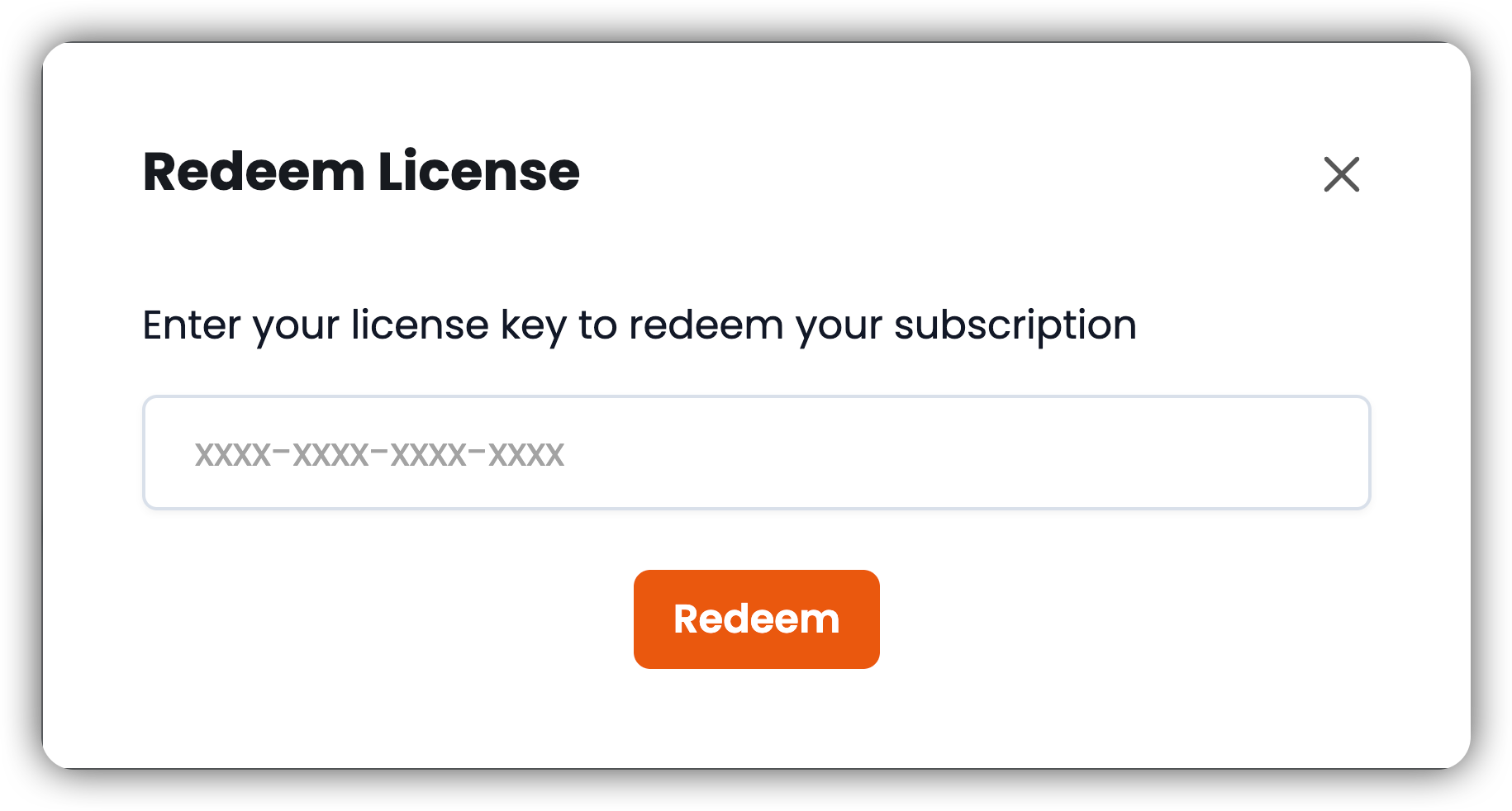
 In the **Redeem License** dialog, enter the license key from your email and select **Redeem**.
 Your EKB Cloud license is now active and linked to your account.
***
For how EKB cloud is hosted (regions, URLs, and firewall allowlists), see the Cloud **[Overview](/offerings/cloud/overview)**. For security certifications and compliance, see **[Security & Compliance](/general/security-compliance)**.
Your EKB Cloud license is now active and linked to your account.
***
For how EKB cloud is hosted (regions, URLs, and firewall allowlists), see the Cloud **[Overview](/offerings/cloud/overview)**. For security certifications and compliance, see **[Security & Compliance](/general/security-compliance)**.