Cloud Licensing
Cloud licenses for EKB are issued and managed by Automation Anywhere’s Orders and License Management team. After your order is processed, that team sends the license key to the contact email on file—typically the person who placed the order or your designated administrator.
What you should receive
Check your inbox for email from Automation Anywhere. The message includes the EKB cloud license key you need to activate the product. If your team expected a key but did not receive one, contact your Automation Anywhere account representative or support@automationanywhere.com and reference your purchase or order details.
Redeem your license key
Before you begin:
- Have your EKB license key ready (from the email described above).
- If your company restricts network traffic, confirm with IT that allowlisting is in place for your EKB cloud region—including the static egress IPs and HTTPS access to the frontend and app server URLs for your region. Without that, you may not be able to reach the portal or complete redemption.
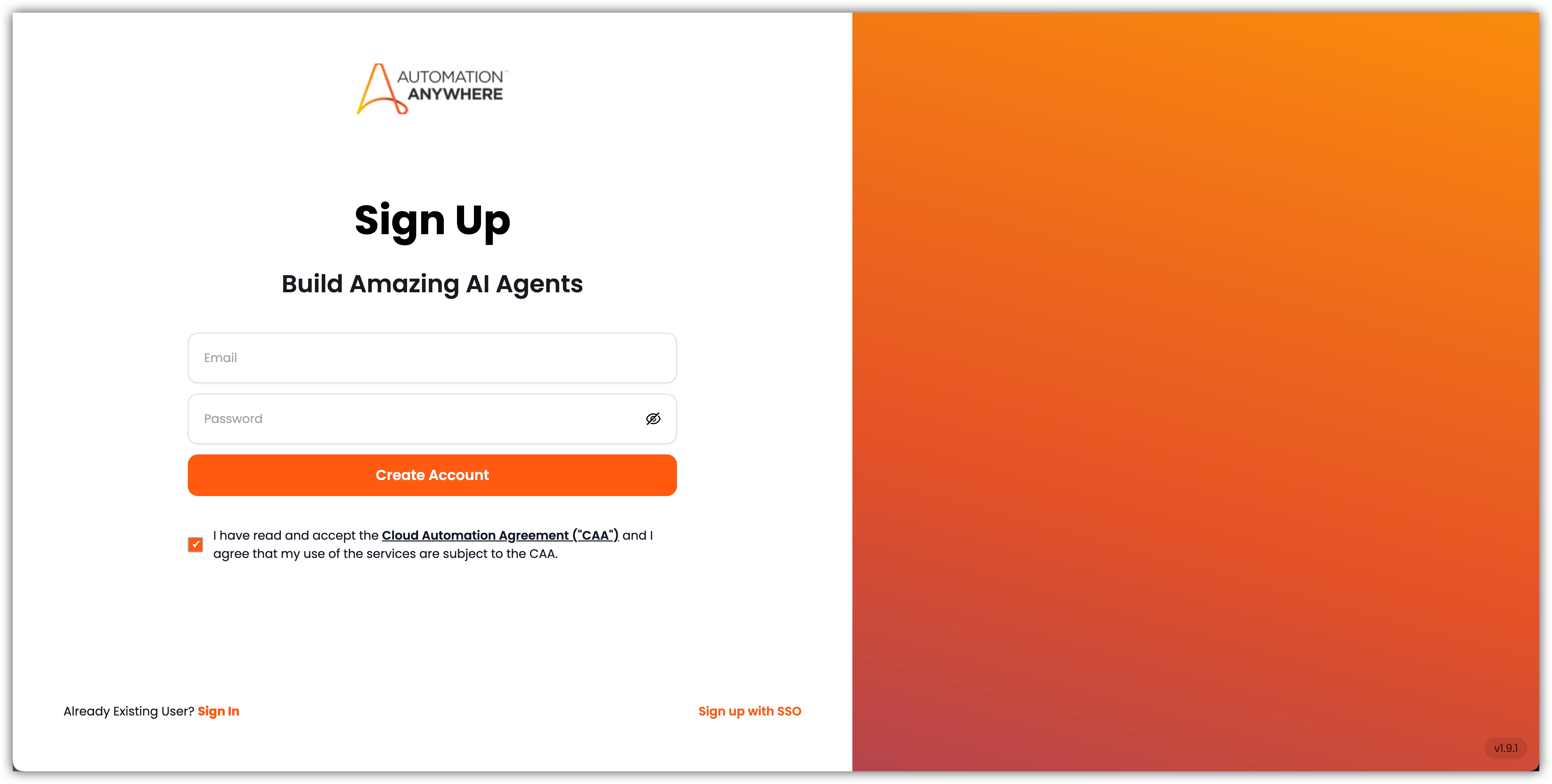
Step 1: Sign in to the EKB portal
Go to ai.automationanywhere.com and sign up or sign in using your company email address.
Step 2: Open My Account
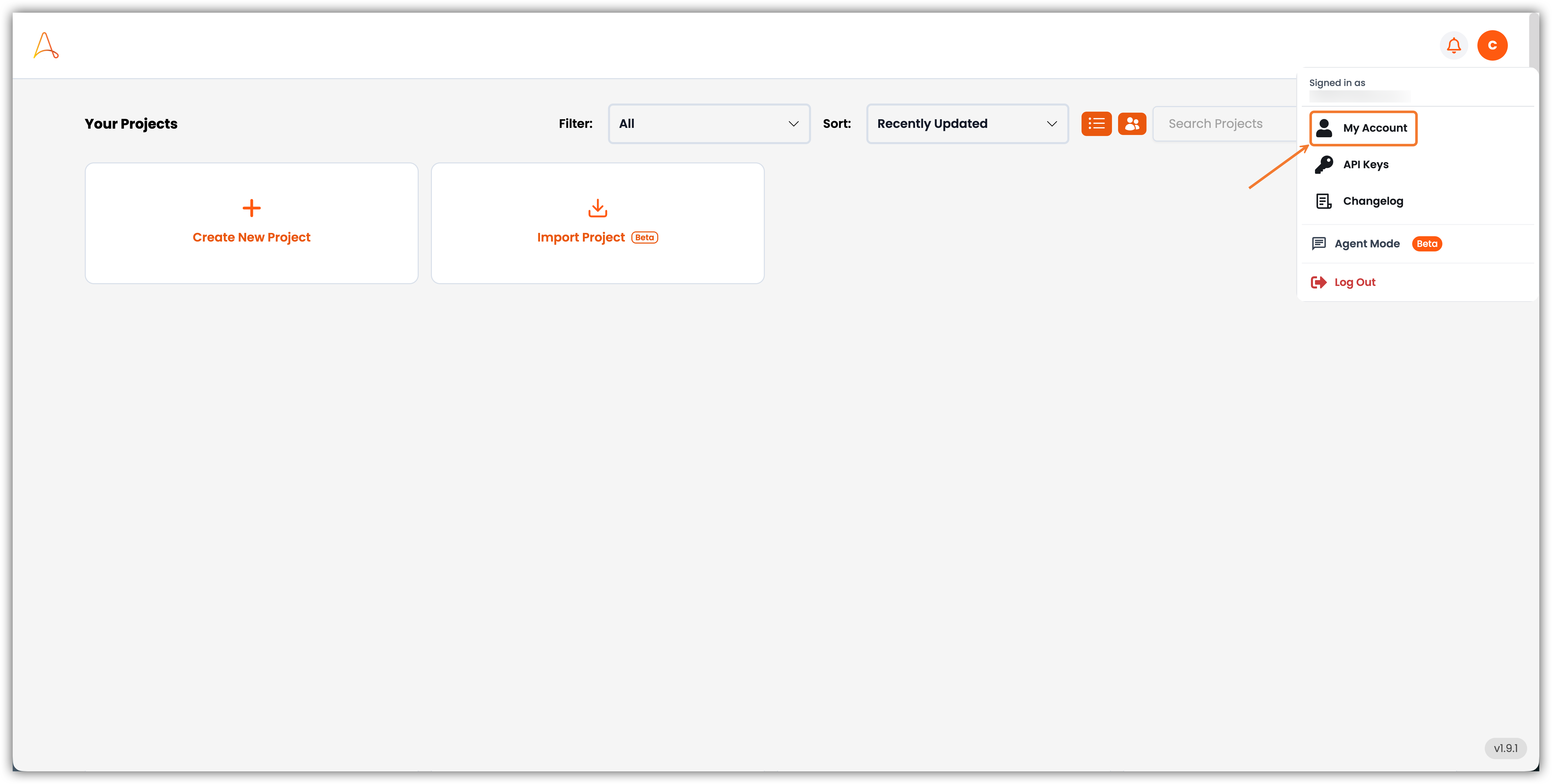
From the dashboard, open the user menu in the top-right corner and select My Account.
Step 3: Redeem your license key
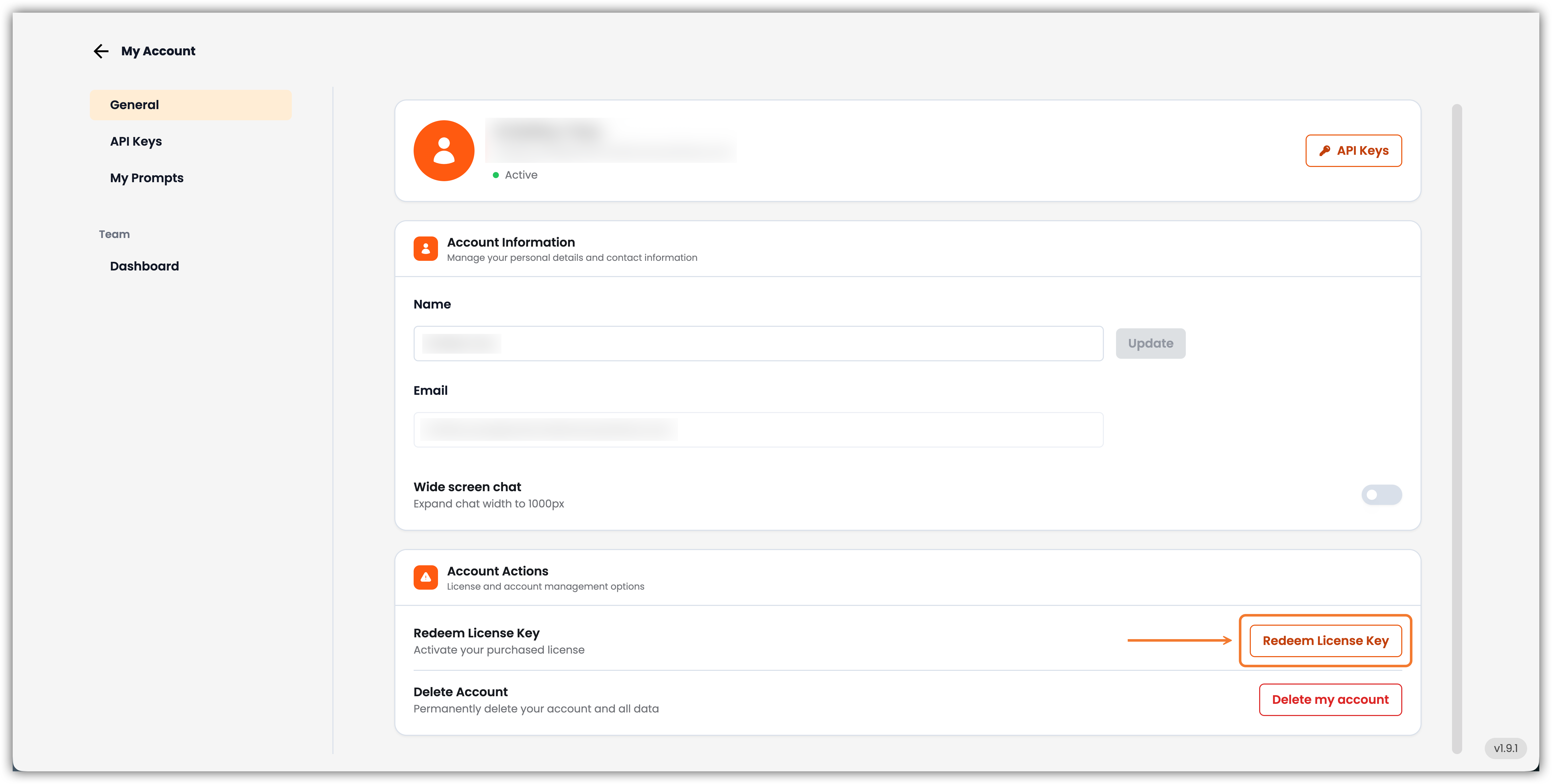
On the My Account page, scroll to Account Actions. Find Redeem License Key and choose Redeem License Key.
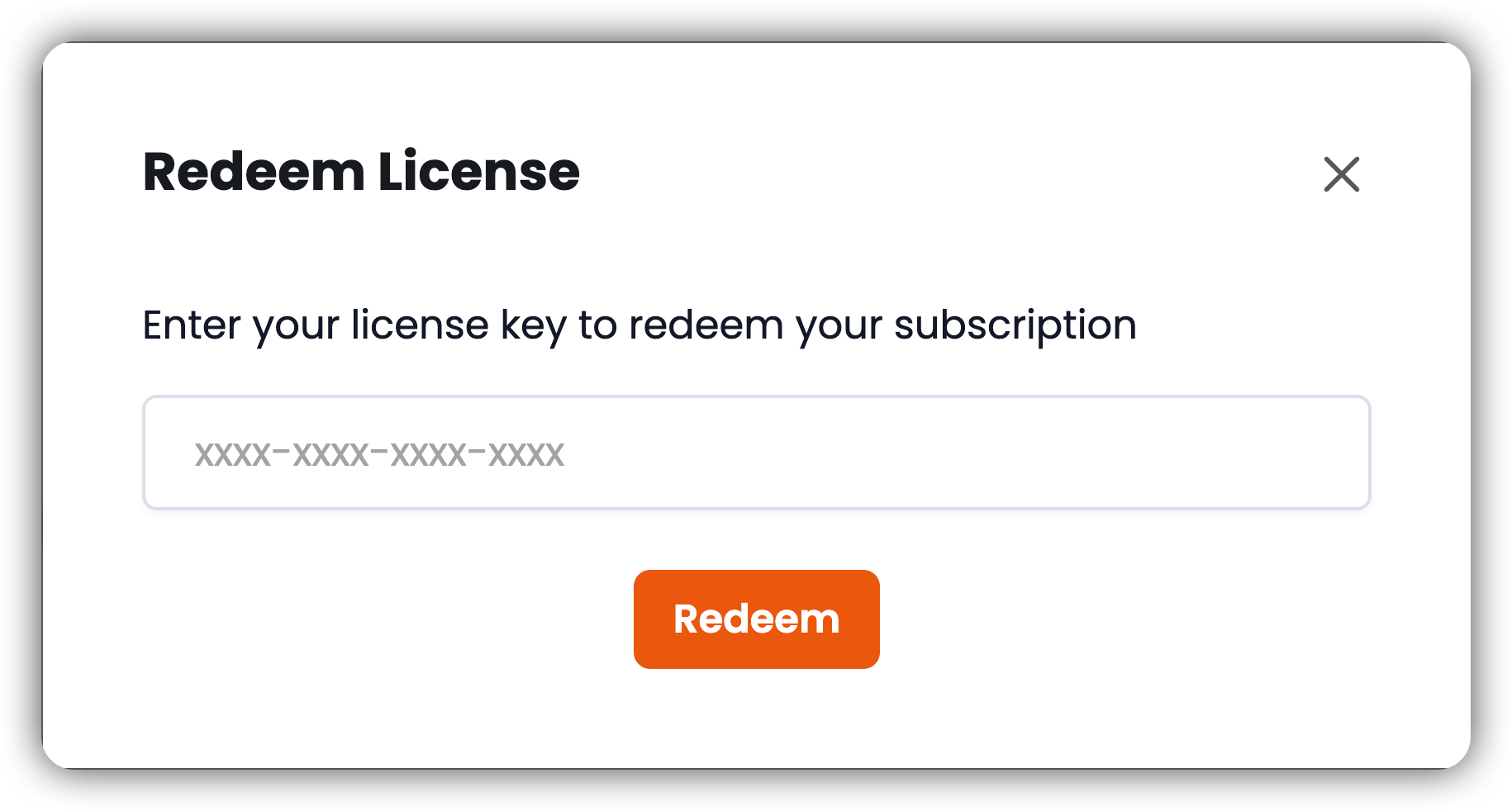
In the Redeem License dialog, enter the license key from your email and select Redeem.
Nested teams on one license
One EKB cloud license can cover a family of nested teams. Seats and credits are shared across that family; admins set ceilings per sub-team rather than issuing a separate key for every department. See Sub-teams, Credit Consumption, and Team SSO.
For how EKB cloud is hosted (regions, URLs, and firewall allowlists), see the Cloud Overview. For security certifications and compliance, see Security & Compliance.