

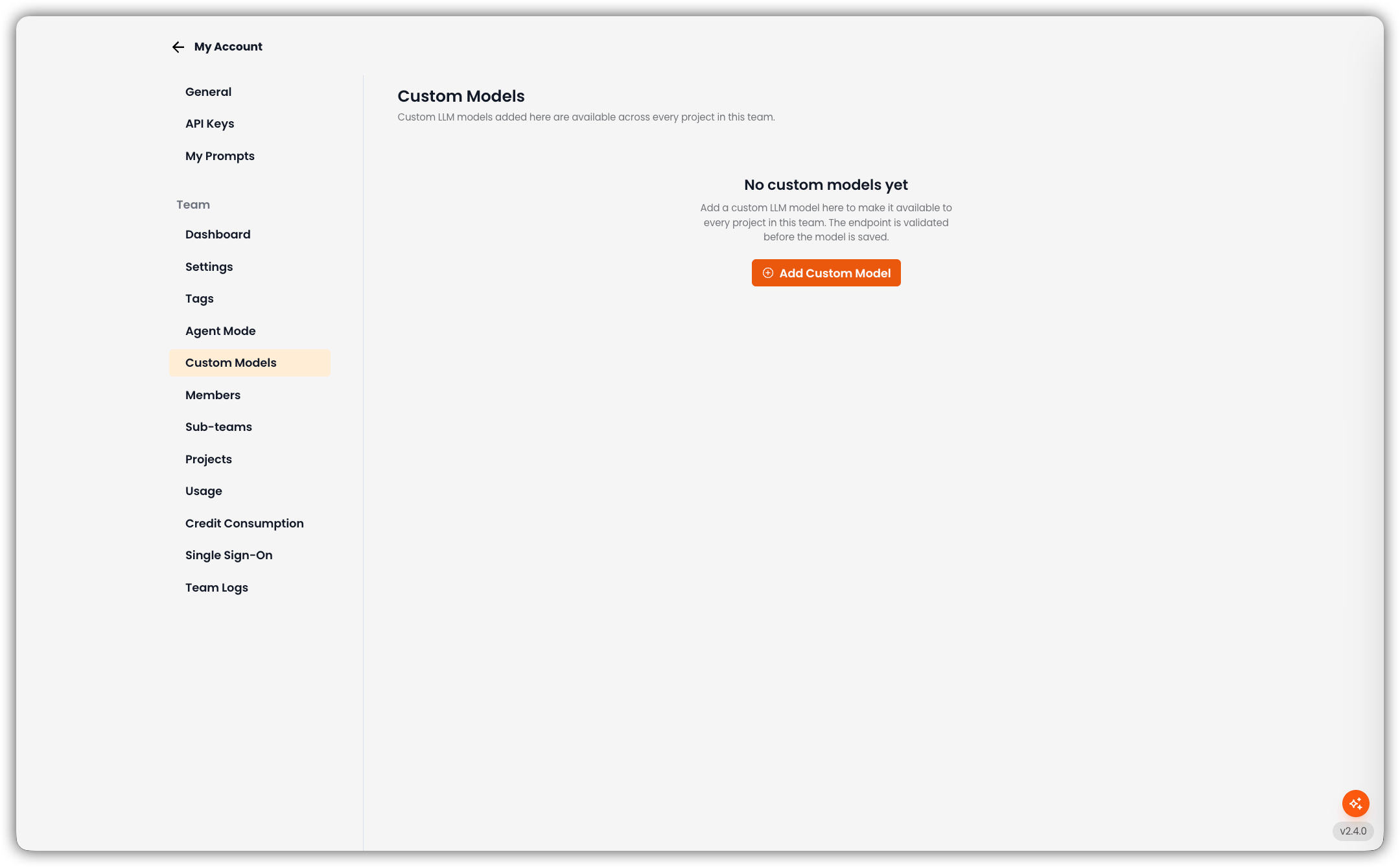
Only team admins can open this tab and add, edit, or delete team custom models.
Empty State
If the team has no custom models yet, the page shows No custom models yet and Add Custom Model.Add a Custom Model
1
Click Add Custom Model
The New Connection dialog opens.
2
Fill in the Fields
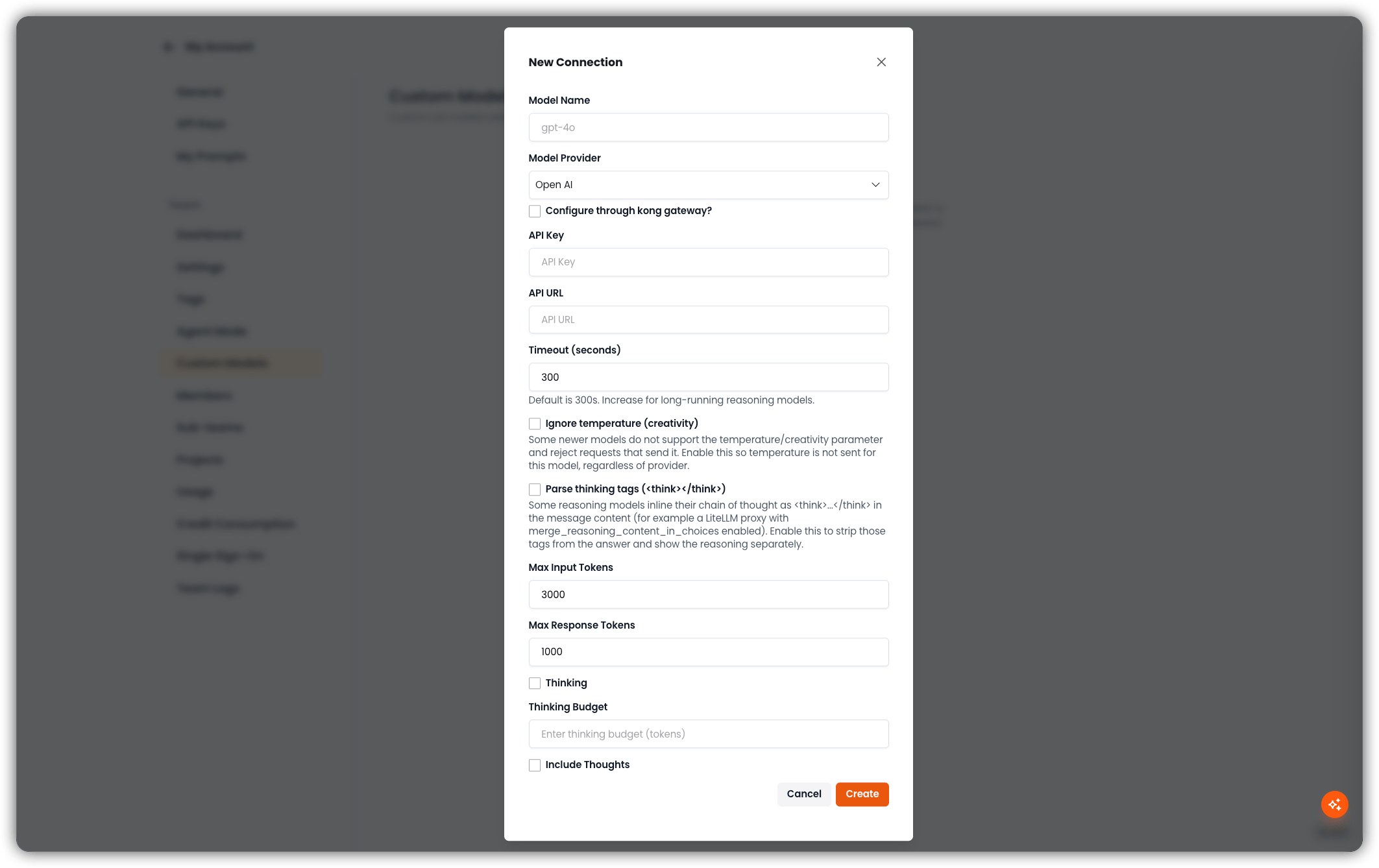
Other provider-specific fields (Azure API version, AWS timeout, custom auth headers, dynamic token fetching) appear when that provider is selected.
3
Create
Click Create. EKB validates the endpoint; on success the model is stored for the team. Cancel closes the dialog without saving.
Model List
When at least one model exists, the page shows a search box (Search by name or provider…) and a table:
If search matches nothing: No models match your search.
Edit or Delete
- Edit reopens the same form with the current values.
- Delete asks for confirmation, then removes the team model.
Related
- Predefined and Custom Models — catalog of built-in models and project-level BYOK
- Agent Mode