> ## Documentation Index
> Fetch the complete documentation index at: https://ai-kb.automationanywhere.com/llms.txt
> Use this file to discover all available pages before exploring further.
# Agent Mode
> Choose which projects appear in Agent Mode and configure its branding
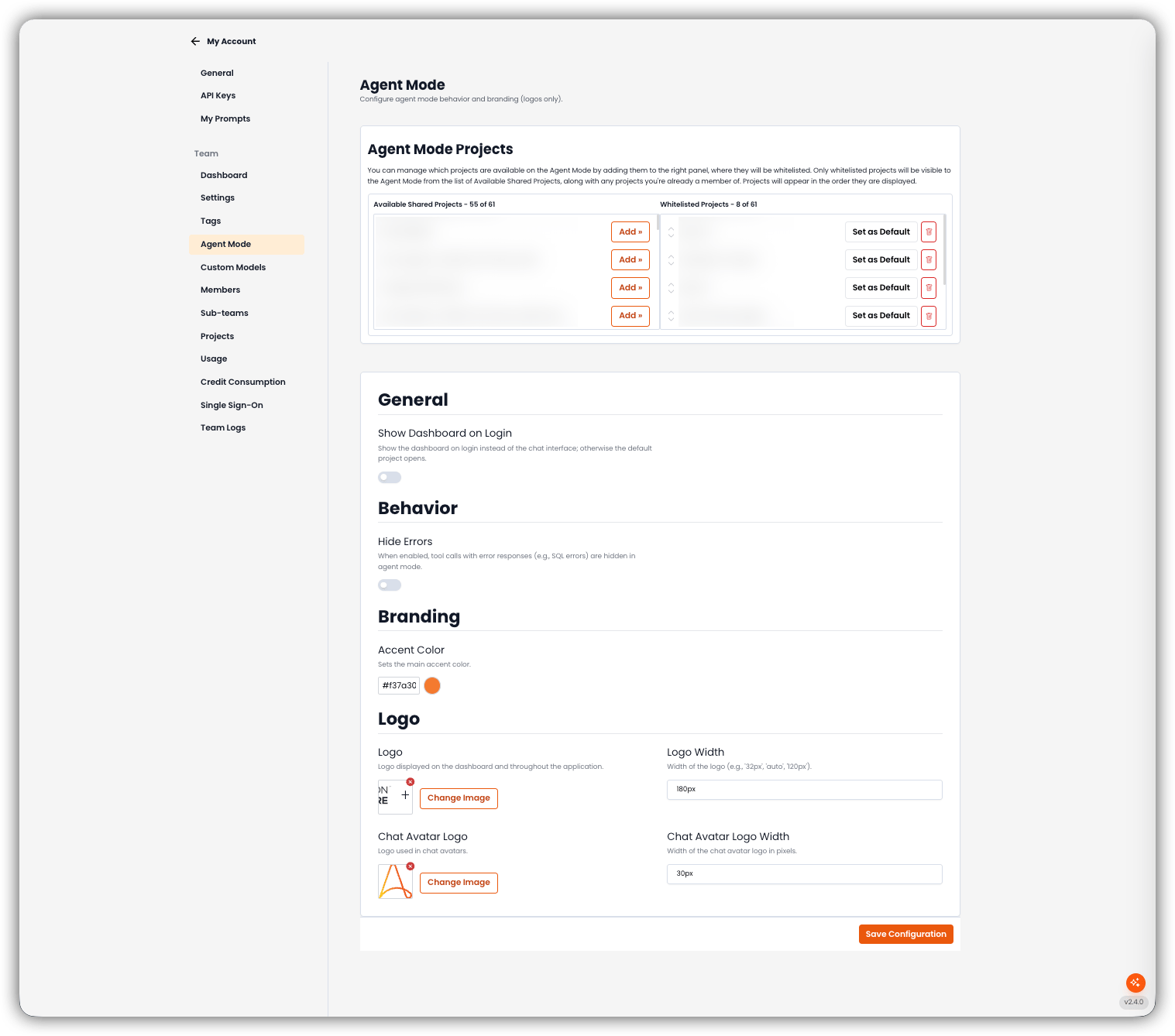
Open **My Account → Agent Mode** to choose which projects are available in Agent Mode and to configure its behavior and logos.
Only team admins can open this tab.
This is the team-admin Agent Mode shell (sometimes called AI Hub). It is separate from [Autopilot Modes](/autopilot/autopilot-modes). Members only see Agent Mode when **Chat Mode for Members** is on in [Team Settings](/my-account/account-settings).
 ## Agent Mode Projects
Whitelist the projects that appear in Agent Mode. Only whitelisted projects (plus projects the person is already a member of) show in the Agent Mode list. They appear in the order shown on the right.
| Panel | What you do |
| ----------------------------- | --------------------------------------------------------------------------------------- |
| **Available Shared Projects** | Shared projects not yet whitelisted. Click **Add »** to whitelist one. |
| **Whitelisted Projects** | Projects visible in Agent Mode. **Set as Default**, reorder with the arrows, or remove. |
The **Default** project is the one Agent Mode opens when **Show Dashboard on Login** is off.
Empty states: *No projects available* (left) and *No projects enabled* (right).
## General
* **Show Dashboard on Login**
Show the dashboard on login instead of the chat interface. If this is off, the default project opens.
## Behavior
* **Hide Errors**
When enabled, tool calls with error responses (for example SQL errors) are hidden in Agent Mode.
## Branding
* **Accent Color**
Main accent color for Agent Mode.
## Logo
| Field | What it controls |
| -------------------------- | ------------------------------------------------------------------------------------ |
| **Logo** | Logo on the dashboard and throughout Agent Mode. Use **Change Image** to replace it. |
| **Logo Width** | Width of that logo (for example `32px`, `auto`, `120px`). |
| **Chat Avatar Logo** | Logo used in chat avatars. |
| **Chat Avatar Logo Width** | Width of the chat avatar logo in pixels. |
Click **Save Configuration** to save project whitelist, default project, and appearance together.
## Related
* [Team Settings](/my-account/account-settings) — Chat Mode for Members
* [Autopilot Modes](/autopilot/autopilot-modes) — Autopilot Agent vs Build mode
* [Custom Models](/my-account/custom-models) — team-wide LLM connections
## Agent Mode Projects
Whitelist the projects that appear in Agent Mode. Only whitelisted projects (plus projects the person is already a member of) show in the Agent Mode list. They appear in the order shown on the right.
| Panel | What you do |
| ----------------------------- | --------------------------------------------------------------------------------------- |
| **Available Shared Projects** | Shared projects not yet whitelisted. Click **Add »** to whitelist one. |
| **Whitelisted Projects** | Projects visible in Agent Mode. **Set as Default**, reorder with the arrows, or remove. |
The **Default** project is the one Agent Mode opens when **Show Dashboard on Login** is off.
Empty states: *No projects available* (left) and *No projects enabled* (right).
## General
* **Show Dashboard on Login**
Show the dashboard on login instead of the chat interface. If this is off, the default project opens.
## Behavior
* **Hide Errors**
When enabled, tool calls with error responses (for example SQL errors) are hidden in Agent Mode.
## Branding
* **Accent Color**
Main accent color for Agent Mode.
## Logo
| Field | What it controls |
| -------------------------- | ------------------------------------------------------------------------------------ |
| **Logo** | Logo on the dashboard and throughout Agent Mode. Use **Change Image** to replace it. |
| **Logo Width** | Width of that logo (for example `32px`, `auto`, `120px`). |
| **Chat Avatar Logo** | Logo used in chat avatars. |
| **Chat Avatar Logo Width** | Width of the chat avatar logo in pixels. |
Click **Save Configuration** to save project whitelist, default project, and appearance together.
## Related
* [Team Settings](/my-account/account-settings) — Chat Mode for Members
* [Autopilot Modes](/autopilot/autopilot-modes) — Autopilot Agent vs Build mode
* [Custom Models](/my-account/custom-models) — team-wide LLM connections