> ## Documentation Index
> Fetch the complete documentation index at: https://ai-kb.automationanywhere.com/llms.txt
> Use this file to discover all available pages before exploring further.
# Google Drive를 지식 베이스에 연결
> Google Drive 파일을 지식 베이스와 동기화합니다.
**Google Drive 커넥터**를 사용하면 문서, 스프레드시트, 프레젠테이션 및 기타 파일을 지식 베이스로 직접 가져올 수 있습니다. 연결되면 EKB가 Google Drive에서 콘텐츠를 자동으로 동기화하여 AI 에이전트가 검색하고 접근할 수 있도록 합니다. 이를 통해 항상 최신 파일을 사용할 수 있으며, 팀이 기존 Google Drive 데이터에서 인사이트를 검색하고, 질문에 답하고, AI 기반 워크플로우를 구축할 수 있습니다.
## Google Drive에 연결
EKB 프로젝트에서 사이드바의 **설정**으로 이동합니다.
**연결** 탭을 선택하고 **Google Drive** 타일을 찾습니다.
**Google Drive** 타일을 클릭합니다. Google Drive를 연결하여 파일을 지식 베이스로 동기화하는 옵션이 포함된 팝업이 나타납니다. **+ Google Drive 연결**을 클릭합니다.
Google 로그인 페이지로 리디렉션됩니다. Google 계정으로 인증하고 EKB에 파일 접근을 위한 필요한 권한을 부여합니다.
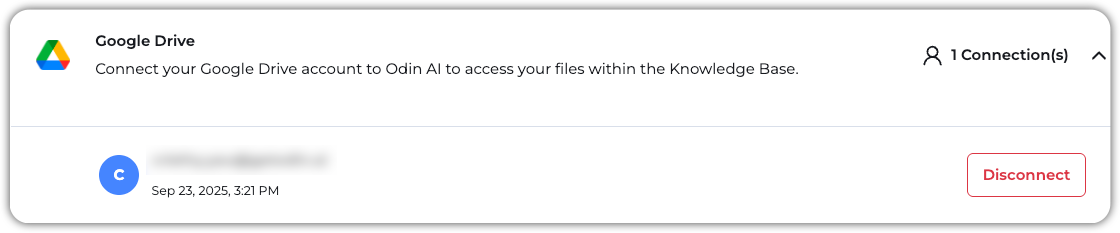
연결되면 Google 계정이 **연결** 탭의 Google Drive 연결 아래에 나열됩니다.
 이제 Google Drive에서 파일을 지식 베이스로 동기화할 준비가 되었습니다!
## Google Drive에서 데이터 추가
EKB 프로젝트에서 **지식 베이스** > **KB 데이터**로 이동합니다.
**+ 새로 만들기**를 클릭하고 **URL 업로드**를 선택합니다.
나타나는 팝업에서 지식 베이스에 추가할 Google Drive 파일 또는 폴더의 URL을 붙여넣고 **URL 추가**를 클릭합니다.
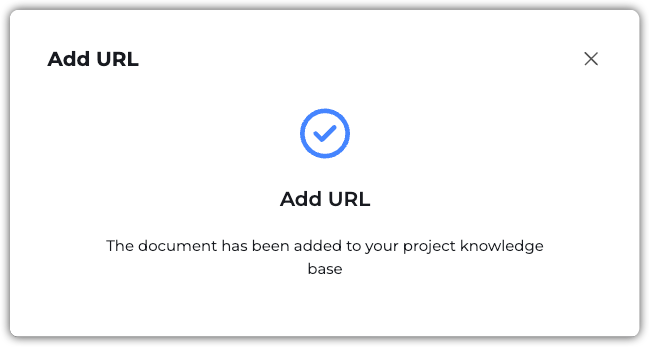
파일이 추가되면 다음 확인 메시지를 받게 됩니다:
이제 Google Drive에서 파일을 지식 베이스로 동기화할 준비가 되었습니다!
## Google Drive에서 데이터 추가
EKB 프로젝트에서 **지식 베이스** > **KB 데이터**로 이동합니다.
**+ 새로 만들기**를 클릭하고 **URL 업로드**를 선택합니다.
나타나는 팝업에서 지식 베이스에 추가할 Google Drive 파일 또는 폴더의 URL을 붙여넣고 **URL 추가**를 클릭합니다.
파일이 추가되면 다음 확인 메시지를 받게 됩니다: