Using Web Crawlers
With Web Crawlers, you can gather information from a website automatically using the website's domain URL. Any discoverable page within the domain will be automatically added to the Knowledge Base. For websites where content is frequently updated, you can schedule periodic crawls to add the latest information and content from any newly added pages to the Knowledge Base. Additionally, you can specify certain keywords or paths within the crawl pattern to extract only specific sections of your website.
Crawling Patterns
Patterns enable quick and easy restrictions on pages crawled or processes based on simple URL string matches. For instance, to crawl only pages wihin the "sports" category at http://www.example.com/sports/heres-a-sports-article.html, you can specify a crawl pattern of /sports/ (including slashes ensures precision and avoids matching a "sports" string elsewhere in the URL).
By using a crawl pattern, you can limit crawling to a particular subdomain. For example, on a crawl starting at a specific domain, you can enter a crawl pattern to prevent crawl from unwanted links. In a Web Crawl configuration, you can enter multiple patterns to match multiple strings by placing each individual pattern on a new line.
These are the available crawling patterns:
Limiting Matches to the Beginning of URLs
Use the caret character (^) to restrict pattern matches to the beginning of a URL. For example, a processing pattern of ^https://example.com will limit processing only to pages which URLs begin with https://example.com.
Negative-Match Patterns
Use the exclamation point (!) for a "negative match" to explicitly exclude pages from being crawled or processed.
Regular Expressions Crawl and Processing
For precise control over your crawling or processing URL matches, you can create a regular expression (regex) to exclusively crawl or process URLs that match your defined expression. For example, to process pages at https://example.com/ under the "/crawl" path and containing the term "regex", you could use a processing regex similar to: \/crawl.*?regex.
The crawlbot employs a custom regular expression engine for optimal performance while evaluating pages. In terms of character class syntax, commmonly used in Crawlbot parsing, the crawlbot supports all ASCII processing characters and most Perl/Tcl shortcuts.
HTML Processing Pattern
The crawl allows for limiting processed pages based on HTML processing patterns, which will only examine the raw source and does not execute JavaScript/AJAX during crawl time. However, the downside of this option is the crawl speed. If you'd like a faster crawling speed, you should use regex crawling and processing.
When to Use a Crawler
The crawler is designed for extracting structured, high-value information from the web. It works best in scenarios where data is publicly available and regularly updated.
Best Use Cases
- News and Media – Extract articles from sites like BBC News
- Financial Data – Collect market insights from stock sites such as NASDAQ
- E-Commerce – Gather product listings, reviews, and pricing from marketplaces
- Knowledge Resources – Capture blog posts, forum discussions, or FAQ content to enrich your Knowledge Base.
When Not to Use the Crawler
Avoid crawling in these situations to prevent errors or compliance issues:
- Authentication Required – Websites that require login credentials (e.g., LinkedIn).
- JavaScript-Only Sites – Sites that show only a loading screen until an app loads in the browser (single-page apps). The crawler waits for such a page to render once more; if it still shows only the loading screen, the page is listed as failed in the Crawled Report instead of being added to the Knowledge Base.
- Highly Dynamic Dashboards – Real-time dashboards (such as live stock tickers) may not yield complete results.
- Excessive Site Load – Respect each site's usage policies–always review the
robot.txtfile before crawling.
Create a New Crawler
-
In your EKB project, open Knowledge Base.
-
In the Knowledge Base sidebar, select Crawlers.
-
Click + Create New.
-
In the Input section:
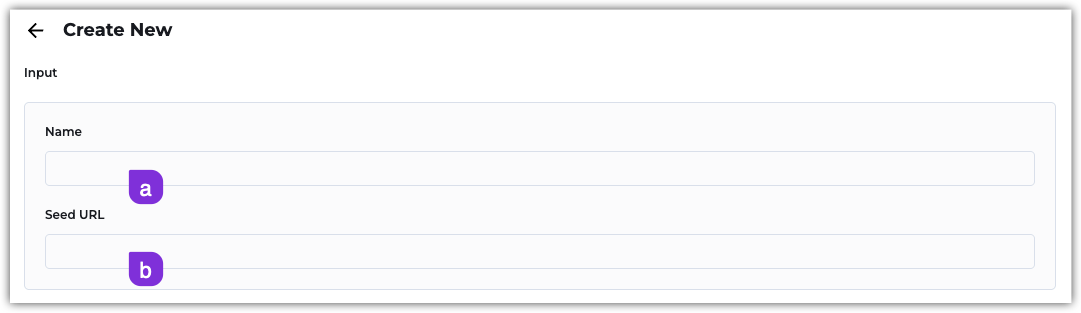
a. Enter a name for your crawler.
b. Provide the Seed URL, the link to the website you want to crawl. This is the initial link that is accessed by the crawler. From there, the crawler explores the web pages and links available within the website. -
In the Knowledge Base destination section, choose where the crawled pages are saved:
- Destination – The Knowledge Base root or an existing folder.
- Create a new folder for this crawler under the selected destination – Saves the crawler's pages in a folder of their own, created under the destination you picked. When you edit the crawler later, the destination shows the folder's parent and the section tells you which folder the pages are saved in. Untick it to save straight into the destination.
infoChanging a crawler's destination only affects pages crawled from then on. Pages it already added stay where they are; move or delete them from the Knowledge Base browser if needed. If a crawler is set to save into its own folder but is saving somewhere else, its Settings tab says so and offers a Save into folder button that points it back at the folder. -
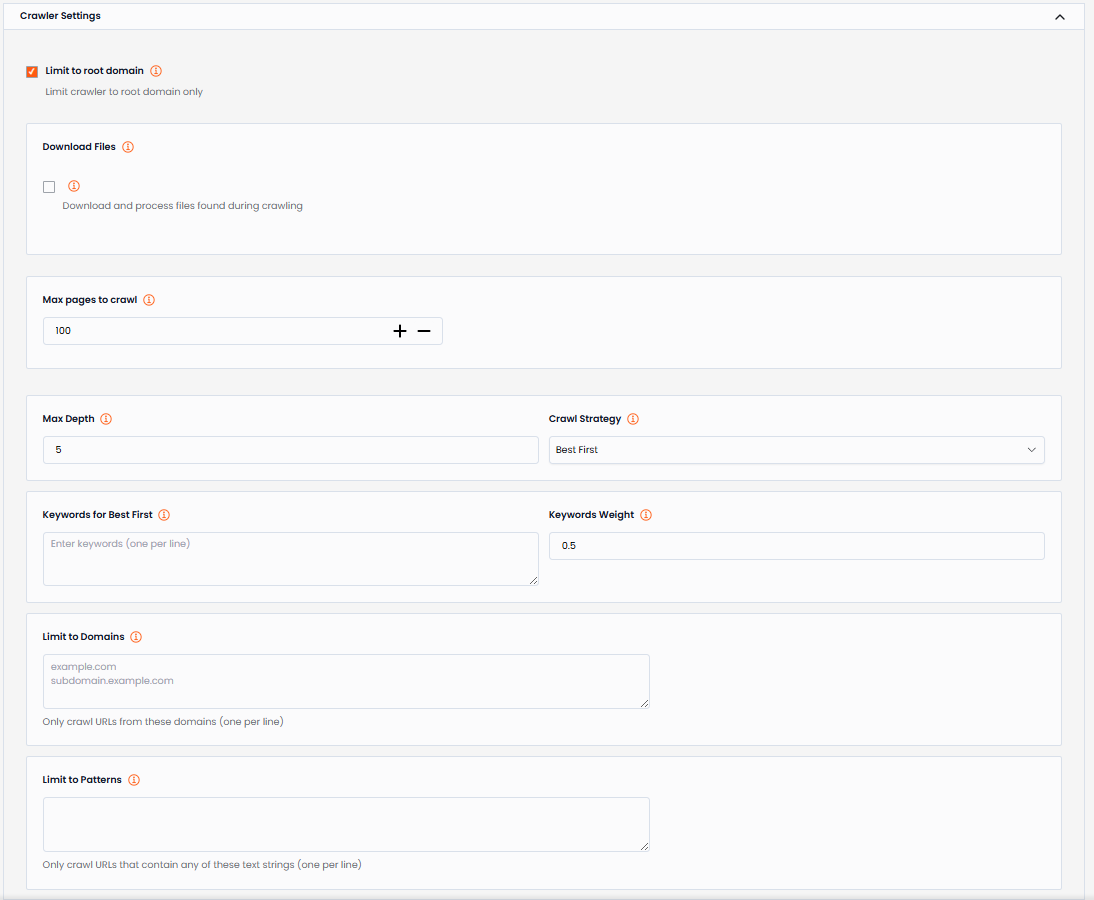
In the Crawler Settings section:
-
Limit to Root Domain – This sets the crawler to focus solely on the root domain, streamlining relevant information extraction.
-
Download Files – Enable this option with you want the crawler to download and process files found during crawling.
-
Max Pages to Crawl – Set the maximum number of pages to crawl, to optimize resource usage and efficiency.
-
Max Depth – Set the maximum depth to crawl from the seed URL (i.e., how many links deep to follow).
-
Crawl Strategy – Choose how the crawler prioritizes which pages to visit first.
- Best First – If you select this option, you need to configure the keywords the crawler should use to find these pages and the weight of these keywords.
- Keywords for Best First – Pages containing the keywords configured in this text box will be crawled first. Enter one keyword per line.
- Keywords Weight – Configure the keyword weight for keyword matching; the higher the value, the more it prioritizes keyword matching.
- Breadth First – This method prioritizes visiting all directly linked pages from a current page before delving deeper.
- Depth First – This method prioritizes exploring as deeply as possible along a single path of links before backtracking and exploring other paths.
- Best First – If you select this option, you need to configure the keywords the crawler should use to find these pages and the weight of these keywords.
-
Limit to Domains – Restrict the crawler to specific domains instead of crawling all subdomains within the root domain. Enter one domain per line or leave blank to crawl all subdomains.
-
Limit to Patterns – Enter the crawling patterns you'd like the crawler to use. Enter one crawling pattern per line.
warningIf you're using multiple crawling patterns, this is the hierarchy: 1. Regex, 2. Negative Matches, 3. All other patterns.
-
-
In the Scheduling section, define the frequency and time for scheduled crawls:
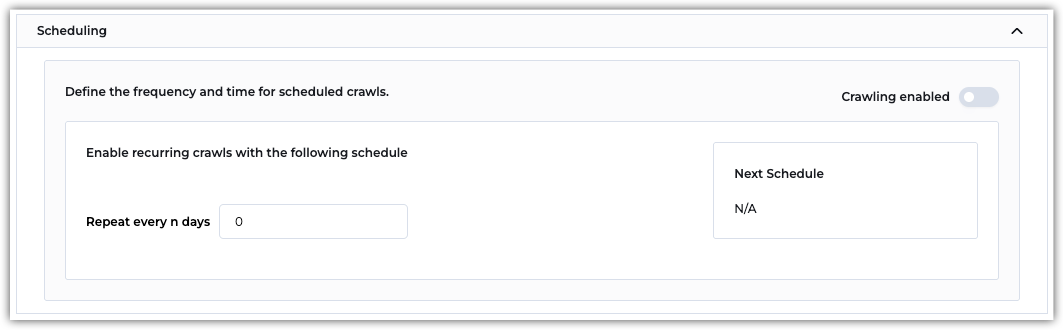
- Crawling Enabled – Enable this option to set the crawling schedule.
- Repeat Every n Days – Set the number for days in which you'd like the crawl to run. For example:
- Daily =
1 - Weekly =
7 - Bi-weekly =
14 - Monthly =
30
- Daily =
- Next Schedule – Depending on the number of days you enter, you'll see the next crawl date.
-
Once you're done configuring your web crawl, click Crawl Now to start the first crawl. You'll be redirected to the new crawler's configuration page with the following tabs:
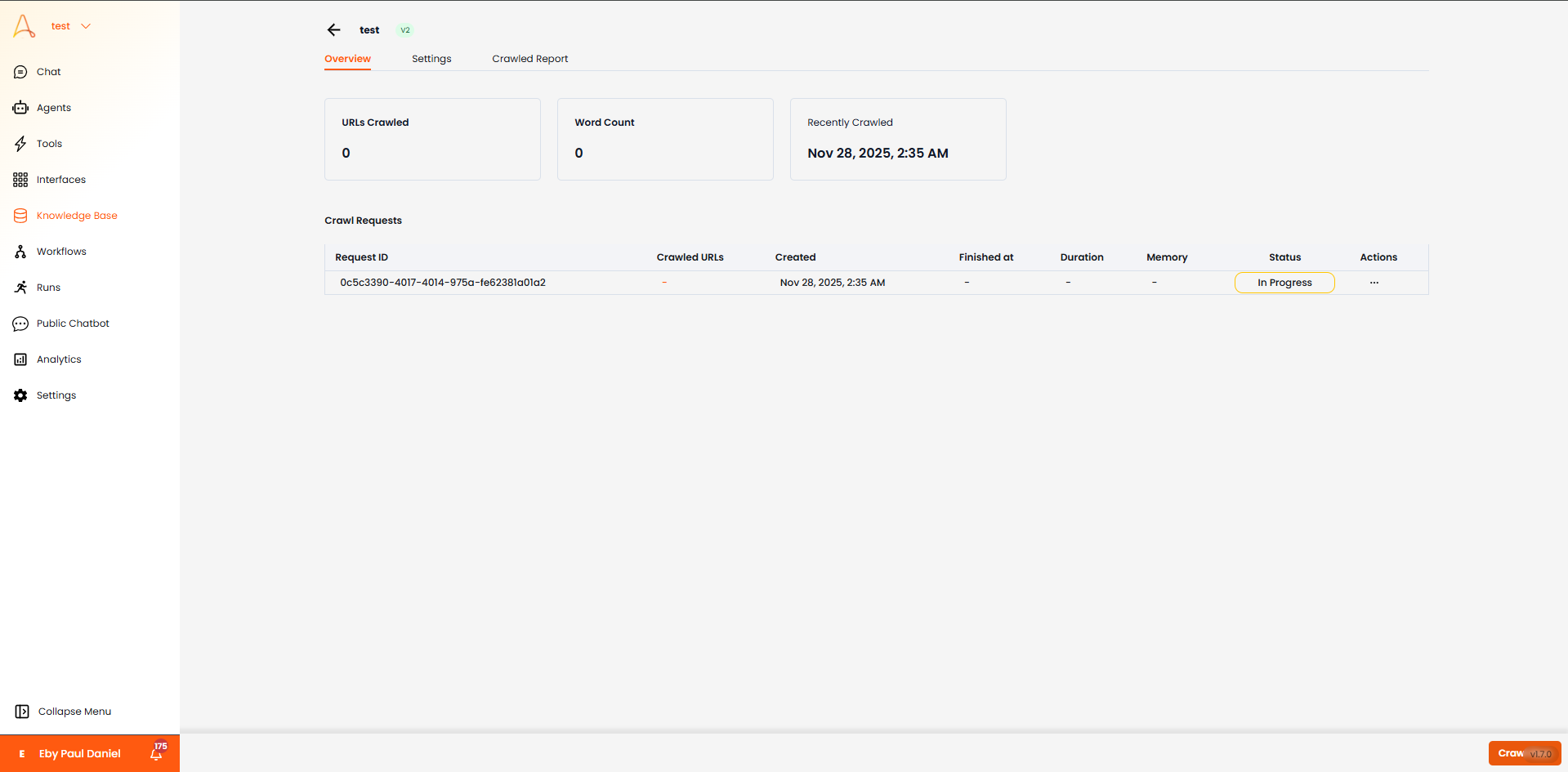
- Overview – This is where you can see the crawl request information and status.
- Settings – This is where you can edit the crawler's settings. You can edit these settings even after a crawl has ran.
- Crawled Report – This tab provides real-time updates on the pages being crawled.
Manage Crawl Requests
Each crawl you start appears under Crawl Requests on the crawler's Overview tab. Open the ... menu on a request to act on it:
| Status | Available actions |
|---|---|
| Queued / In progress | Pause, Stop, Restart |
| Paused | Resume, Stop, Restart, Delete |
| Finished / Error | Restart, Delete |
| Stopped | Delete |
- Pause halts the crawl and keeps its place. Resume continues from where it stopped.
- Stop ends the crawl for good. It can't be resumed or restarted; pages it already crawled stay in your knowledge base. Start a new crawl with Crawl Now.
- Restart re-runs the same request from scratch, replacing its report.
- Delete removes the request, its crawled report and its failed-URL list. Documents already added to your knowledge base are kept.
Best Practices
1. Use Clear and Concise Seed URLs
Choose URLs that point directly to the section of a website you want to extract..
- Good Example:
https://www.example.com/news(targets only the "news" section) - Bad Example:
https://www.example.com?user=1234(Using dynamic parameters can cause errors or redundant crawling)
Always ensure:
- the URL is accessible and relevant to the data you want to extract.
- use subpages when you want to restrict crawling to a specific section.
2. Restrict to Domains and Subdomains
Keep your crawl focused to avoid pulling in unnecessary or unrelated data.
- Limit to Root Domain – Crawling
example.comcaptures only that domain and ignores external links (e.g., otherwebsite.com). - Limit to Domain – Crawling
blog.example.comwon't include other subdomains likeshop.example.com.
Example
Crawling https://www.bbc.com, with Limit to Root Domain enabled ensures only BBC content is included–not external news sources linked on the site.
3. Use Crawling and Processing Patterns
Patterns let you fine-tune what the crawler fetches and processes.
- Crawling Patterns – Define which URLs should be crawled.
- Processing Patterns – Specify which content should be extracted into your Knowledge Base. Both use a simplified regex syntax:
- Implied Wildcard – Entering
productsmatches any URL containing "products." - Negation(
!) –!productsmatches any URL without "products." - Starts with (
^) –^https://example.com/products/matches URLs beginning with that path. - Ends with(
$) –products/$matches URLs ending in "products."
Example
- Crawling Pattern –
https://example.com/products/*> crawls all product pages. - Processing Pattern –
https://example.com/products/*reviews> extracts only reviews from product pages.
4. Enable Scheduled Crawls (When Needed)
For dynamic websites, schedule crawls to keep your Knowledge Base up to date.
Example
Track stock prices on https://www.nasdaq.com by enabling daily crawls.
5. Use Sitemaps for efficiency
If a site offers a sitemap (e.g., `https://example.com/sitemap.xml), leverage it to guide the crawler and ensure complete coverage.
Example
A news website with a sitemap listing all recent articles guarantees no articles are missed.