> ## Documentation Index
> Fetch the complete documentation index at: https://ai-kb.automationanywhere.com/llms.txt
> Use this file to discover all available pages before exploring further.
# Google ドライブをナレッジベースに接続する
> Google ドライブのファイルをナレッジベースと同期します。
**Google ドライブ コネクタ**を使用すると、ドキュメント、スプレッドシート、プレゼンテーション、その他のファイルをナレッジ ベースに直接取り込むことができます。接続すると、EKB は Google ドライブのコンテンツを自動的に同期し、AI エージェントがコンテンツを検索してアクセスできるようにします。これにより、常に最新のファイルを利用できるようになり、チームが既存の Google ドライブ データから洞察を取得し、質問に答え、AI 主導のワークフローを構築できるようになります。
## Google ドライブに接続しています
In your EKB project, navigate to **Settings** in the sidebar.
Select the **Connections** tab and find the **Google Drive** tile.
Click the **Google Drive** tile. A popup appears with the option to connect your Google Drive to sync files into your Knowledge Base. Click **+ Connect Google Drive**.
You will be redirected to Google's sign-in page. Authenticate with your Google account and grant EKB the necessary permissions to access your files.
Once connected, your Google account will appear listed under the Google Drive connection in the **Connections** tab.
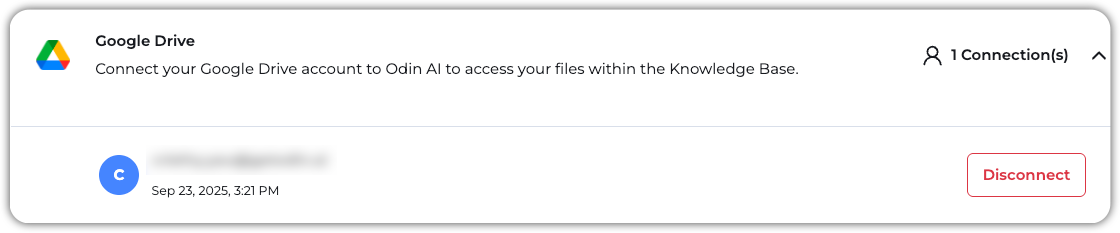 You're now ready to sync files from Google Drive into the Knowledge Base!
## Google ドライブからデータを追加する
In your EKB project, navigate to **Knowledge Base** > **KB Data**.
Click **+ New** and select **URL Upload**.
In the popup that appears, paste the URL of the Google Drive file or folder you want to add to the Knowledge Base and click **Add URL**.
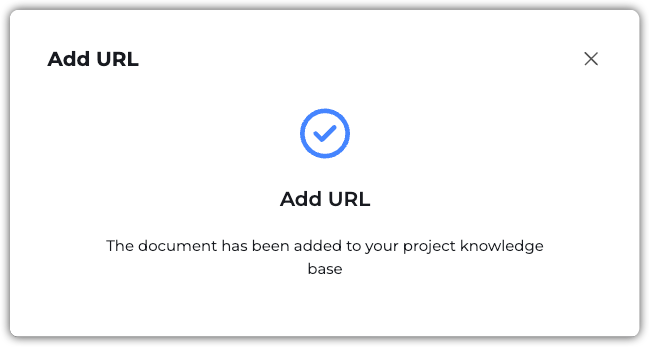
Once files are added, you'll receive the following confirmation message:
You're now ready to sync files from Google Drive into the Knowledge Base!
## Google ドライブからデータを追加する
In your EKB project, navigate to **Knowledge Base** > **KB Data**.
Click **+ New** and select **URL Upload**.
In the popup that appears, paste the URL of the Google Drive file or folder you want to add to the Knowledge Base and click **Add URL**.
Once files are added, you'll receive the following confirmation message: