> ## Documentation Index
> Fetch the complete documentation index at: https://ai-kb.automationanywhere.com/llms.txt
> Use this file to discover all available pages before exploring further.
# Integre el Chatbot de EKB a Google Workspace
> Lleve EKB a Google Chat
Integrar el Chatbot de EKB con Google Workspace permite un acceso fluido a su asistente de IA directamente dentro de Google Chat. Esta integración permite a su equipo interactuar con EKB en tiempo real, ya sea respondiendo preguntas, automatizando workflows u operaciones diarias, todo sin salir de su espacio de trabajo.
Este artículo lo guía a través de la instalación y configuración del Chatbot de EKB en Google Workspace, permitiendo a su equipo colaborar de manera más eficiente y optimizar las tareas diarias.
## Requisitos Previos
* Su proyecto es **Público**
* Usted tiene:
* Pre-configurado la apariencia de su chatbot de EKB
* el `project id` de su Proyecto a la mano
* un conjunto de **API Key + Secret** para configurar la aplicación de EKB en Google Workspace
## Instalar EKB en Google Workspace
1. En su proyecto de EKB, navegue a **Public Chatbot**.
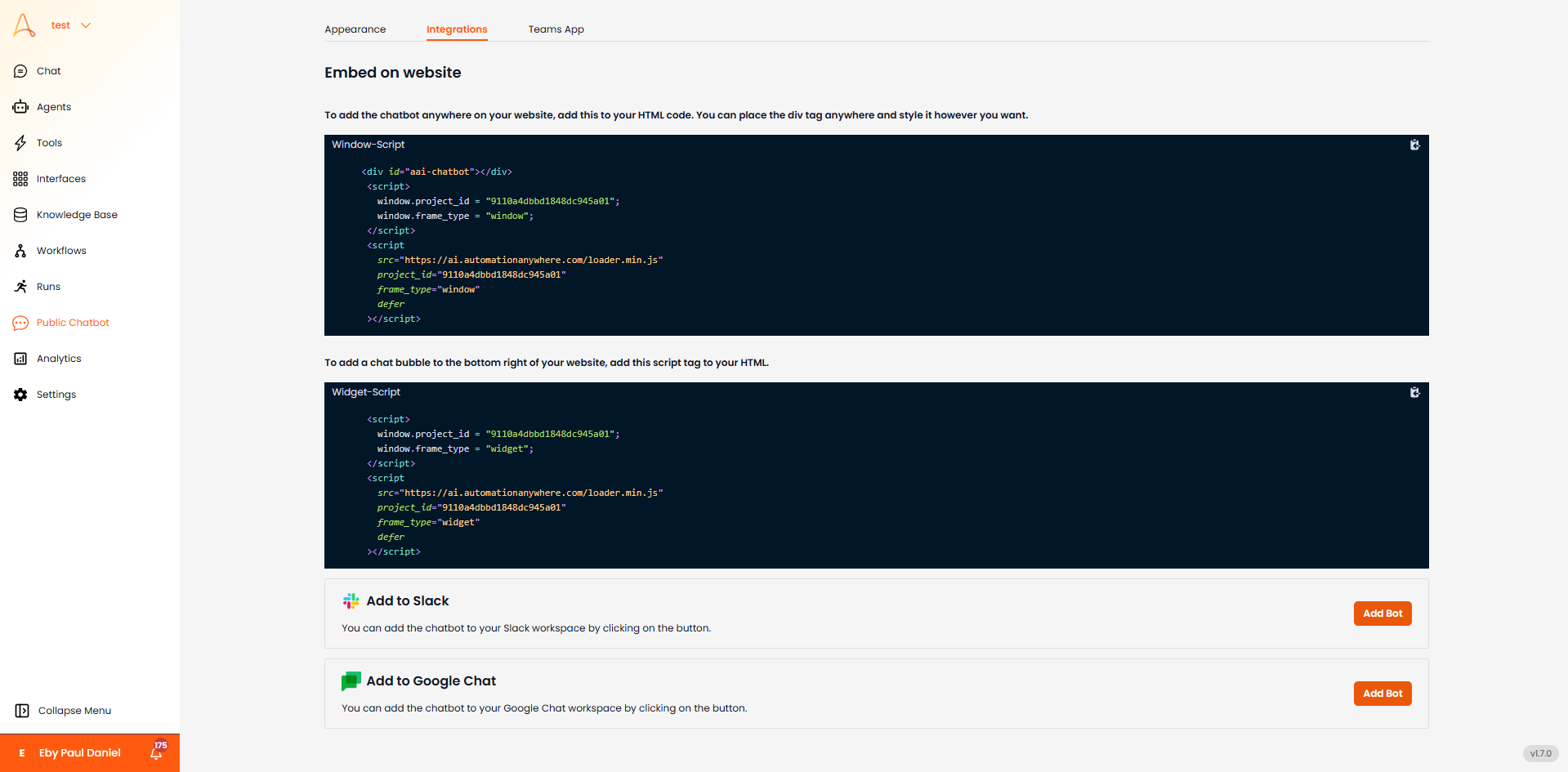 2. Vaya a la pestaña **Integrations**.
3. Desplácese hacia abajo a la sección **Add to Google Chat** y haga clic en **Add Bot**. Será redirigido al Marketplace de Google Workspace.
2. Vaya a la pestaña **Integrations**.
3. Desplácese hacia abajo a la sección **Add to Google Chat** y haga clic en **Add Bot**. Será redirigido al Marketplace de Google Workspace.
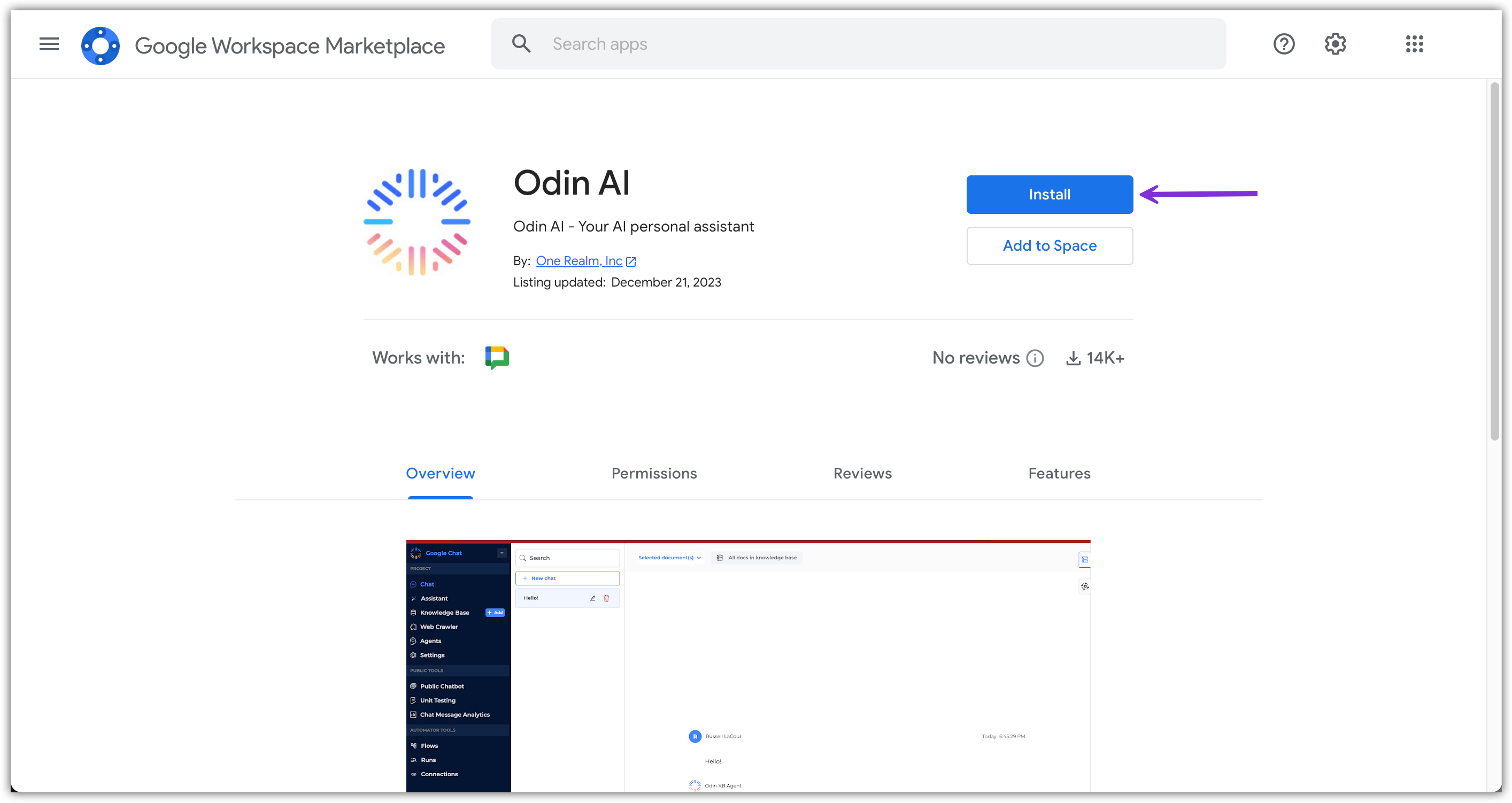
 4. En el Marketplace de Google Workspace, haga clic en **Install**.
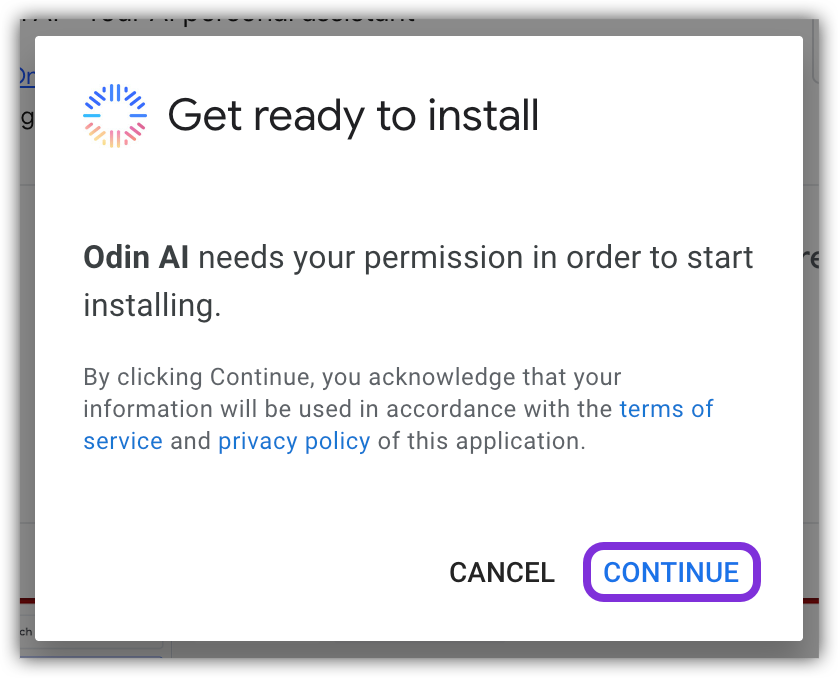
 5. En la ventana emergente que aparece, haga clic en **Continue** para comenzar la instalación.
 6. Aparece otra ventana emergente, que le solicita iniciar sesión en su cuenta de Google Workspace.
7. Después de iniciar sesión, se le pedirá otorgar permisos a One Realm Inc. para acceder a información específica.
8. Una vez que se otorguen todos los permisos requeridos, EKB se instalará en su Google Workspace. Haga clic en **Done** para cerrar la ventana emergente.
6. Aparece otra ventana emergente, que le solicita iniciar sesión en su cuenta de Google Workspace.
7. Después de iniciar sesión, se le pedirá otorgar permisos a One Realm Inc. para acceder a información específica.
8. Una vez que se otorguen todos los permisos requeridos, EKB se instalará en su Google Workspace. Haga clic en **Done** para cerrar la ventana emergente.
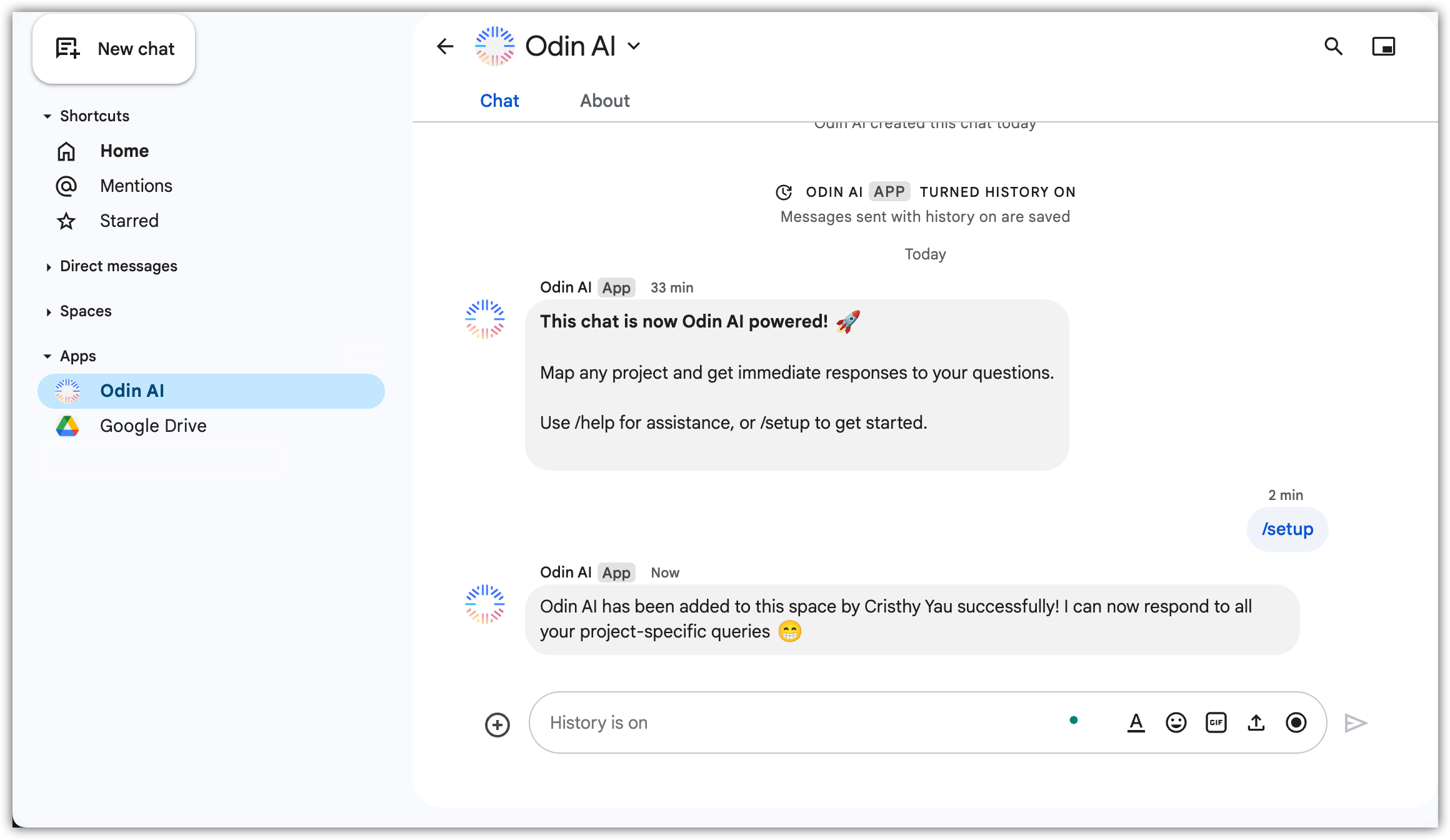
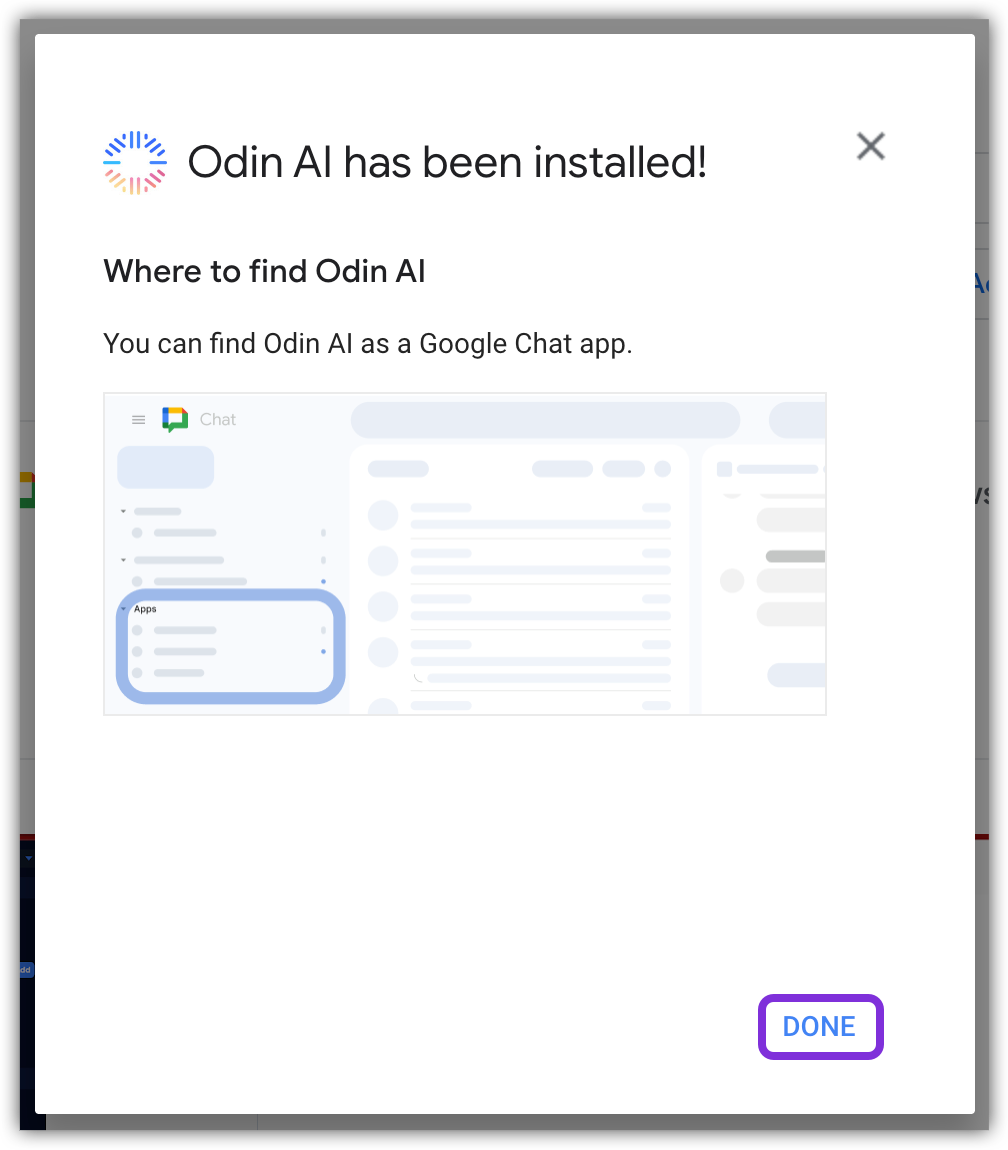 9. Navegue a **Google Chat** y ubique la aplicación *EKB* en la sección **Apps**.
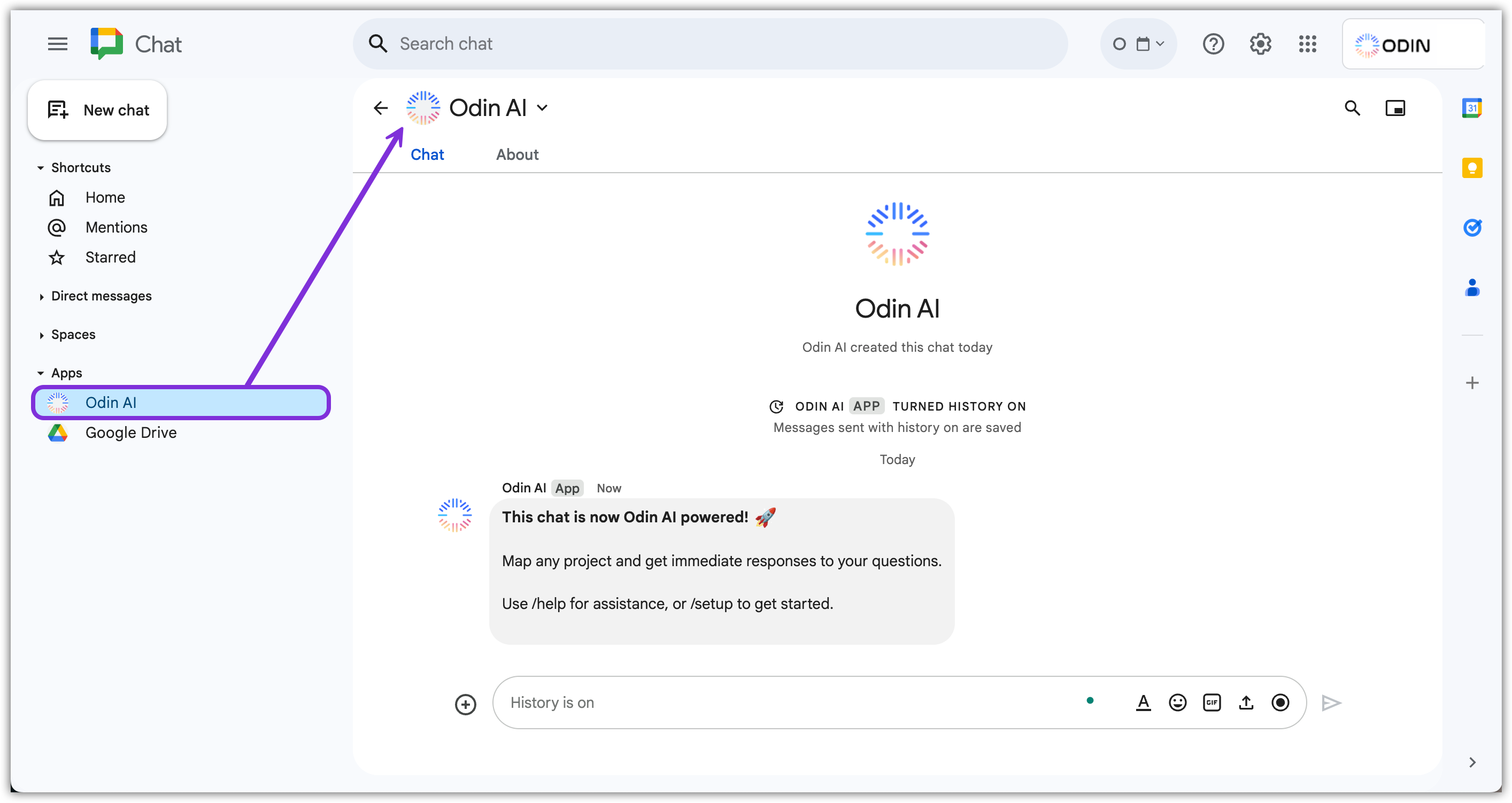 Now that the EKB app is installed in your Google Workspace, you need to
set it up to begin using it!
## Configurar EKB en Google Chat
1. Within the EKB chat in Google Chat, type `/setup`, click the option that appears above the text box, and click **Send** . This command prompts the EKB app setup window to enter project details.
Now that the EKB app is installed in your Google Workspace, you need to
set it up to begin using it!
## Configurar EKB en Google Chat
1. Within the EKB chat in Google Chat, type `/setup`, click the option that appears above the text box, and click **Send** . This command prompts the EKB app setup window to enter project details.
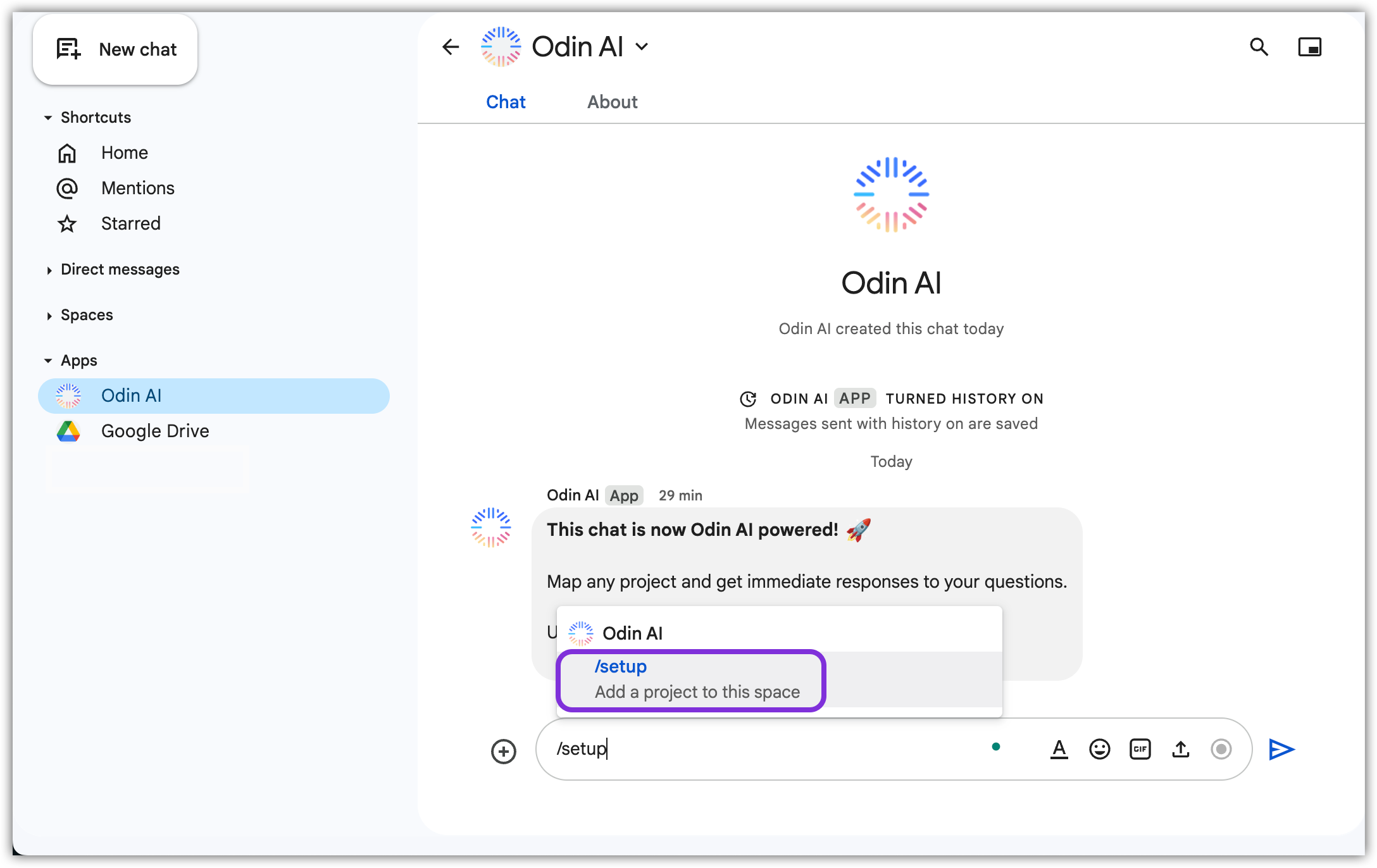 2. En la ventana emergente que aparece, ingrese la siguiente información y haga clic en **Submit**:
 a. Project ID
b. API Key
c. API Secret
3. ¡La aplicación de EKB ahora está lista para usar dentro de Google Chat!
a. Project ID
b. API Key
c. API Secret
3. ¡La aplicación de EKB ahora está lista para usar dentro de Google Chat!