> ## Documentation Index
> Fetch the complete documentation index at: https://ai-kb.automationanywhere.com/llms.txt
> Use this file to discover all available pages before exploring further.
# Imágenes y elementos incrustados
> Agregue imágenes, videos y otros elementos HTML
## Imagen
### Usando Markdown
La [sintaxis de markdown](https://www.markdownguide.org/basic-syntax/#images) le permite agregar imágenes usando el siguiente código
```md theme={null}

```
Tenga en cuenta que el tamaño del archivo de imagen debe ser menor a 5MB. De lo contrario, recomendamos alojar en un servicio como [Cloudinary](https://cloudinary.com/) o [S3](https://aws.amazon.com/s3/). Luego puede usar esa URL y embeber.
### Usando elementos incrustados
Para obtener más personalización con imágenes, también puede usar [elementos incrustados](/writing-content/embed) para agregar imágenes
```html theme={null}
```
## Elementos Incrustados y HTML
Mintlify soporta [etiquetas HTML en Markdown](https://www.markdownguide.org/basic-syntax/#html). Esto es útil si prefiere etiquetas HTML a la sintaxis de Markdown, y le permite crear documentación con flexibilidad infinita.
### iFrames
Carga otra página HTML dentro del documento. Más comúnmente usado para embeber videos.
```html theme={null}
```
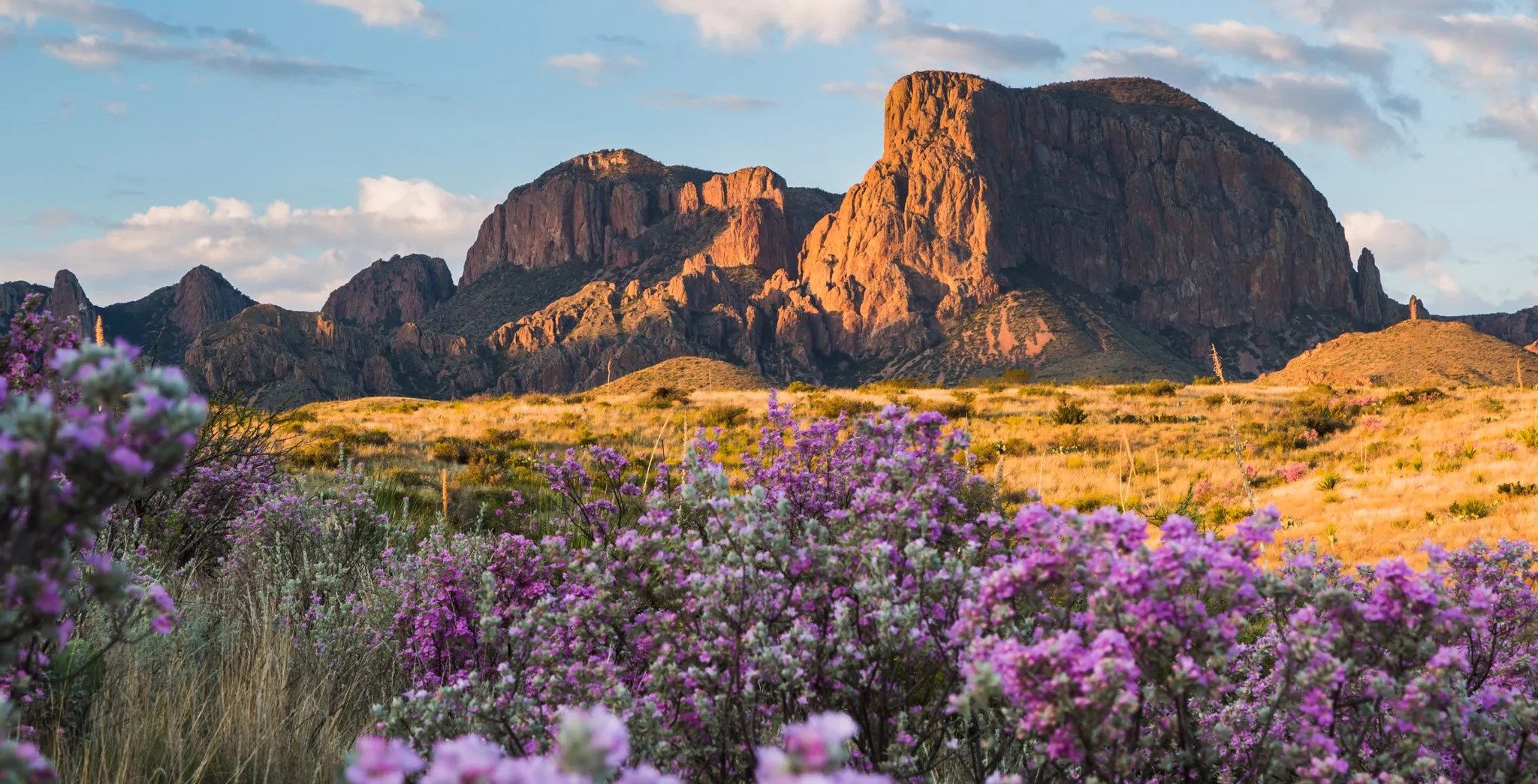 ## Imagen
### Usando Markdown
La [sintaxis de markdown](https://www.markdownguide.org/basic-syntax/#images) le permite agregar imágenes usando el siguiente código
```md theme={null}

```
Tenga en cuenta que el tamaño del archivo de imagen debe ser menor a 5MB. De lo contrario, recomendamos alojar en un servicio como [Cloudinary](https://cloudinary.com/) o [S3](https://aws.amazon.com/s3/). Luego puede usar esa URL y embeber.
### Usando elementos incrustados
Para obtener más personalización con imágenes, también puede usar [elementos incrustados](/writing-content/embed) para agregar imágenes
```html theme={null}
## Imagen
### Usando Markdown
La [sintaxis de markdown](https://www.markdownguide.org/basic-syntax/#images) le permite agregar imágenes usando el siguiente código
```md theme={null}

```
Tenga en cuenta que el tamaño del archivo de imagen debe ser menor a 5MB. De lo contrario, recomendamos alojar en un servicio como [Cloudinary](https://cloudinary.com/) o [S3](https://aws.amazon.com/s3/). Luego puede usar esa URL y embeber.
### Usando elementos incrustados
Para obtener más personalización con imágenes, también puede usar [elementos incrustados](/writing-content/embed) para agregar imágenes
```html theme={null}
 ```
## Elementos Incrustados y HTML
```
## Elementos Incrustados y HTML